

QLeave is Queensland’s portable long service leave authority. It helps eligible workers maintain their service records and access long service leave benefits when they move between employers in covered industries. Through its online system, registered users can manage account information, check service history and complete relevant online tasks.
For workers, employers and other eligible users, understanding the QLeave login process can make it easier to access records, manage registrations and submit requests. The services available through the portal depend on the user’s role and the relevant industry scheme, so using the correct access route is important.
This guide covers the QLeave login process, online registration, first-time access, password recovery and the steps to take if an existing QLeave registration cannot be found. Visit Homepage.
What Is QLeave and How Does the Online Portal Work?
QLeave is connected with Queensland’s portable long service leave arrangements. Its services apply to eligible workers and employers across covered industries, including building and construction, contract cleaning and community services.
The QLeave online portal brings several account-related activities together in one place. Depending on your registration and role, you may be able to review service information, update personal details, manage registrations, submit claims or complete other online requirements.
What Can You Do After QLeave Login?
The options available after signing in depend on your account type and registration. Eligible workers may be able to use online services to:
Employers and other authorised users have different functions available to them. These can include worker-related administration and submitting online returns. QLeave uses online services for a range of claims, returns and other requirements.
Who Uses the QLeave Online Services?
QLeave online services are used by several groups depending on the applicable scheme. These may include:
The functions you see after QLeave login depend on the account and scheme connected to your profile.
QLeave Login Requirements Before You Start
Before signing in, it is useful to have the information associated with your QLeave account ready. Having the correct details available can help avoid unnecessary login problems.
For a standard account login, you will generally need your registered email address and password. Users accessing an existing QLeave registration through updated online services may also need to complete additional verification.
Information You May Need
Depending on your situation, keep these details available:
If you cannot remember your password, you generally do not need to register for an entirely new account. QLeave provides an online password recovery process.
How to Complete QLeave Login
Once online access has been established, the standard QLeave login process involves entering your registered credentials through the official online services area.
Step 1: Open the QLeave Online Services Area
Open the official QLeave online services area and choose the login option that applies to your account.
Before entering personal information, check that you are on the genuine QLeave website. Avoid third-party websites that request your QLeave credentials or other sensitive information.
Step 2: Enter Your Registered Details
Enter the email address connected to your QLeave online account. Then enter your password in the required field.
Check the details carefully before continuing, especially if your browser has automatically filled an older email address or password.
Step 3: Select Sign In
After confirming that your details are correct, select Sign in. If your credentials are accepted, you should be taken to your QLeave online services area.
The dashboard and available functions will vary according to your QLeave registration and user role.
Step 4: Check Your Account Information
Once signed in, review the account information and services available to you. Workers may see service records and related functions, while employers and other users may have different options.
If an expected registration or service history is not visible, avoid immediately creating another registration. You may instead need to request access to an existing QLeave registration.
First-Time QLeave Online Access
People using QLeave online services for the first time may need to complete an account setup process before they can use regular QLeave login. This can be especially relevant if you already have a QLeave record but have never created access through the updated online services.
How to Set Up Your Online Access
The online access process includes email verification. Start by selecting the sign-up option and entering your email address.
A verification code is then sent to the email address you provide. QLeave notes that verification emails may be sent by Microsoft on behalf of QLeave, so check your junk or spam folder if the message is not visible in your main inbox.
After verifying your email address, you can create a password and enter the personal information requested during setup.
What If You Already Have a QLeave Registration?
An existing QLeave registration does not necessarily mean you need to create a completely new worker record.
If you already have a membership but cannot access it through your online profile, QLeave provides a process for requesting access to an existing registration. This allows users to identify the existing record and provide supporting documentation when required.
Keeping the existing registration connected to your online profile is important because unnecessary duplicate registrations can make it harder to manage and review your service history.
Requesting Access to an Existing QLeave Registration
In some cases, the issue is not with QLeave login. You may be able to sign in successfully but still be unable to see an existing worker membership or registration.
When this happens, QLeave provides an access request process that can be used to connect the appropriate existing registration with your online access.
When Should You Request Existing Registration Access?
This option may be suitable if:
After signing in to online services, you can select the option to request access to an existing registration.
What Information May Be Required?
The information requested can depend on the type of access request. QLeave may require identifying details connected with the registration, such as an email address, QLeave number or ABN.
For an individual membership, supporting identification such as a driver’s licence or passport may be required. Business-related requests can also require documentation showing the appropriate authority.
QLeave advises that access requests may take up to five business days to process. After submitting a request, you can check its status through the My recent forms section of online services.
QLeave Login for Workers
Workers are an important group of users of QLeave online services. The portal can help eligible workers monitor information associated with their portable long service leave.
The exact services available depend on the relevant industry scheme. QLeave provides worker information for areas including building and construction, contract cleaning and community services.
Checking Your Service Record
After QLeave login, eligible workers can review information connected with their registration and service history.
Regularly checking your service record can help identify missing or incorrect employment information. This matters because service history is used when determining information relevant to long service leave entitlements.
If you believe employment details are missing, QLeave provides processes for reporting missing service. Creating another account is not the appropriate solution simply because some service information is not showing.
Making a Long Service Leave Claim
Eligible workers may be able to submit a long service leave claim through QLeave online services.
The requirements depend on the applicable scheme and type of claim. Current online claim guidance allows eligible workers to begin the relevant claim process after signing in and selecting the appropriate claim option.
Before submitting a claim, check your available service information and make sure your contact details are accurate.
QLeave Login for Employers
QLeave online services also provide functions for employers. Depending on the industry scheme, employers may use the portal to manage worker information, submit returns and complete other responsibilities.
For example, QLeave’s building and construction online services allow employers to submit worker service returns and manage information connected with workers.
Employer Account Access
Employers should sign in using the credentials linked to their QLeave online services account. If the password has been forgotten, use the standard password recovery process instead of repeatedly entering incorrect details.
Employers should also confirm that they are working with the correct business or registration when completing online tasks. Checking this information can help prevent mistakes in worker records and submitted information.
QLeave Password Reset and Login Troubleshooting
Accessing a QLeave account is usually simple once online access has been set up. However, users can sometimes run into problems such as an unrecognised email address, a delayed verification code, or an existing registration that is not connected to their online profile.
Identifying the type of problem first can save time and prevent repeated unsuccessful login attempts. The following sections cover common QLeave login and online account access issues.
How to Reset Your QLeave Password
Forgetting your password does not normally mean that you need to create a new account. QLeave provides an online recovery process using the email address registered to your account and a verification code.
Follow the Password Recovery Process
- Open the QLeave Online Services login area.
- Select Forgot your password?
- Enter the email address linked to your account.
- Select Send verification code.
- Check your email for the verification message.
- Enter the verification code in the required field.
- Select Verify code.
- Follow the instructions shown on the password reset screen.
- Create and confirm your new password.
- Return to the login page and sign in with your updated password.
Choose a password that is easy for you to remember but difficult for others to guess. It is also better to use a different password for important accounts instead of reusing the same one across multiple services.
What If the Password Reset Email Does Not Arrive?
A verification email may take a little time to reach your inbox. Before requesting another code, check your Spam, Junk or Clutter folders.
Also confirm that the email address entered during the recovery process is the same address associated with your QLeave online account. If you enter the wrong address, the required verification message will not reach you.
QLeave Verification Code Problems
Email verification is an important part of creating and recovering QLeave online access. The verification message may be sent by Microsoft on behalf of QLeave, so the sender name may not look exactly as expected.
Verification Code Has Not Arrived
If the verification code has not appeared, try these checks:
If you have requested several codes, use the latest verification code rather than an earlier one.
The Verification Code Is Not Working
First, check that the code has been entered exactly as provided. Make sure there are no accidental spaces before or after the code.
If you requested more than one code, an earlier code may no longer be valid for the current verification attempt. Requesting a fresh code and entering the newest one can help resolve the problem.
What to Do When Your Email Address Is Not Recognised
An unrecognised email address can be confusing, especially when you believe it should already be connected with your QLeave record.
This does not necessarily mean that your worker record has disappeared. Your historical QLeave registration and your online login profile may be separate, particularly when an existing registration has not yet been linked to your online access.
Check Your Original Email Address
Consider which email address was originally associated with your QLeave record. If you have changed email addresses since registering, the address you are currently using may not be the one connected to your existing profile.
Avoid creating several accounts simply because your first login attempt does not work.
Request Access to an Existing Registration
If you already have a QLeave registration but cannot see it after setting up online access, use the Request access to an existing registration option where applicable.
This process can help connect existing worker information with your online account.
You may need to provide information that identifies the existing registration, along with supporting identification where required. QLeave advises that some access requests can take up to five business days to process.
Your QLeave Login Works but Your Worker Record Is Missing
Successfully completing QLeave login does not always mean that every previous registration will immediately appear on your dashboard.
If your worker history is missing, the issue may be related to account linking rather than your password or email address.
Check Whether Your Registration Needs Linking
After signing in, review the available account options and look for the function that allows you to request access to an existing registration.
You may be asked for information such as your worker number or other identifying details. Supporting identification may also be required during the verification process.
After submitting the request, use My recent forms to monitor its progress.
Allow Time for Processing
An existing-registration access request is different from an immediate password reset. QLeave may need to review the information provided before connecting the existing registration to your online profile.
Repeatedly submitting the same request is unlikely to speed up the process. Keep track of your submission and monitor its status through the online services area.
How to Check QLeave Service Information
One of the useful functions of QLeave login is being able to review the service information recorded against your registration.
Portable long service leave depends on eligible service being recorded under the relevant QLeave scheme. Workers should therefore check their employment and service information and report anything that appears incomplete or incorrect.
Review Your Recorded Details
Once you have access to your account, review the information shown and check that your personal details are current.
Pay particular attention to information related to your employment and service history. If something appears incorrect or incomplete, follow the appropriate QLeave process rather than assuming it will automatically be corrected.
What If Employment History Is Missing?
Missing service information can be significant because recorded employment history forms part of the information used when managing portable long service leave.
If an employer or eligible employment period is missing, check the relevant QLeave guidance for reporting missing service. Keep useful employment details and supporting records available in case they are needed to explain the issue.
Step-by-Step Guide to Register for QLeave
Step 1: Visit the QLeave Website
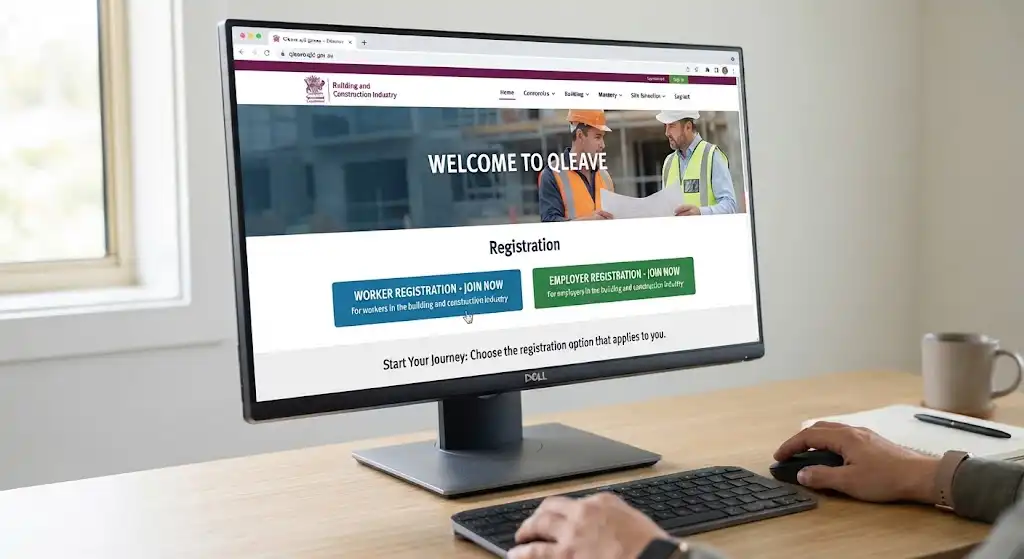
Start by going to the official QLeave website and locating the registration section.
Choose the registration option that applies to you. Workers and employers follow different pathways, so selecting the correct option at the beginning helps ensure that you are directed to the appropriate process.
Step 2: Choose the Appropriate Account Type

The registration system provides different pathways depending on the user’s role.
These may include:
Selecting the correct account category is important because it determines which registration process and forms are presented to you.
Step 3: Enter Your Personal or Business Information

Enter all requested information carefully and make sure the details match your employment or business records.
Workers should pay particular attention to their employment information, while employers should check their business, payroll and contact details before continuing.
Providing incorrect or incomplete information may cause delays in processing and can create problems when service information needs to be reported or reviewed later.
Step 4: Submit Registration Information
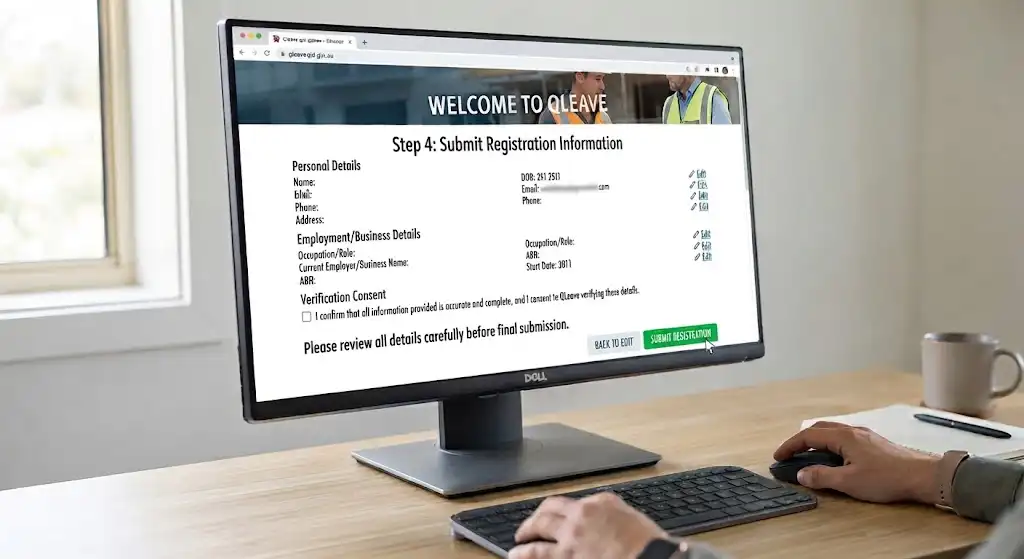
Before submitting the registration, review each section to make sure the information provided is accurate.
Once submitted, QLeave may need to verify the information before the account or registration is fully established.
Keep any confirmation email, registration reference or other confirmation information provided after submission. These details may be useful if you need to follow up on your registration.
Step 5: Access Your Online Services Account
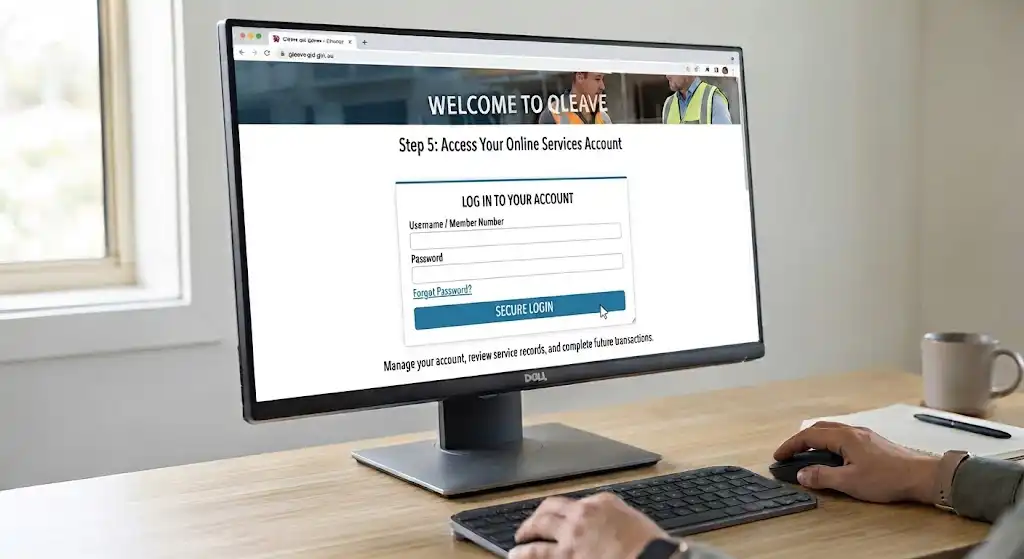
After the registration process has been completed, users can access their relevant QLeave Online Services account.
The online account can be used to manage account information, review service records and complete future transactions or activities associated with the user’s QLeave membership or employer responsibilities.
Checking a Submitted QLeave Request
After submitting an online form or access request, you may want to confirm whether QLeave has received it and see what stage it has reached.
The online services area provides a My recent forms section where users can review submitted requests and monitor their processing status.
Understanding Form Status
Submitted requests can move through different stages while they are being reviewed. For instance, a form may show as processing before it is eventually marked completed.
If your request is still under review, allow the relevant processing time before taking further action. When QLeave requests additional information, provide it through the appropriate process to help avoid unnecessary delays.
QLeave Login Troubleshooting Checklist
If you are having trouble accessing your account, work through this checklist before contacting QLeave:
These checks can help establish whether the problem involves your credentials, email verification, account linking or an existing registration.
Common QLeave Login Errors and Their Solutions
| Login issue | What it may mean | Recommended action |
|---|---|---|
| Email not recognised | The email may not be linked to your online profile | Check your registered email or use the existing-registration access process |
| Password rejected | The password may be incorrect or outdated | Use the password reset option |
| Verification code missing | Email delivery may be delayed or filtered | Check Junk/Spam and request a new code |
| Code rejected | The code may be incorrect or outdated | Request and enter the newest code |
| Worker record missing | Your online profile may not be connected to your existing registration | Request access to the existing registration |
| Access request pending | QLeave may still be reviewing your information | Monitor My recent forms |
| Cannot complete online task | The account or registration may need further action | Review the relevant QLeave instructions or contact support |
QLeave Login for Students and Casual Workers
Students who work in an eligible QLeave industry may also use the online services system. However, being a student alone does not determine eligibility. The relevant industry and employment circumstances must meet the applicable requirements.
For example, a student working casually or part-time in a covered industry may accumulate eligible service where the relevant QLeave conditions are satisfied.
Keep Your Account Details Current
Students may change jobs, email addresses or contact details while moving between study and employment. Keeping QLeave information current can make future account access and service-record management easier.
If you already have a QLeave registration, use the existing account whenever possible instead of creating another profile.
When Should You Contact QLeave?
Many routine QLeave login problems can be handled through online troubleshooting, including forgotten passwords and missing verification emails. Some situations, however, may require direct assistance from QLeave.
Consider contacting QLeave if:
QLeave’s published contact information includes 1300 QLEAVE (1300 753 283) for assistance.
Protecting Your QLeave Account
Your QLeave account can contain personal and employment-related information, making basic account security important.
Never share your password or verification code with another person. Be careful with emails or messages that ask you to enter your credentials through an unfamiliar website.
When accessing QLeave login, make sure you are using the official QLeave online service rather than a third-party website. Keeping your browser updated and using a unique password can also help reduce common account-security risks.
QLeave Online Services, Claims and Eligibility
QLeave online services offer more than simple account login. Once your QLeave login is active, you can use the online portal to manage your registration, check recorded service information, submit relevant forms and handle eligible long service leave matters.
The services available to you depend on your role and the QLeave scheme that applies to your employment. For this reason, it is important to use the options shown within your own account rather than assuming every QLeave profile provides exactly the same services.
What Services Are Available Through QLeave?
The QLeave online portal brings a range of account and registration tasks together in one place. Depending on your eligibility and registration, these services may include viewing service records, managing personal details, submitting forms and handling long service leave claims.
Worker Services
Workers can use their QLeave account to manage information relating to portable long service leave. Depending on their registration, available online services may include:
It is a good idea to review your information regularly, especially if you have worked for several employers covered by the relevant QLeave scheme.
Employer Services
Employers can also use QLeave online services to manage relevant business responsibilities. These may include submitting worker service returns and maintaining information connected with their QLeave obligations.
The exact process can vary depending on the industry and employer registration type. Employers should therefore follow the instructions provided for their particular QLeave account.
Who May Be Eligible for QLeave?
QLeave provides portable long service leave schemes for specific industries in Queensland. Eligibility is based on the relevant scheme and your employment circumstances, rather than simply being determined by living or working in Queensland.
Covered industries include building and construction, contract cleaning and community services.
Can Students Use QLeave?
Students may be eligible for QLeave when they work in a covered industry and meet the requirements of the applicable scheme.
Being employed casually or part-time does not automatically prevent a student from building eligible service. The key consideration is whether the employment is covered by a QLeave scheme and meets its eligibility conditions.
If a student believes they should have a QLeave record, they should check their registration and recorded service rather than assuming that student status makes them ineligible.
Understanding Portable Long Service Leave
Portable long service leave works differently from the traditional system where an employee builds up leave while staying with one employer for many years.
Under a portable scheme, eligible service may be recognised across participating employers within the relevant industry. This can be particularly valuable in industries where workers change employers while continuing to work in the same field.
Why Your QLeave Record Matters
Your QLeave registration provides an important record of your eligible service. Keeping this information accurate can make it easier to manage your entitlement when you become eligible to make a claim.
If you discover that a period of employment is missing from your record, it is better to investigate the issue promptly instead of waiting until you need to claim long service leave.
How to Prepare for a QLeave Long Service Leave Claim
If you are getting closer to becoming eligible for portable long service leave, start by checking the service information shown in your QLeave account.
Review Your Service Information
Sign in to your QLeave account and carefully review your recorded service. Check for missing employers, incorrect employment periods or any other information that does not match your employment history.
If you identify an issue, follow the appropriate QLeave process to report and resolve it.
Keep Supporting Information
Keep employment-related documents that could help confirm your service history. Depending on your circumstances, these may include employment records, payslips or other relevant documents.
There is no need to submit documents that QLeave has not requested. Always follow the specific requirements shown for your claim or request.
Check Your Contact Details
Ensure your email address, mobile number and other personal details are current. Keeping your contact information accurate can help QLeave communicate with you about your account, requests and submitted forms.
Submitting a QLeave Claim Online
Eligible workers can use QLeave online services to begin the process of claiming portable long service leave.
The exact requirements may differ depending on the QLeave scheme that applies to you. The safest approach is to sign in to your account and follow the claim instructions provided for your registration.
Basic Claim Process
A typical online claim process may involve the following steps:
- Access your QLeave online account.
- Review your registration and available service information.
- Select the appropriate long service leave claim option.
- Enter the information requested.
- Upload supporting documents if required.
- Check the information carefully before submitting.
- Submit your claim.
- Monitor the progress of your submitted form.
Before completing your submission, carefully check names, dates, contact details and other information. Providing accurate details from the beginning can help reduce unnecessary follow-up.
How to Monitor a QLeave Submission
Submitting an online form does not always mean the process is finished. If you have submitted an access request, claim or another online form, you may need to check its progress afterwards.
Use My Recent Forms
The My recent forms section can help you monitor forms and requests submitted through QLeave online services.
A request may initially appear as being processed before later changing to a completed status. If QLeave asks for additional information, respond using the appropriate process.
How Long Can an Access Request Take?
For a request to access an existing registration, QLeave advises that processing can take up to five business days.
This is different from resetting a forgotten password, which is an account recovery process. An existing-registration access request may require information to be checked before the registration can be connected with your online profile.
QLeave Login: Mistakes to Avoid
Several simple mistakes can make accessing your QLeave account more difficult than necessary.
Creating a Second Account Too Quickly
If your existing QLeave registration does not appear after logging in, creating another account may not fix the issue. First check whether you need to request access to your existing registration.
Repeatedly Entering the Wrong Password
Continuing to enter an incorrect password can waste time and make account access more difficult. If you cannot remember your password, use the official password recovery process instead.
Ignoring Spam and Junk Folders
Verification emails may sometimes be filtered away from your main inbox. Check your Spam, Junk or Clutter folders before assuming that the verification process has failed.
Using an Old Email Address
If you have changed your email address, make sure you are using the address connected to your QLeave online profile. An old email address may not be recognised by the system.
Frequently Asked Questions About QLeave Login
Final Thoughts
A successful QLeave login gives eligible users access to important online services for managing their QLeave information. One of the most important things to understand is the difference between a normal login problem and an issue involving an existing registration, as each situation may require a different solution.
If you already have a QLeave record, avoid creating unnecessary duplicate registrations. Keep your account details up to date, review your service information regularly and use the appropriate QLeave online processes when you need to update information, request access to an existing registration or submit an eligible long service leave claim.
For workers, including students and casual employees in covered industries, understanding how QLeave login and online services work can make it easier to manage portable long service leave information throughout their working life.
READ MORE:
OnGuard v3 Login 2026: Student Access, Training, Assessments & Safety Modules
OneSchool Queensland (2026): Student Access, Parent Services and School Information
Goodstart Intranet 2026: Staff Login, Employee Tools & Services