

OneSchool is a key part of the digital systems used throughout Queensland state schools. It helps schools manage student information and organise areas including learning data, attendance, assessment details and academic records. For students, parents and caregivers, knowing how OneSchool fits together with other Queensland education services can make routine school administration easier to understand.
Parents and caregivers may encounter one school global when information about their child is being managed by the school, while students may receive school-authorised access to relevant learning and student information. Queensland also provides QParents, a separate parent and caregiver service that allows authorised users to view selected information recorded by their child’s school.This guide covers the purpose of OneSchool, the way student access generally works, how parent access is different, and the key points users should understand before trying to sign in. Visit Homepage
What Is OneSchool in Queensland?
OneSchool is a central school management system used within Queensland state education. It brings together a range of information that schools need to manage students, learning activities and everyday administrative processes.
It is more than a basic website for viewing a timetable or checking school information. one school global forms part of the wider information environment used by Queensland state schools, allowing authorised school staff to manage student records, academic information, attendance and other education-related activities.
For families, one of the most important distinctions is the difference between OneSchool and QParents. School staff use one school globalas part of their administrative and educational responsibilities, while parents and caregivers can use QParents to access selected information that has been made available to them about their child.
OneSchool and QParents: What Is the Difference?
OneSchool and QParents are related to the wider Queensland school information environment, but they have different purposes and audiences.
one school global is mainly a school management environment used by Queensland Department of Education staff. It supports the handling of student information, school records and a range of school processes. Authorised students may also receive access to relevant services through school-provided credentials.
QParents is intended for parents and caregivers. It provides a family-facing way to view selected information about a child that has been recorded and made available by the school.
This difference is important when dealing with account or login issues. A parent’s QParents credentials should not automatically be treated as the same thing as a student’s school network login. The account requirements, authentication process and information available through each service can be different.
Who Can Use OneSchool?
OneSchool access is determined by the person’s role within the Queensland state school environment. Different users therefore have different access arrangements and permissions.
Students
Students may be provided with access through their school’s Education Queensland network account. School-issued credentials can be used for authorised student services and learning-related resources.
What a student can see or use depends on the permissions provided and the way the school’s systems have been configured. Students should use the username and password supplied by their school rather than attempting to create an independent one school globalaccount.
Parents and Caregivers
Parents and caregivers generally use QParents when they want family-facing access to information relating to a child’s schooling.
In some cases, the parent or caregiver may need an invitation from the child’s school before the student can be linked to the parent’s account. Account creation can also involve identity verification so that access is provided to the appropriate person.
School Staff
Teachers and other authorised Queensland Department of Education employees use one school globalas part of their professional responsibilities. Their access is managed through departmental systems, roles and permissions rather than through ordinary public registration.
OneSchool Student Access Explained
Students who have been authorised to use relevant school services normally sign in with their Education Queensland account information. These school credentials are separate from a student’s personal email account.
Before trying to access a service, students should have the following available:
One frequent source of confusion is the username format. A student may try to enter an email-style address when the school system instead requires the network username that was assigned to them. If the school has supplied specific instructions for signing in, those instructions should be followed first.
Basic Student Login Process
The exact sign-in page or screen can vary according to the school’s setup, but the general process is usually similar.
Step 1: Open the student access service or portal provided by your Queensland state school.
Step 2: Enter the Education Queensland username issued to you by the school.
Step 3: Carefully enter your current school network password. Remember that passwords are normally case-sensitive, so check capital letters, lower-case letters and other characters.
Step 4: Read any conditions of use or other information shown on the sign-in screen and accept them if the system requires you to do so.
Step 5: Select the sign-in option and allow the student service time to load.
If the system does not accept the credentials, it is better not to keep entering guessed passwords or usernames. First check that the username has been entered in the format supplied by the school. If the problem remains, contact the school or its nominated IT support contact for assistance.
What Information Can Students Access?
Student access can provide information associated with school and learning activities. The exact information available is dependent on the student’s permissions and the way services have been implemented at the school.
Depending on those arrangements, student access may include areas such as:
Students should not assume that every Queensland state school provides exactly the same features or information through its digital services. Schools can configure systems and permissions according to their operational requirements, so the services and information available to one student may not be identical to those available elsewhere.
Why OneSchool Matters to Queensland Schools
Using a central information system gives schools a structured environment for managing student information and supporting everyday school administration. It can help authorised staff maintain organised records and manage information across different areas of school operations.
For students, school-provided digital access can make relevant learning and educational information available through authorised systems. For parents and caregivers, Queensland’s wider digital education environment includes services such as QParents, which provides a way to interact with selected information supplied by the school.
The main point to understand is that OneSchool is part of a broader Queensland education information system, rather than simply being a standalone website for students.
OneSchool vs QParents at a Glance
| Area | OneSchool | QParents |
|---|---|---|
| Main audience | School staff and authorised students | Parents and caregivers |
| Main purpose | School and student information management | Family access to selected student information |
| Account type | Education Queensland school credentials or authorised staff access | Parent/caregiver account |
| Registration | Normally managed through school access arrangements | Parent account setup and school invitation |
| Student information | Used as part of the school’s central system | Displays information made available to the parent |
| Support | School or departmental support channels | School and QParents support arrangements |
Knowing which service is intended for each type of user can prevent unnecessary account and login problems. A parent or caregiver looking for information about a child should generally use the parent-facing service, while students should follow the access arrangements and credentials provided by their school.
What to Know Before Using OneSchool
Before signing in to a Queensland school digital service, the first thing to confirm is that you are using the correct account for your role. Students should protect their school credentials, keep their passwords private and avoid sharing them with classmates or anyone else.
Parents and caregivers should also make sure their personal details match the information required during the account verification process. If a child does not appear after a parent has registered, repeatedly creating additional accounts may not solve the problem. The school may need to check or update the relevant connection.
The most reliable approach is to use the account that has been provided for your role, follow the instructions supplied by the school, and contact the appropriate school or service support team if access continues to fail.
How Parents Can Set Up QParents Access
For parents and caregivers, QParents acts as the main family-facing service for accessing selected information held within Queensland state school systems. Through the service, families may be able to view information such as attendance records, timetables, report cards, assessment details, invoices, school events and other student information that the school makes available.
Setting up QParents is separate from the process a student follows to access school systems. Parents will generally need an invitation issued by the child’s school, a working email address, the student’s EQ ID and completion of the required identity verification process before the account can be activated.
What You Need Before Registering
Preparing the required information in advance can help avoid delays during registration. In most situations, parents or caregivers should have the following:
The school normally provides the invitation code needed to begin registration. If an invitation has not arrived, the school should be the first point of contact. Creating several accounts without an invitation is unlikely to resolve the issue and can create unnecessary confusion.
QParents Registration Process
Start Your Parent Account
To begin, access the QParents service provided by the Queensland Department of Education and follow the registration instructions shown during the process. Use the invitation details supplied by your child’s school when requested.
Parents who already have a QParents account may be able to use that existing account instead of registering for another one. Using the existing account where appropriate can help keep the relevant student connections together rather than creating duplicate accounts.
Complete Identity Verification
Identity verification is a required part of the QParents registration process. Current Queensland Department of Education information states that users are asked to verify their identity using 100 points of identification when they first register.
The identity verification service checks the information supplied by the user against relevant issuing records. This process is intended to confirm that the person requesting access is appropriately verified.
If online identity verification cannot be completed successfully, other arrangements may be available through the school. In that situation, contacting the child’s school for guidance is more appropriate than repeatedly attempting the same verification process.
Connect Your Child
Once the identity verification stage has been completed, the parent can request access to information relating to their child.
The system may automatically suggest a student in some situations. When the child is not automatically displayed, QParents provides an option for the parent to add the student by entering the child’s EQ ID. The request is then sent to the school so it can be reviewed and approved.
Wait for School Approval
Finishing the parent account registration does not always mean that the child’s information will appear straight away. The school must approve the request to connect the student before the relevant information becomes available within the parent’s QParents account.
This distinction is useful when troubleshooting access. If the parent’s account is functioning correctly but the child’s details are not visible, it may simply mean that the student-linking request has not yet been approved by the school.
How to Register for OneSchool and QParents
Student OneSchool Registration and Access
Students generally do not create a public one school global account themselves. Access is provided through their Queensland state school and the Education Queensland account issued to the student.
Step 1: Get Your School Account
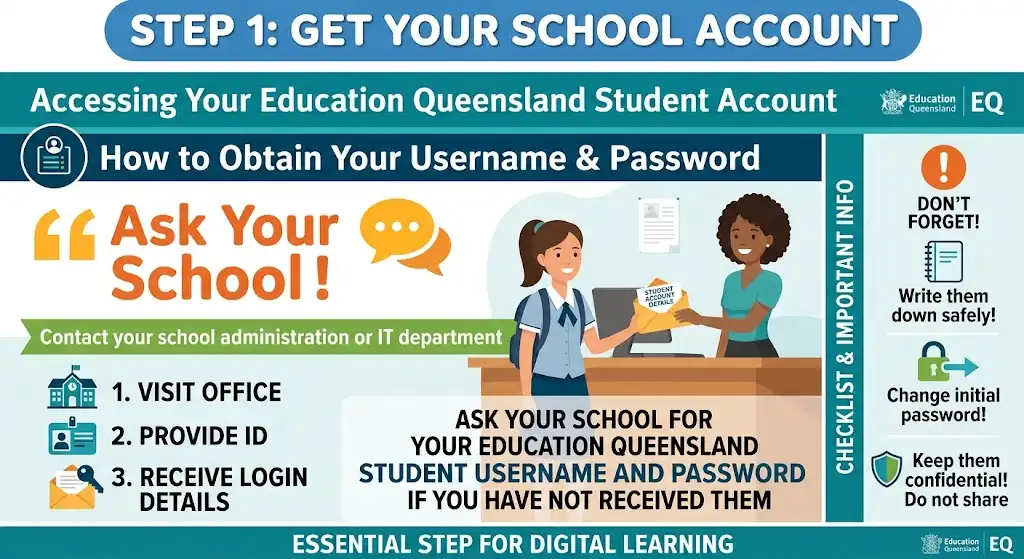
Ask your school for your Education Queensland student username and password if you have not received them.
Step 2: Use the School-Provided Portal
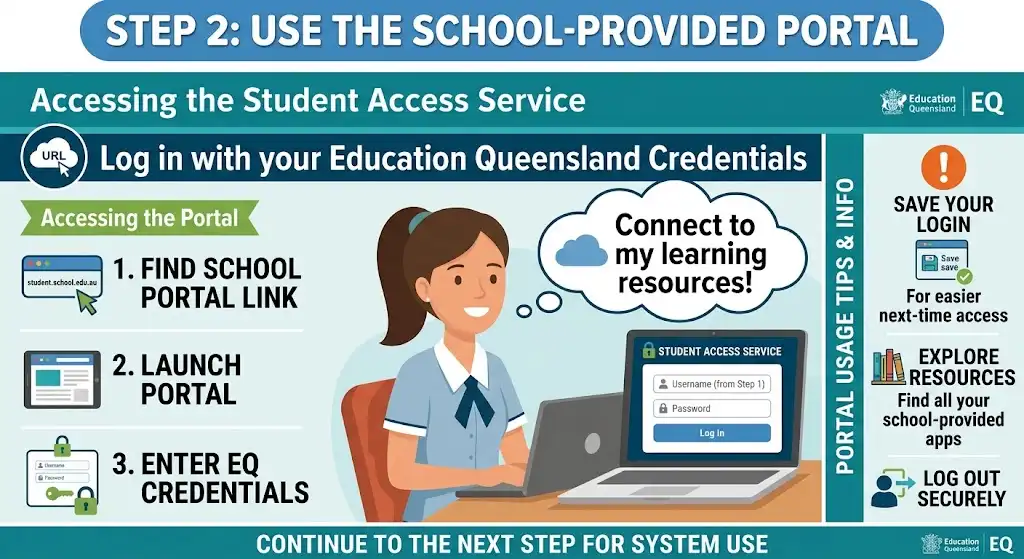
Open the student access service provided by your school and enter your Education Queensland credentials.
Step 3: Sign In
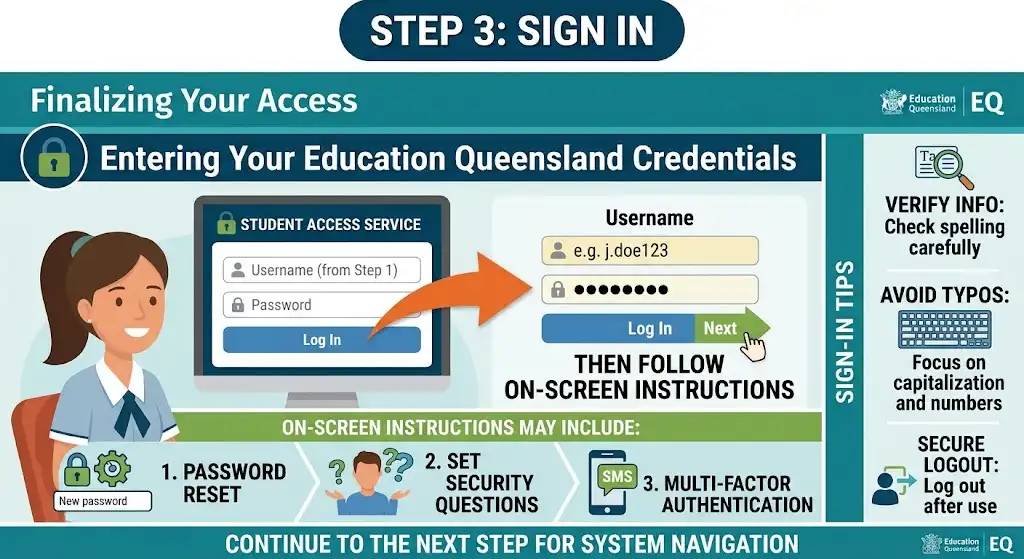
Enter your username and password carefully, then follow the instructions shown on the screen.
Step 4: Access Available Services
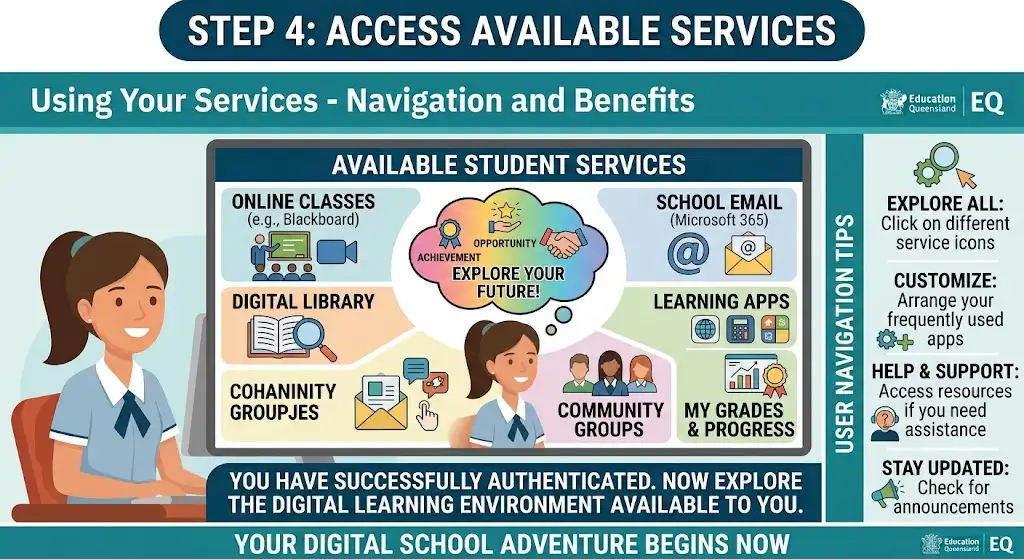
After successful authentication, you can use the student services available to your account and school.
Important: If you cannot access your account, contact your school rather than trying to create a separate public one school global account.
How Parents Register for QParents
Parents and caregivers use QParents to access supported information about their child’s Queensland state schooling. The registration process includes creating an account, verifying your identity and requesting access to your child’s student information.
Step 1: Receive an Invitation
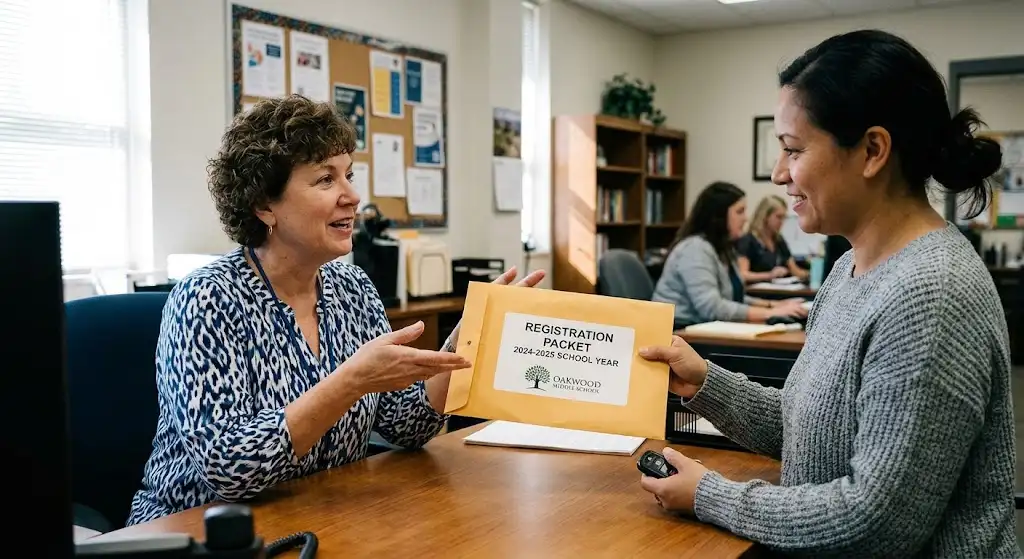
Your child’s school provides the information needed to begin registration. Follow the registration instructions supplied by the school.
Step 2: Create Your QParents Account

Open the QParents registration service and choose the option to create an account if you do not already have one.
Enter your required account information and create your login details.
Step 3: Verify Your Identity

During registration, you will need to complete identity verification. Queensland Department of Education states that the initial verification uses 100 points of identification.
Step 4: Add Your Child

After your identity has been successfully verified, request access to your child.
If your child is not automatically suggested, you can use the EQ ID option to add the student manually.
Step 5: Submit the Student Request

Check the student’s details and select the option to submit the request. The request is then sent to the school for approval.
Step 6: Wait for School Approval

Your child’s information becomes available after the school approves your request. Once approved, you can access QParents through the supported website or mobile application.
What Can Parents Do Through QParents?
QParents brings a range of school-related information and tasks into one family-facing service. The exact information and functions available can depend on what the child’s school supplies through its systems and how those services are being used.
View School and Student Information
Depending on the information provided by the school, parents may be able to access areas including:
Having these details available digitally can reduce the need for parents to contact the school simply to obtain routine information. It also gives families a central place to keep track of different aspects of their child’s schooling.
The information displayed through QParents is not necessarily identical for every student or school. Availability depends on the information supplied through the school’s systems and the relevant access arrangements.
Monitor Attendance
Attendance is one of the useful areas that parents can manage through QParents.
Depending on how the school uses the service, parents may be able to review attendance information and provide details about planned future absences. This offers families a convenient digital method for communicating attendance-related information to the school.
Even when an absence can be reported through QParents, parents should continue to follow any additional attendance instructions issued by their child’s school. Particular situations may require further information, supporting documentation or another school-specific process.
Check Reports and Assessment Information
QParents can give parents access to available report cards and assessment-related information. Digital access makes it easier for families to monitor academic progress and keep track of school information without depending entirely on printed copies.
If a report or assessment item that a parent expects to see is not yet displayed, this does not automatically indicate a problem with the account. Information may only become visible after it has been entered, processed or released through the school’s normal procedures.
Manage School Payments
QParents can also be used for certain school financial matters, including access to invoices, balances and payment history.
Where these functions are available, parents may be able to review outstanding charges and complete payments through the payment process provided by the service. Digital records can also make it easier to check whether a particular school-related amount has already been paid.
Keeping transaction details or receipts is sensible, especially when a family may later need to confirm a payment with the school.
Provide Digital Consent
Some school activities and requests require approval or permission from a parent or caregiver. QParents can support digital consent for relevant activities where the school has enabled this function.
Rather than depending solely on paper permission forms, parents may receive an electronic request and provide their response through the service. The type of consent available will depend on the school, the activity and the way the relevant process has been configured.
Keeping Student Details Up to Date
The parent-facing system can also provide access to selected student information. Depending on the type of information involved and the school’s processes, parents may be able to view details or request changes to information such as contact details, address information and other relevant student records.
Keeping these details accurate is particularly important when they are used for school communication, emergency contacts or matters relating to student welfare. Parents should check that the information held by the school remains current.
Not every field can necessarily be changed directly through QParents. If a particular detail cannot be edited within the service, contacting the school is the appropriate next step rather than repeatedly attempting to change the same information.
How to Report a Planned Absence
QParents can provide families with a convenient way to communicate information about planned student absences.
Step 1: Open Your Account
Sign in to your existing QParents account using the credentials associated with your account.
Step 2: Select the Student
When more than one child is linked to the same parent account, select the student whose attendance details you want to manage.
Step 3: Open Attendance Information
Go to the attendance section and review the options provided for reporting or updating an absence.
Step 4: Enter the Relevant Details
Enter the dates and reason requested by the system. Make sure the information is accurate and include any additional explanation that the school or system requires.
Step 5: Submit the Information
Check the details carefully before submitting the absence information. After submission, the information can be handled through the school’s usual attendance procedures.
Submitting an absence through QParents does not necessarily remove the need to follow any additional requirements set by the school. If particular circumstances require extra information or documentation, those requirements still apply.
Viewing and Paying School Invoices
QParents can also help families handle certain school payment-related tasks from within the same parent-facing environment.
Review the Amount Due
Open the relevant invoice or payment section and check the charges associated with your child’s account. Review the displayed information carefully so you understand what amount is currently due.
Select the Required Invoice
When multiple invoices or charges are listed, identify the specific item you intend to pay before continuing. Checking the invoice details first helps prevent an incorrect payment from being selected.
Complete the Payment
Follow the payment instructions displayed within QParents and provide the required payment information through the available secure payment process.
Use the payment method and instructions presented by the service rather than entering payment details into an unfamiliar website or separate link.
Keep Your Receipt
After a payment has been completed successfully, keep the transaction information or receipt for your own records. Having this information available can be useful if you later need to confirm a payment or discuss a school charge with the school.
Common QParents Problems and Practical Fixes
Registration and account access do not always go smoothly, even when the QParents service itself is operating normally. The most useful way to troubleshoot a problem is to identify which part of the registration or student-linking process has stopped working.
Your Invitation Has Not Arrived
If you have not received the QParents invitation from the school, contact the school’s administration office. The invitation process is normally handled through the school, so trying to register without the required invitation is unlikely to resolve the issue.
Your Identity Verification Does Not Work
Review the information entered during registration and check that it matches the identification information being used for verification. Differences or incorrect details can prevent the online verification process from being completed.
If online verification still cannot be completed, Queensland Department of Education guidance indicates that assistance can be sought through the school. The school can provide information about the alternative arrangements that may be available.
Your Child Is Not Listed
First, confirm that the student-linking request has been entered and submitted correctly. When the child is not automatically suggested, use the child’s EQ ID to make the request to connect the student.
If the request has already been submitted, there may be nothing further that needs to be done immediately. The school may still need to approve the request before the child’s information becomes visible within the QParents account.
Your Account Works but Information Is Missing
A functioning QParents account does not necessarily mean that every item of school information will always be visible. The service displays information that has been supplied through the school’s systems and processes.
If information that you reasonably expect to be available is missing, contacting the school is generally more useful than creating a second QParents account. The issue may relate to the school’s records, information release or student-linking status rather than the parent’s login.
OneSchool, QParents and Other Queensland Digital Services
OneSchool should not be treated as though it is the same as every digital platform used by Queensland state schools. The Department of Education describes one school global as its primary information management system for state education, with functions covering areas such as enrolment, attendance, wellbeing, assessment, behaviour, reporting and other school administration activities.
QParents has a different role. It is designed to give parents and caregivers access to relevant information and to support communication and engagement between families and schools.
Queensland schools also use other digital services for learning and administrative purposes. As a result, a student may use one platform for particular learning activities while information relating to school administration is managed through another system.
This broader structure explains why a single username, password or application should not automatically be expected to provide access to every digital service associated with a Queensland state school. Each service can have its own access arrangements, purpose and permissions.
Protecting Your OneSchool and QParents Access
Security matters when using one school global QParents or other school-related digital services because these systems can involve personal and student information. Good account habits can help reduce the risk of unauthorised access.
Parents and students should:
Parents should also take care when viewing or discussing student information in public places. School portals and parent services can contain personal information, so they should be treated with the same level of care as other accounts that contain private or sensitive details.
Troubleshooting OneSchool and QParents Access
Login issues can be frustrating, especially when you need to access important school information without delay. The first thing to determine is where the problem is occurring — whether it involves a student account, a parent account, the student-linking process, or the service itself.
Student Username or Password Not Working
Students should first confirm that they are using the username provided by their school and entering their password exactly as instructed. Do not add an email domain or alter the username format unless the school has specifically told you to do so.
If the credentials continue to be rejected, avoid repeatedly guessing different passwords. Instead, contact the school’s administration or IT support team so they can assist with the school network account.
Account Temporarily Locked
Several unsuccessful login attempts may lead to temporary restrictions being placed on an account. If this occurs, wait for the relevant period before trying again, and make sure you use the correct credentials when you return.
If the account is still unavailable after the restriction period, contact the school’s IT support team or the appropriate staff member. They can explain what needs to happen next.
QParents Verification Problem
QParents identity verification may be unsuccessful if the information entered during registration does not match the details held by the relevant identification service.
Review all information carefully, including your name and any other details requested during the verification process. If you are still unable to complete online verification, contact your child’s school for assistance.
Child Is Missing From the Parent Account
A child does not necessarily appear immediately after a parent creates a QParents account. The student-linking process may need to be reviewed or approved by the school before the child becomes available in the parent account.
If you have entered the correct student information but your child is still not displayed, check whether the linking request is still pending. If required, contact the school to ask about the status of the student-linking request or whether another invitation needs to be issued.
QParents App Is Not Working Properly
If the QParents mobile application is not loading or functioning as expected, begin with a few basic troubleshooting steps:
- Confirm that your device has a working internet connection.
- Check whether an updated version of the application is available.
- Close the application completely and then reopen it.
- Restart your device if necessary.
- Try accessing the service through another supported method.
If the issue remains, determine whether the problem is limited to the mobile application or whether you experience the same issue when accessing the service through a web browser.
When Should You Contact the School?
The school will generally be the best first point of contact when the issue relates specifically to a particular student’s information.
Contact the school when:
Contacting the school can often be more effective than repeatedly attempting to change information yourself. School staff can check the relevant student record and account status and can advise you about the appropriate local process.
Queensland Department of Education Support
For broader enquiries involving Queensland Government services or education services, parents and students can use the relevant Queensland Department of Education support channels. General Queensland Government assistance is also available through 13 QGOV (13 74 68).
However, when the issue is specific to an individual school, contacting that school can often result in a faster and more relevant response. School staff can work directly with student records and explain procedures that apply to that particular school.
OneSchool and QParents: Important Things to Remember
There are several important points families should understand when using Queensland school digital services.
OneSchool Is Not a Normal Public Registration Website
Students do not normally create a standard public OneSchool account in the same way a person might sign up for a commercial website. Access is connected to Queensland state school arrangements and the credentials supplied through the education system.
QParents Is Designed for Parents and Caregivers
Parents and caregivers should use the parent-facing QParents service when they need access to supported information relating to their children. However, creating a QParents account does not provide unrestricted access to every record stored within OneSchool.
Information Depends on School Processes
The information available through family-facing digital services depends on what the school has recorded and made available. Therefore, if a particular item is missing, this does not automatically mean that the account or service is malfunctioning.
Keep Login Details Secure
Never share your school or parent account password with another person. If you suspect that your login credentials have been compromised, contact the appropriate school or support service as soon as possible so the issue can be addressed.
Frequently Asked Questions About OneSchool
Final Thoughts on OneSchool Queensland
OneSchool forms part of the wider digital environment used to support Queensland state schools, while QParents provides parents and caregivers with a practical way to access selected information about their children. Understanding which service is intended for each type of user can make the process considerably easier to navigate.
Students should use the Education Queensland credentials supplied by their school and follow the local instructions provided for authorised access. Parents should follow the QParents registration process, complete the required identity verification and allow the school to approve student connections when this approval is required.
When there are account problems, missing information or questions relating to a specific student, the school remains an important source of assistance. Keeping login details secure and using the correct official service can also help families manage Queensland school information with greater confidence.
READ MORE:
Goodstart Intranet (2026): Complete Guide to Login, Staff Tools and Employee Services
CSU Student Portal (2026): Complete Guide to Login, Study Tools, Records & Support
myGov Australia (2026): Complete Guide to Login, Services & Account Access