

Storypark is a digital platform designed for early childhood education services in Australia to document children’s learning, organise educational planning, and keep families connected with educators. The platform provides a central online environment where educators can create learning stories, record observations, manage child information, and support ongoing educational planning.
With Storypark, families can stay connected with educators and follow their child’s learning and development through shared stories, updates, and communication. This Storypark (2026) Australia guide explains how to log in, set up an account, use learning stories, manage planning, and communicate effectively with families and educators. Visit Homepage
What Is Storypark?
Storypark is a cloud-based early learning documentation and communication platform. Educators can use it to record observations, attach photos or videos, connect learning experiences with curriculum goals and share appropriate updates with families.
Families can use their account to view their child’s digital portfolio, respond to educators and contribute moments from home. This creates a shared space where learning information can move between the early learning service and the family.
Who Can Use the Platform?
The main user groups include:
- Early childhood educators and teachers
- Centre directors and service administrators
- Parents and guardians
- Extended family members
- Specialists involved in a child’s development
Access depends on the role assigned to the individual by the service. Administrators generally have broader management permissions, while family accounts focus on the child’s shared information and communication.
Getting Started With Your Account
There are two common ways to begin using the service. An educator or family member may receive an invitation from an existing centre, while a new service can begin its own setup process.
Accepting an Invitation
If your early learning centre has already created an account for you, check your email for the invitation.
- Open the invitation message.
- Select the Accept Invitation option.
- Follow the account activation instructions.
- Create a secure password.
- Sign in after activation.
Use the same email address that received the invitation so that the account is correctly connected to your centre or child’s profile.
Starting a New Centre Account
A service that wants to explore the platform can visit the official website and look for the available trial or registration option.
During setup, you may be asked for information such as:
Once the initial registration is complete, the administrator can begin organising the service environment.
Setting Up an Educator Profile
A clear educator profile helps families recognise who is contributing to their child’s learning documentation. After signing in, open the profile area from the navigation interface and review the available settings.
Profile Information to Add
Consider including:
Keeping these details accurate can make communication easier, particularly in centres where several educators work with the same group of children.
Organising Children and Rooms
Once the service account is ready, administrators and authorised educators can organise children into suitable groups. Rooms can reflect the centre’s existing structure, such as infants, toddlers or pre-school groups.
Adding a Child Profile
The supplied setup process uses the Children area for creating child profiles.
- Open Children from the main navigation.
- Select Add Child.
- Enter the child’s basic information.
- Add a profile image where appropriate.
- Assign the child to the relevant room.
A well-organised structure makes it easier to locate individual portfolios and create documentation for particular groups.
Storypark Registration Steps
Step 1: Visit the Storypark Website
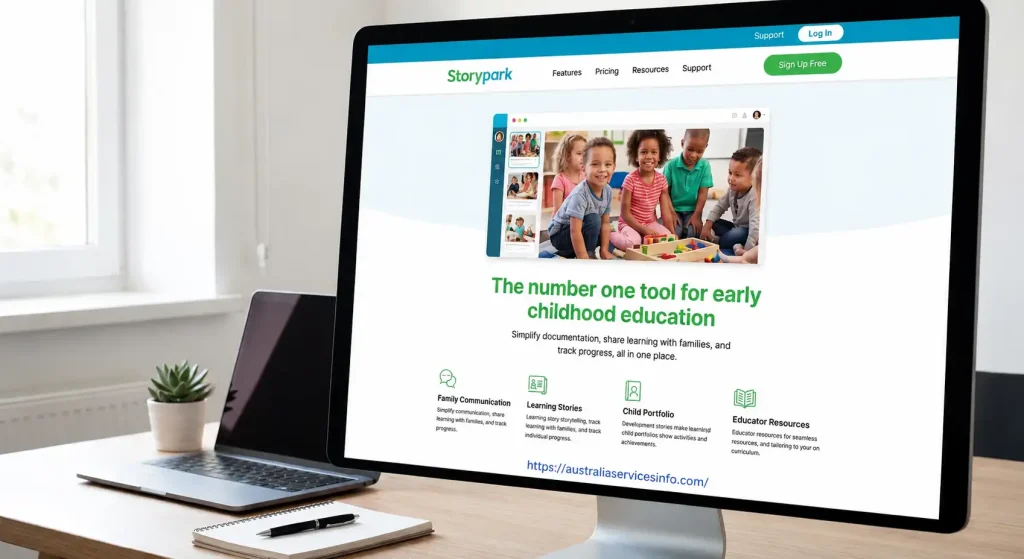
Open the official Storypark website and select the registration or sign-up option. If your child’s early learning centre already uses Storypark, you may need to wait for an invitation from the centre before creating your account.
Step 2: Select Your Account Type
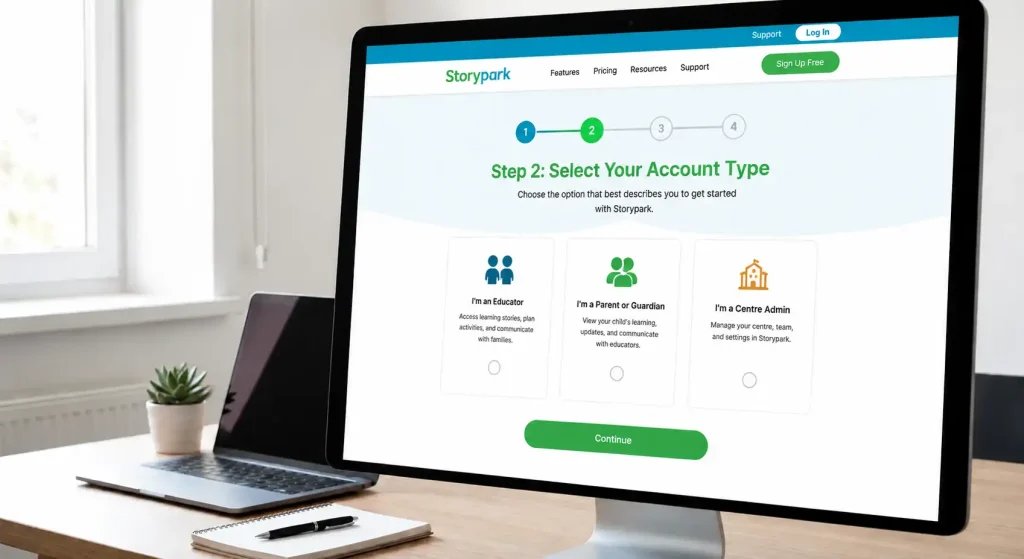
Choose the appropriate account type based on your role. Parents and family members should select the family or parent option, while educators and administrators should follow the registration process provided for their service.
Step 3: Enter Your Details
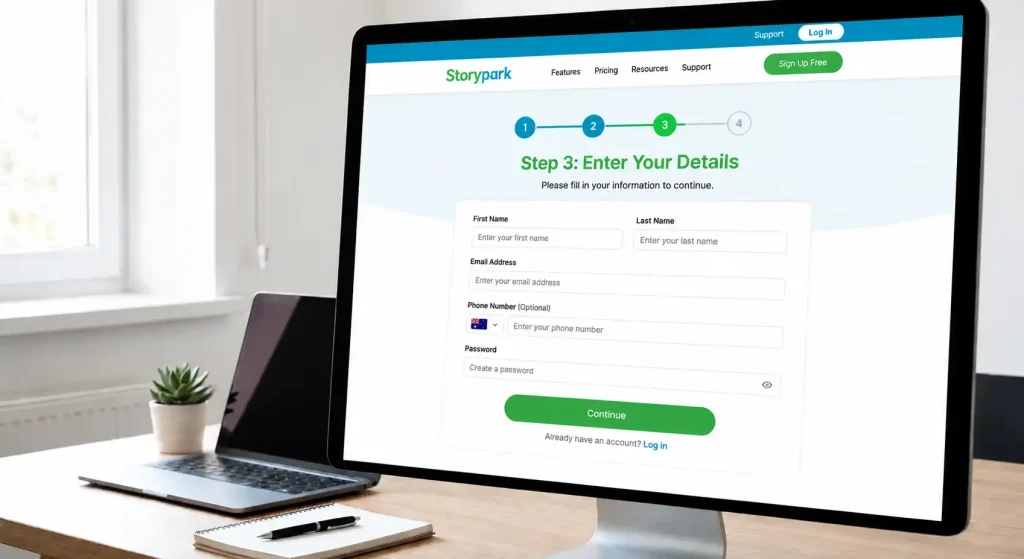
Enter your name, email address and create a secure password. Make sure the email address is correct and accessible because it may be used for account verification and future Storypark login.
Step 4: Add Your Child
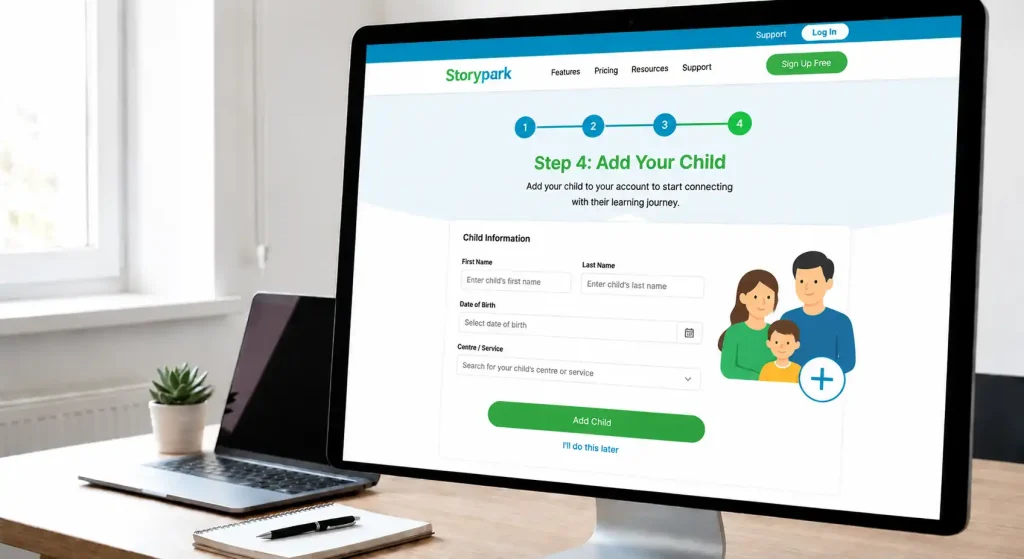
If you are creating a family account, provide the requested information about your child. Your child’s profile allows you to receive learning stories, updates and other information shared by educators.
Step 5: Complete Registration
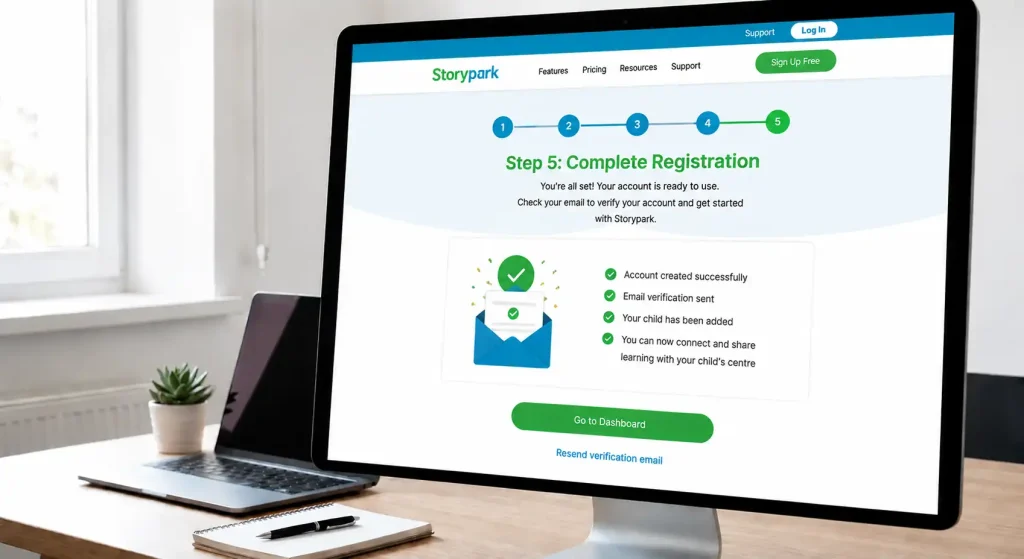
Review the information you entered and complete the registration process. After your account is created and connected to the relevant service or child profile, you can log in and start using Storypark’s family communication and learning features.
Inviting Parents and Guardians
Family participation is an important part of the platform’s communication model. After creating a child’s profile, an authorised educator or administrator can invite the relevant parent or guardian.
Family Invitation Process
Open the child’s profile and choose the family invitation option. Enter the parent’s email address and assign the appropriate family role.
The recipient can then use the secure invitation to create a password and access the child’s private digital portfolio.
Privacy tip: Only invite people who are authorised by the family and service to access the child’s information.
Understanding the Main Dashboard
The dashboard provides access to the different areas used for documentation, communication and planning. The exact options visible to an individual can depend on their account permissions.
| AreaMain Purpose | |
|---|---|
| Community | Centre-wide announcements and communication |
| Stories | Learning documentation and published stories |
| Children | Child profiles and portfolio information |
| Planning | Educational plans and learning objectives |
| Child Notes | Individual developmental observations and notes |
| Reports | Engagement and documentation information |
Understanding these areas before creating content can help educators choose the correct place for each type of information.
Creating a Learning Story
Learning stories are a central part of the documentation process. They allow educators to describe an observation, explain the learning taking place and connect the experience with relevant educational outcomes.
How to Create a Story
Start from the story creation area and select the children who should be included. You can document an individual experience or, where appropriate, create documentation for a group.
Write the observation in clear language that explains what happened and why the experience was meaningful. Photos, videos or PDF files can also be attached when they support the documentation.
Connecting Curriculum Goals
Relevant learning sets, tags or curriculum outcomes can be associated with the story. Depending on the service’s framework, this may include EYLF, Te Whāriki or applicable state standards.
This connection can help educators show how everyday experiences relate to broader learning objectives.
Publishing or Saving Your Work
Before making a story available to a family, review the selected children, written content and attached media.
Depending on the centre’s workflow, an educator may be able to:
A final review is especially useful when photographs or videos include more than one child.
Planning Learning Experiences
Planning tools help educators turn observations into future learning opportunities. A plan can be created from the Planning area using an available template or a new structure.
Linking Documentation to Planning
Where supported by the service’s workflow, educators can connect existing learning stories with a plan. This creates a clearer relationship between observation, reflection, planned experiences and ongoing development.
For example, an observation may identify an emerging interest, which can then inform a future group or individual activity.
Recording Child Notes
Child Notes provide a place for recording individual information about a child’s development, goals or relevant observations.
Educators can select a child and add a note according to the centre’s internal procedures. Some notes may be intended only for educators, while other information can be shared with families when appropriate.
Important: Always follow your service’s privacy, documentation and information-sharing policies when entering sensitive child information.
Storypark Roles and Permissions
Different users do not necessarily have identical access. Permissions help keep administrative functions separate from family participation.
| User roleTypical access | |
| Service Admin | Broad management, documentation, planning and invitation permissions |
| Educator / Teacher | Story creation, planning and relevant child access |
| Family Admin | Access to their child’s shared information and family contributions |
| Family Member | More limited viewing and commenting access |
The precise permissions available can depend on how the service has configured its account.
Using Mobile Apps
The supplied information identifies separate mobile applications for educators and families. These can be useful when users need to contribute documentation or check updates away from a desktop computer.
Educators can use the mobile experience to draft stories in areas where connectivity is limited, with the supplied guidance indicating that drafts can sync after the connection returns.
Families can use their mobile access to stay connected with updates and participate in their child’s digital portfolio.
Privacy and Safe Media Sharing
Because the platform can contain photographs, videos and developmental information about children, privacy should be treated as a core part of everyday use.
Before publishing media, educators should confirm that the children shown are authorised for that type of documentation. Avoid uploading content simply because it is available on a device; every image should have a clear educational or communication purpose.
Practical Privacy Checks
Before publishing, ask:
These checks can prevent avoidable sharing mistakes.
Troubleshooting Common Problems
Most account or upload problems can be approached systematically. Start by checking whether the issue is related to the browser, internet connection, account permissions or the content being uploaded.
Uploads Are Taking Too Long
Large videos and high-resolution photographs can take longer to process, particularly with a slow connection. Check your internet connection and consider reducing the size of very large files.
The supplied guidance recommends keeping videos below 500 MB when compression is necessary.
A Feature Is Missing
If an option does not appear, the issue may be related to your assigned role or service permissions. An educator may not see the same management controls as a service administrator.
In that situation, ask the centre administrator to confirm your account permissions.
Mobile Content Is Not Syncing
Check whether the device has an active internet connection. If content was created while offline, allow the application time to reconnect and synchronise once connectivity returns.
Restarting the application and checking for an available update can also be useful when a problem continues.
Best Practices for Educators
Good use of a digital documentation system is not simply about uploading more content. The strongest workflow focuses on meaningful observations and useful communication.
Keep Documentation Purposeful
A learning story should explain more than what happened. Whenever possible, show the child’s involvement, the learning that can be observed and how the experience informs future thinking or planning.
Use Consistent Organisation
Rooms, child profiles, tags and planning records should follow a consistent structure. This makes information easier to locate later and reduces confusion when multiple educators contribute to the same environment.
Review Before Publishing
Take a moment to check names, recipients, photographs, videos and curriculum tags before making documentation visible. A short review can catch errors before they reach families.
Storypark for Families
For parents and guardians, the platform provides a way to remain connected with a child’s early learning experience. Instead of receiving information only through face-to-face conversations, families can access shared digital documentation and respond where permitted.
Family members may also contribute relevant moments from home, helping educators build a broader picture of the child’s interests and experiences.
What Families Can Typically Do
Depending on their assigned permissions, families may be able to:
Access remains connected to the child’s authorised family network rather than being an open public profile.
Quick Tips for a Better Experience
A few habits can make daily use more efficient:
- Keep your profile and notification settings current.
- Organise children into the correct rooms.
- Review media permissions before sharing.
- Link documentation with relevant learning goals.
- Save unfinished work as a draft when it needs further review.
- Keep uploaded media at manageable file sizes.
- Use clear, meaningful descriptions rather than unnecessary text.
- Ask an administrator when a required feature is unavailable.
Storypark Login and Access Guide
Once your account has been activated, accessing the platform is straightforward. Use the official Storypark website and sign in with the email address and password associated with your account.
How to Sign In
- Open the official Storypark website.
- Select the login option.
- Enter your registered email address.
- Enter your password.
- Submit the details to access your account.
If your centre provided the invitation, make sure you use the same email address that was registered for your account.
Communication With Families
The platform can support two-way communication rather than treating families as passive readers. Educators can share meaningful updates while families can respond and contribute information from home.
Making Family Communication More Useful
Try to keep communication:
Avoid sending unnecessary updates simply for the sake of activity. A smaller number of meaningful interactions can be more useful than a large volume of repetitive posts.
Community Communication
The Community area can be used for information intended for a broader centre audience. Depending on permissions and service practices, this may include announcements, newsletters, reminders or policy information.
Community Posts vs Individual Stories
These areas serve different purposes.
| Content typeSuitable area | |
| Centre announcement | Community |
| Individual learning observation | Story |
| Child-specific information | Child profile or notes |
| Future learning objective | Planning |
| Engagement information | Reports |
Choosing the right area helps prevent important information from becoming difficult to find.
Reports and Engagement Information
Reporting features can help services review documentation activity and family engagement. Administrators may use available reporting information to understand patterns such as story activity, family views or curriculum alignment.
Why Reporting Matters
Reports can help a service identify areas for improvement. For example, an administrator might notice that some families engage frequently while others rarely view updates.
That information can encourage the service to review communication practices rather than simply producing more documentation.
Browser and Device Recommendations
The supplied information recommends using a modern browser, with Google Chrome suggested for desktop access.
Before troubleshooting a more complicated issue, check that:
These basic checks can resolve many routine problems.
Security and Account Protection
Because accounts can contain children’s photographs, observations and family information, users should protect their login credentials.
Basic Security Practices
Administrators should also review user access when staff or family circumstances change.
What Administrators Should Review Regularly
Centre administrators have a broader responsibility for keeping the digital environment organised.
A useful review can include:
Regular checks reduce the chance of outdated accounts or incorrect access remaining active.
Family Participation From Home
Families can add valuable context because educators do not see every part of a child’s life. A family member might share an interest, achievement or experience from home that helps educators understand the child’s current interests.
Why Family Contributions Matter
Two-way participation can help educators:
The aim is collaboration, not simply increasing the number of posts.
Key Takeaways
Storypark can bring documentation, planning and family communication together in one digital environment. The most effective use comes from combining thoughtful observations with appropriate media, curriculum connections and meaningful family participation.
For educators, a consistent documentation workflow makes daily tasks easier to manage. For families, the platform provides a way to remain involved in their child’s learning beyond the centre itself.
Storypark Frequently Asked Questions
Final Thoughts
Storypark provides a shared digital environment for early childhood documentation, planning and family participation. Educators can record learning experiences, connect observations with curriculum goals and communicate with authorised families, while parents can follow their child’s experiences and contribute relevant information from home.
The best results come from using the platform with a clear workflow: organise profiles carefully, document meaningful experiences, review content before sharing, protect children’s privacy and use family participation as part of the learning relationship.
Scratch (2026): Complete Beginner’s Guide to Coding, Projects, Registration & Animation
Tax Agent Portal Login (2026): Complete Guide to ATO Online Services for Agents
ATO Business Portal Login Guide (2026): Complete Guide to Online Services for Business