

The NSW Staff Portal is the central online gateway for authorised NSW Department of Education employees. It provides access to workplace applications, payroll services, professional learning platforms, departmental resources, and other employee tools through a single sign-in system.
Teachers, administrative staff, principals, casual employees, and other Department personnel can use the portal to manage work-related tasks, view payslips, access MyPL, and open authorised applications. This guide explains how to log in, reset your password, access key services, troubleshoot common issues, and find official support. Visit Homepage
What Is the NSW Staff Portal?
The NSW Staff Portal is an online platform developed for authorised NSW Department of Education employees. It serves as a central access point where staff can sign in and open the applications and services available to their role and account permissions.
The portal creates a unified sign-in experience that allows employees to reach workplace systems without navigating multiple websites. Depending on permissions, users may access professional learning platforms, payroll systems, employee management services, departmental applications, school systems, and other workplace resources.
Who Can Use the NSW Staff Portal?
The NSW Staff Portal is intended for authorised NSW Department of Education personnel, including:
Users must have an active Department account before they can access the portal.
Benefits of Using the NSW Staff Portal
The NSW Staff Portal offers several advantages for Department employees.
Centralised Access
Instead of visiting multiple systems separately, staff can access many Department applications from one location.
Improved Security
The portal uses Department authentication systems and may require additional verification when necessary.
Employee Self-Service
Many staff-related functions can be accessed through connected employee systems, reducing the need for manual administration.
Professional Learning Access
Employees can access learning platforms such as MyPL for professional development activities.
Department Communications
Staff may receive important departmental announcements, updates, maintenance notifications, and operational information through the portal.
NSW Staff Portal Login Guide
Accessing the NSW Staff Portal is a straightforward process when you have a valid Department account.
Step 1: Open the NSW Staff Portal
Open your preferred web browser and navigate to the official NSW Department of Education Staff Portal.
Ensure you are using the official Department website before entering your credentials.
Step 2: Enter Your Department User ID
Type the Department User ID assigned to your account. Review the information carefully to avoid login errors caused by typing mistakes.
Step 3: Enter Your Password
Enter your Department password in the password field. Make sure that Caps Lock is not enabled accidentally because passwords are case-sensitive.
Step 4: Complete Authentication
Some users may be asked to complete additional authentication or verification steps. If prompted, follow the authentication method registered to your Department account.
Step 5: Access Your Dashboard
After successful sign-in, the portal will display your workspace dashboard. The applications visible on your dashboard depend on your account permissions and employment role.
Understanding the NSW Staff Portal Dashboard
After logging in, employees are presented with a dashboard that acts as the starting point for workplace services.
Application Tiles
The dashboard commonly contains application tiles that serve as shortcuts to departmental systems and services.
Examples mentioned in Department information include:
Available applications differ from one employee to another because access depends on account permissions and job responsibilities.
Favourites and Shortcuts
Frequently used applications can be added to favourites or shortcut areas where available, helping staff access commonly used tools more efficiently.
Search Function
If a required application is not immediately visible, staff may use the portal search function to locate it more quickly.
Department News and Announcements
The portal can provide access to departmental updates, system maintenance notices, operational alerts, and important announcements relevant to employees.
How to Register for the NSW Staff Portal
The NSW Staff Portal is available only to authorised NSW Department of Education employees. Access is provided through a Department-issued account rather than public registration.
Step 1: Receive Your Department Account
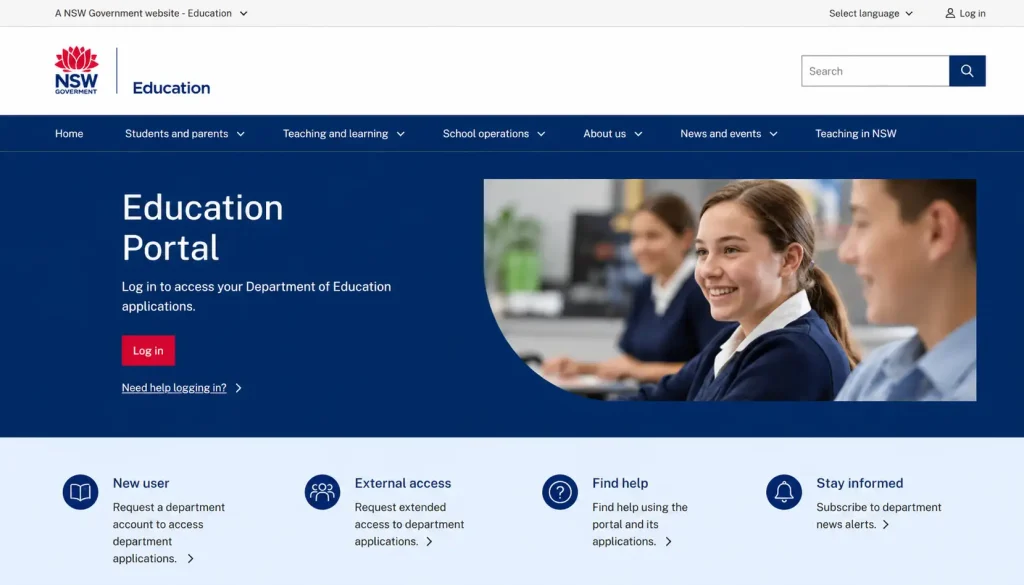
After joining the NSW Department of Education, you will be provided with a Department User ID and account credentials.
Step 2: Activate Your Account
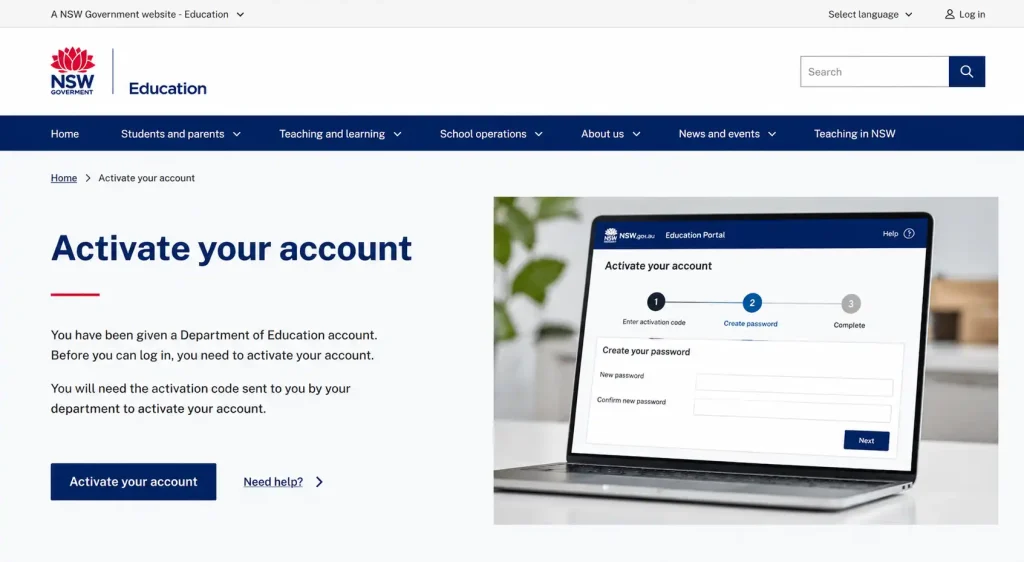
Follow the account activation instructions provided by the Department and set up your password if required.
Step 3: Open the NSW Staff Portal
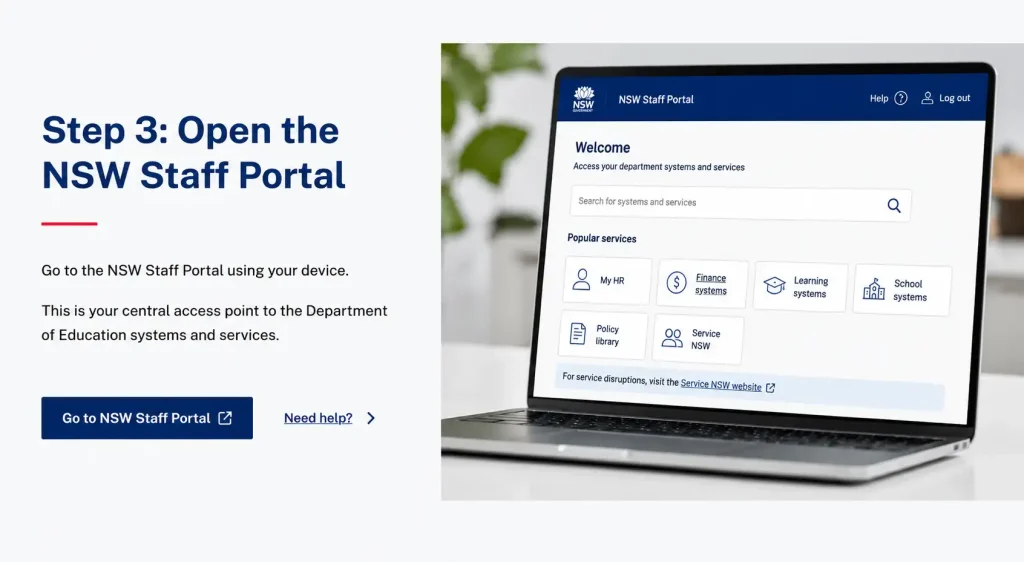
Launch your preferred web browser and navigate to the NSW Staff Portal login page.
Step 4: Sign In and Complete Authentication
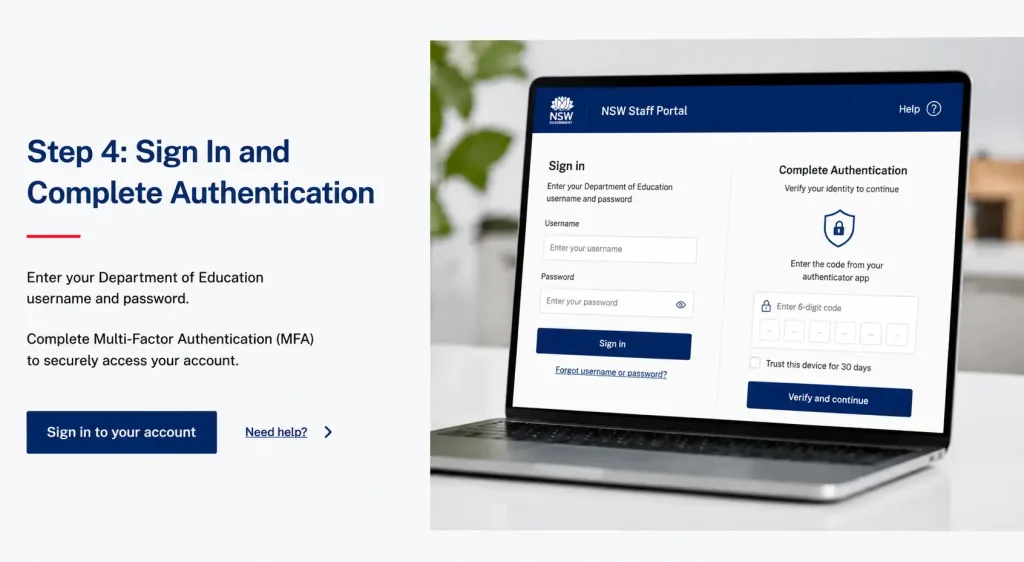
Enter your Department User ID and password, then complete any additional authentication or verification steps if prompted.
Step 5: Access Your Dashboard
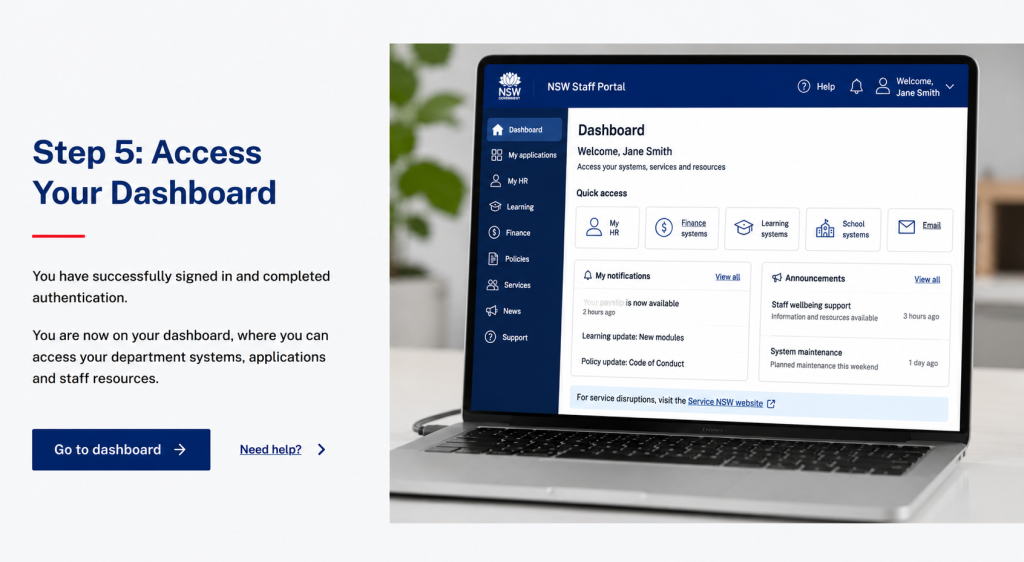
Once signed in successfully, you can access your dashboard and use the applications, employee services, and workplace tools available to your role.
Employee Services Available Through the NSW Staff Portal
One of the biggest advantages of the NSW Staff Portal is access to employee-related services and administrative functions.
Payroll and Payslips
Depending on access permissions, employees may view payroll information through connected systems.
Available information may include:
When accessing financial information, employees should use secure devices and protect their account credentials.
Leave Management
Some employee systems accessible through the portal allow staff to manage leave requests and monitor leave balances.
Examples include:
Recreation Leave
Used for annual leave entitlements.
Sick Leave
Used when employees are unable to work due to illness.
Long Service Leave
Available to eligible employees based on service history.
Carer’s Leave
Used to care for family members or dependents when required.
The exact leave process may vary according to employment arrangements and the connected employee system being used.
e-Expense and Claims
Certain employees may have access to systems used for expense management and reimbursement claims.
These systems can support:
If a required service is missing, account permissions may be the reason rather than a technical problem with the portal.
Professional Learning Through MyPL
Professional learning is a major component of the NSW Department of Education’s workforce development strategy.
What Is MyPL?
MyPL is the Department’s learning management system. It allows employees to locate professional learning opportunities, complete training activities, and maintain learning records.
Why MyPL Matters
MyPL is particularly important for:
The platform helps staff manage professional development requirements while maintaining records of completed learning activities.
Common MyPL Activities
Employees may use MyPL to:
How to Reset Your NSW Staff Portal Password
Password issues are among the most common reasons employees cannot access the NSW Staff Portal.
Step 1: Select Forgot Password
Open the relevant Department login page and choose the password recovery option.
Step 2: Enter Your Department User ID
Provide your Department User ID so the system can locate your account.
Step 3: Verify Your Identity
Depending on your registered recovery options, identity verification may occur through:
Step 4: Create a New Password
Follow the password recovery instructions and create a password that satisfies Department requirements.
Password Requirements
The supplied information specifies:
Step 5: Synchronise Your Device
After changing your password, Department devices may require time to synchronise with the updated credentials.
Employees may need to connect through the appropriate Department network or approved VPN to complete the synchronisation process.
Common NSW Staff Portal Login Problems
Many portal issues can be solved without contacting support.
Invalid Credentials
This error typically occurs when:
Users should verify their details or begin the password recovery process.
Verification Code Not Arriving
If authentication codes do not arrive:
Missing Application Tile
If a required application does not appear after login, the issue may be related to permissions associated with your role. Employees may need assistance from management or Department IT support.
Blank Screen or Login Loop
Sometimes browser cache data causes repeated login failures.
Potential solutions include:
Password Works Online but Not on Laptop
This issue commonly occurs when a Department device has not synchronised with a newly changed password.
Connecting to the appropriate Department network or approved VPN often resolves the issue.
NSW Staff Portal Password Synchronisation Issues
Many employees mistakenly believe their password reset failed when the actual problem is device synchronisation.
Why Synchronisation Matters
A new password may function correctly within a browser but fail on a Department laptop because the device still recognises the previous credentials.
How to Fix Synchronisation Problems
To synchronise updated credentials:
- Connect the Department device to the appropriate network.
- Use an approved VPN if working remotely.
- Allow sufficient time for credential updates.
- Restart the device if required.
These steps often resolve password-related access problems.
NSW Staff Portal Support and Helpdesk
If troubleshooting steps do not solve the issue, employees can seek official assistance through Department support services.
EDConnect Support
The supplied information identifies EDConnect as the primary support service for technology and password-related issues.
Contact Details
Before Contacting Support
Prepare the following information:
Providing detailed information helps support teams diagnose issues more efficiently.
Security Reminder
Never share:
with any other person.
Login Problems vs Access Problems
Understanding the difference between login and access issues can save time during troubleshooting.
Login Problems
Examples include:
Access Problems
Examples include:
The recommended solution depends on the specific issue being experienced.
Frequently Asked Questions
Final Thoughts
The NSW Staff Portal serves as the primary digital workplace gateway for NSW Department of Education employees. Through a single sign-in environment, authorised staff can access departmental applications, employee services, payroll information, professional learning systems, workplace resources, and administrative tools.
Whether you need to view payslips, manage leave, access MyPL, complete professional learning, troubleshoot login problems, or reset a forgotten password, the NSW Staff Portal remains the central platform for day-to-day Department services. By understanding the login process, password recovery procedures, and common troubleshooting methods, employees can make better use of the portal while maintaining secure access to their workplace systems.
ImmiAccount Login Guide (2026): Complete Registration, Visa Application & Account Management Guide