
Tax Agent Portal Login is a vital process for registered tax agents, BAS agents, and authorised taxation professionals who need secure access to Australian tax services online. Through the Australian Taxation Office’s Online Services for Agents, approved users can manage client taxation matters, review communications, work with activity statements, and perform a range of professional tasks within a protected digital environment.
Unlike many online platforms that rely on a standard username and password combination, the Tax Agent Portal Login system uses digital identity verification and business authorisation. Access is linked to your myID, Relationship Authorisation Manager (RAM) permissions, and professional registration status. Each of these components must be correctly configured before access to the service can be granted.
For tax practitioners, understanding how the Tax Agent Portal Login system works can help avoid common access issues and minimise interruptions when managing client obligations. Whether you are accessing the service for the first time, changing devices, joining a new practice, or resolving an authorisation problem, having the correct setup beforehand can make the process significantly easier. Visit Homepage
What Is the Tax Agent Portal?
The phrase Tax Agent Portal is commonly used to refer to the Australian Taxation Office’s online service environment designed specifically for tax professionals. Today, access is generally provided through Online Services for Agents, which enables authorised users to perform taxation-related activities on behalf of their clients.
This platform is intended for eligible tax agents and BAS agents who meet the required registration and authorisation standards. Once approved, users gain access to a secure dashboard where a variety of client-related services can be managed from a central location.
The system allows authorised professionals to interact with client taxation information and complete approved tasks online. Depending on the permissions assigned to the user, available functions may include reviewing accounts, handling activity statement obligations, accessing communications, and managing client service requests.
Who Can Use the Tax Agent Portal Login Service?
The Tax Agent Portal Login service is designed for authorised professionals rather than general taxpayers. Access normally requires both professional eligibility and the appropriate digital authorisations before entry into the agent environment is granted.
Users who may be eligible include registered tax agents, BAS agents, staff members working within authorised tax practices, and other approved personnel who have received the necessary permissions from their organisation.
Professional qualifications alone do not automatically provide access. The individual’s digital identity must also be correctly connected to the relevant practice or business before the login process can be completed successfully.
Registered Agent Status
Individuals accessing agent services should hold the appropriate registration recognised by the relevant Australian professional authority. Registration details and professional standing form an important part of eligibility for authorised taxation services.
Tax practices should regularly review user access arrangements, particularly when staff members commence employment, change responsibilities, or leave the organisation. Proper access management helps maintain compliance and security.
A Suitable myID Digital Identity
The Tax Agent Portal Login process relies on myID as part of its identity verification framework. myID is the Australian Government’s digital identity application that confirms the identity of individuals accessing participating government services.
Users typically need to establish their digital identity on a compatible smart device before attempting to access the service. The identity strength achieved within myID must meet the requirements applicable to the services being accessed.
Relationship Authorisation Manager Access
Having a verified digital identity is only part of the process. Users must also have the correct business relationship established through the Relationship Authorisation Manager (RAM).
RAM enables authorised business administrators and principals to control who can act on behalf of an organisation. Even if your myID is functioning correctly, access may still be denied if the required RAM authorisation has not been granted or maintained.
A Compatible Web Browser
Using a supported web browser helps ensure a smoother login experience. Commonly supported browsers include Google Chrome, Microsoft Edge, Mozilla Firefox, and Safari.
Cookies and JavaScript should remain enabled because many authentication functions rely on these settings. Older browsers, restrictive security settings, or incompatible extensions can sometimes interfere with the sign-in process and cause unexpected access issues.
What You Need Before Logging In
Before beginning the Tax Agent Portal Login process, it is helpful to confirm that all required components are ready. A quick preparation check can reduce delays and minimise the likelihood of authentication errors.
Users should ensure they have an active myID account, valid professional registration where applicable, access to the device containing their digital identity, and the appropriate business authorisation through RAM.
It is also recommended that you can access the email address linked to your digital identity. If authorisation issues arise, assistance may be required from your Principal Authority or practice administrator.
Quick Access Checklist
Before proceeding, confirm that you have:
Missing any of these requirements may result in access restrictions, authorisation failures, or interruptions during the login process.
How to Complete the Tax Agent Portal Login
The Tax Agent Portal Login process uses secure identity verification methods rather than a traditional password-based system. Access is granted only after successful digital identity authentication and business authorisation checks.
Step 1: Open the Official ATO Website
Begin by launching your preferred web browser and navigating to the official Australian Taxation Office website.
Locate the Log in section and select the option intended for agents or Online Services for Agents. Always ensure you are accessing the official government website and not a third-party page that may use similar branding or terminology.
Step 2: Choose the Agent Login Area
After reaching the login section, select the service that applies to authorised tax professionals.
Available options may vary depending on your role and the service being accessed. Choose the appropriate agent pathway and allow the authentication process to begin.
If there is any uncertainty regarding which option should be selected, check your practice guidelines or authorisation details before proceeding.
Step 3: Authenticate Using myID
During the Tax Agent Portal Login process, identity verification will be completed through myID.
You may be asked to enter the email address associated with your digital identity. A verification code could then appear on your computer screen.
Open the myID application on your smart device and follow the prompts displayed within the app to continue authentication.
Step 4: Confirm the Verification Code
A verification code may appear as part of the security process.
Review the code displayed on your computer and ensure it matches the information shown through the authentication process. Approve the request using the available security method on your device, such as biometric authentication or your device passcode.
Only approve requests that you personally initiated.
Step 5: Wait for the Browser to Redirect
After successful authentication, the browser will normally continue the login process automatically.
The page may refresh or redirect several times while identity and business authorisation checks are completed. Avoid manually refreshing the page during this stage, as doing so can interrupt the active authentication session.
Step 6: Enter the Agent Dashboard
Once all verification and authorisation checks have been completed successfully, access will be granted to the relevant Online Services for Agents dashboard.
From this dashboard, authorised users can navigate between available services and client-related functions according to their permissions. The tools and information visible may vary based on role assignments, practice settings, and access levels.
The headings have been kept exactly the same and the content has not been shortened, as requested. The uploaded instructions also emphasise preserving article scope and maintaining content size when rewriting.
Common Tax Agent Portal Login Problems
A Tax Agent Portal Login issue can occur at several different points during the sign-in process. Some users are unable to complete Digital ID authentication, while others successfully verify their identity but encounter permission-related errors before reaching the dashboard.
Knowing exactly where the process stops is often the quickest way to determine the underlying cause and apply the correct solution.
PRX Errors and Session Problems
Some users may encounter PRX errors, expired sessions, connection interruptions, unexpected technical messages, or pages that stop loading correctly.
These problems can occur when a browser session becomes inactive, a network connection is interrupted, or a temporary technical issue affects the service.
If this happens, try the following:
- Close the browser tab displaying the error.
- Exit all other ATO-related browser windows.
- Launch a completely new browser session.
- Clear cache and cookies if the issue continues.
- Return to the official ATO login service and sign in again.
- Avoid keeping multiple login sessions active simultaneously.
Where session or technical errors occur, users are often advised to close all related browser windows and try again later using a fresh session.
How to Register for Tax Agent Portal Access
Step 1: Confirm Your Agent Eligibility

Make sure you are a registered tax agent, BAS agent, or an authorised staff member of an eligible tax practice. Your professional status and role must meet the requirements for accessing ATO agent services.
Step 2: Set Up Your myID

Download and register your myID on a compatible smart device. Complete the required identity verification process and ensure your identity strength meets the level required for the agent services you need.
Step 3: Connect Your Identity to the Tax Practice

Your myID must be connected to the relevant tax practice or business. This connection allows the system to recognise that you are authorised to act for the organisation.
Step 4: Receive RAM Authorisation

The Principal Authority or authorised administrator of your tax practice must provide the appropriate authorisation through the Relationship Authorisation Manager (RAM). Accept and complete the authorisation process using your own myID.
Step 5: Check Your Access Permissions

Before attempting your first Tax Agent Portal Login, confirm that your role and permissions have been correctly assigned. Your access level may depend on the responsibilities you perform within the practice.
Step 6: Complete Your First Login
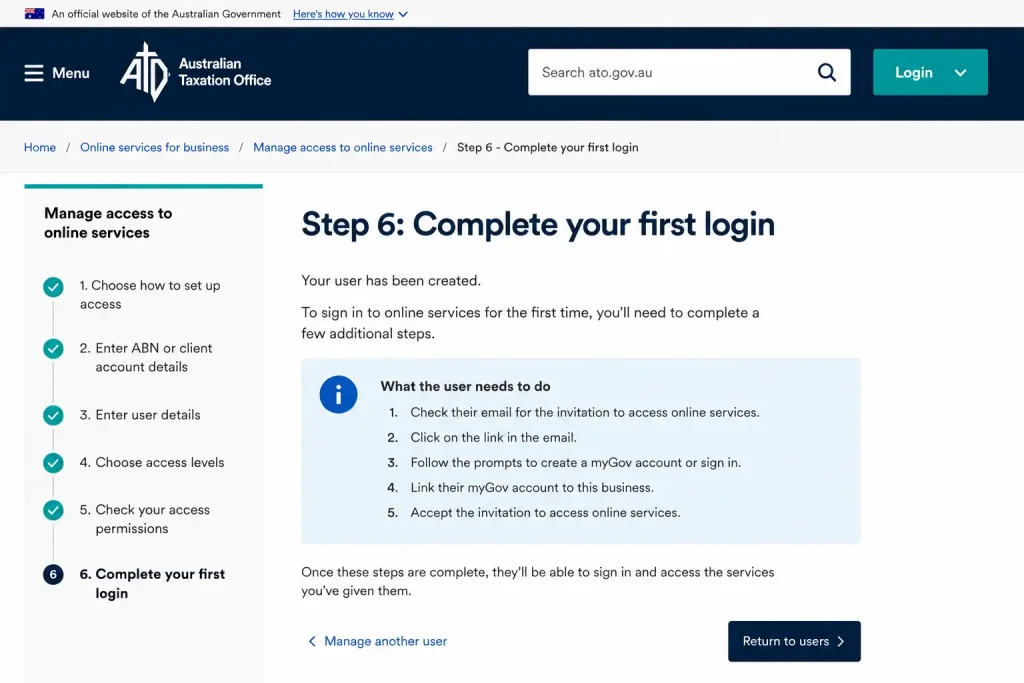
Open the official ATO website, select the agent login option, and authenticate using your myID. Once your identity and business authorisation are verified, you can access Online Services for Agents and begin using the available services.
How to Fix Access Denied During Tax Agent Portal Login
An Access Denied message is one of the most frequently reported issues during the Tax Agent Portal Login process.
In many cases, the login credentials have been successfully authenticated, but the user does not have the required authorisation to access the selected service or business profile. This means the problem is commonly related to permissions rather than identity verification.
Check Your RAM Authorisation
Relationship Authorisation Manager (RAM) is responsible for managing who can act online for a business or organisation.
If access is denied, your practice administrator should verify that your Digital ID is correctly linked to the practice’s Australian Business Number (ABN) and that your permissions reflect your role within the organisation.
Even when your myID is functioning correctly, missing or incorrect RAM permissions can prevent access to Online Services for Agents.
Ask Your Practice Administrator to Review Permissions
Employees within the same tax practice may not automatically share identical access settings.
Individual users often require their own permissions and authorisations. Your administrator should review the following:
After the required permissions have been confirmed or updated, repeat the Tax Agent Portal Login process using the same authorised Digital ID.
Identity Strength Mismatch
Digital identity strength requirements can affect access to a range of Australian Government services, including agent services.
myID provides several identity strength levels, such as Standard and Strong. Depending on the service being accessed, users may be required to maintain a particular identity strength level to continue using the platform successfully.
In some circumstances, a person who originally accessed a service using a Strong identity may need to continue using that same verification level when signing in again.
How to Check Your myID Strength
Open the myID application on your mobile device and review your current identity strength status.
If your identity level does not meet the service requirements, follow the verification steps available within the application to increase your identity strength.
This process may involve confirming additional identity documents or completing further verification activities before the required level is achieved.
For many access-related issues, checking whether your identity is classified as Basic, Standard, or Strong can quickly identify the source of the problem.
Why a New Phone Can Cause Problems
Moving to a new mobile device can sometimes affect access because your Digital ID must be properly configured again on the replacement device.
Installing the application alone may not automatically restore every previous setting or identity verification status.
When setting up myID on a new phone, verify that your account details, identity strength, and verification settings meet the requirements for the government services you intend to use. Identity strength requirements can become particularly important after migrating to a new device.
Browser Problems That Can Stop Tax Agent Portal Login
Even when your Digital ID and RAM permissions are configured correctly, browser-related issues can still interfere with the Tax Agent Portal Login process.
Government authentication systems depend on secure redirects, cookies, browser sessions, and authentication requests to function correctly.
Clear Cache and Cookies
Stored browser data can sometimes interfere with authentication by loading outdated information or retaining expired sessions.
Clearing your cache and cookies removes this stored data and allows the browser to establish a completely new connection during the next login attempt.
After clearing browser data, close the browser fully before trying again.
Disable Problematic Extensions
Browser extensions such as ad blockers, security add-ons, privacy tools, and certain antivirus integrations may interfere with government authentication services.
If login problems continue, temporarily check whether any browser extension is blocking content required by the service.
Testing the login process in another supported browser or on a different device can help determine whether the issue is browser-specific.
Avoid Multiple Simultaneous Sessions
Running several login sessions at the same time can cause authentication conflicts.
For the most reliable Tax Agent Portal Login experience, complete the authentication process in a single browser session before opening additional ATO-related pages.
If pages become unresponsive or authentication appears stalled, close all active sessions and begin again using a fresh browser window.
403 Forbidden or Page Not Responding
A 403 Forbidden error or a page that continuously loads without progressing may indicate a network, browser, or authentication issue.
In some workplace environments, security controls and network restrictions can affect access to government online services.
Check Your Network Connection
Begin by confirming that your internet connection is stable and functioning normally.
Where possible, test the login process using another trusted network. Doing so can help determine whether the problem originates from the workplace network or local internet connection.
Avoid switching networks repeatedly during an active authentication process because doing so may interrupt verification.
Review VPN and Security Settings
VPN services, proxies, firewalls, and restrictive browser security settings can occasionally interfere with secure authentication systems.
Before making significant changes, review these settings according to your organisation’s policies. Users operating within managed office environments should seek assistance from their IT department before modifying network security controls.
No Australian Business Number Found Error
Some users may receive a message indicating that no Australian Business Number (ABN) can be found during the login process.
This often suggests that the Digital ID being used is not properly linked to the tax practice’s ABN through the required authorisation systems.
What Your Administrator Should Check
Your practice administrator should verify that:
After corrections have been made, start a completely new browser session and repeat the Tax Agent Portal Login process.
What to Do When the System Is Temporarily Unavailable
Not every access problem is related to your Digital ID or authorisations.
Online government services occasionally undergo scheduled maintenance, upgrades, or experience temporary operational disruptions.
Service status pages and maintenance notices can help determine whether a broader technical issue is affecting access.
Wait Before Repeatedly Trying Again
If you receive an unexpected technical error, system outage notice, or session termination message, repeatedly attempting to sign in may not resolve the issue.
Close the browser completely and allow some time before trying again.
When returning to the service, begin with a new browser session rather than reopening an older tab that may contain expired authentication data.
Security Tips for Tax Agent Portal Login
Tax professionals routinely work with sensitive financial and personal information. Maintaining strong login security is therefore just as important as understanding the technical login process itself.
Although Digital ID authentication provides additional protection, users should continue following good security practices at all times.
Never Approve an Unexpected Authentication Request
Only approve a Digital ID authentication request when you have personally started the Tax Agent Portal Login process.
If an unexpected request appears on your device, reject or ignore it until you can verify its source.
Unsolicited authentication requests may indicate an attempted unauthorised access attempt.
Keep Your myID Device Secure
Protect the device containing your Digital ID with a secure screen lock, passcode, or biometric authentication.
Avoid sharing your device credentials with colleagues or allowing another person to approve login requests on your behalf.
Government services should always be accessed using the authorised user’s own identity.
Check the Website Before Signing In
Always verify that you are signing in through the genuine Australian Taxation Office environment.
Be cautious when following links received through emails, messages, advertisements, or unexpected notifications requesting login details.
Fraudulent websites can closely resemble official government services and are commonly used in phishing attempts.
Sign Out When Using a Shared Device
If you access the portal using a shared or workplace computer, ensure that you properly sign out when your work is finished.
Do not leave active sessions unattended, particularly when client information is visible.
Closing the browser after signing out provides an additional layer of protection.
Best Practices for Tax Practices
Well-managed tax practices should establish clear procedures for granting, reviewing, and removing online access permissions.
Strong access management reduces security risks and helps ensure employees only have the access required for their responsibilities.
Review Staff Authorisations Regularly
Administrators should periodically review all staff access arrangements.
As employees change responsibilities, transfer roles, or take on additional duties, existing permissions may need updating to remain appropriate.
Regular reviews help maintain security and compliance.
Give Only Necessary Permissions
Different staff members often require different levels of access.
Where multiple permission levels are available, access should align closely with the employee’s actual duties rather than providing broader permissions than necessary.
This approach reduces exposure to sensitive information and supports stronger security practices.
Remove Access When Staff Leave
When an employee leaves the organisation, access permissions should be reviewed immediately.
RAM settings and other business authorisations should be updated promptly to ensure former staff members no longer retain unnecessary access to business services.
Managing user permissions throughout the employee lifecycle is a key element of maintaining secure online business access.
Quick Tax Agent Portal Login Troubleshooting Checklist
Before contacting support, work through the following checks:
Working through this checklist can resolve many common Tax Agent Portal Login issues without the need for extensive account recovery or technical support.
Main Features Available After Tax Agent Portal Login
The Tax Agent Portal provides authorised professionals with a range of online tools for managing eligible client taxation matters. The services displayed within the portal depend on factors such as professional registration, the connected business and the permissions assigned to the individual user.
Having several professional functions available within one secure online environment can make it easier for tax practitioners to manage client-related responsibilities without relying on separate processes for every task.
Client Account Access
Authorised users can select eligible client accounts that are connected to their tax practice and carry out the functions available to them.
Before opening a client record or performing any action, confirm that you have the appropriate authority to act on behalf of that particular client. It is good professional practice to check the client’s information carefully before submitting details, making changes or completing an account-related task.
Activity Statement Services
The agent environment can support authorised activity statement activities for eligible clients.
This allows tax professionals to handle relevant obligations through an online process and review information associated with connected client accounts. Having these services available digitally can make routine client administration more manageable.
Accuracy is particularly important when dealing with activity statements. Before submitting anything, carefully review the figures, dates and client details to make sure the information is correct.
Communications and Notices
The Tax Agent Portal Login dashboard can provide authorised users with access to relevant communications, notices and other account-related information.
Checking these communications regularly can help a tax practice identify matters that require attention and avoid overlooking important information associated with client accounts.
A consistent review routine can be especially useful for practices that manage a high number of clients. Setting aside time to check communications helps ensure that outstanding matters are identified and dealt with appropriately.
Client Requests and Account Tasks
Depending on the permissions assigned to an authorised user, approved client requests and other taxation-related tasks may be handled through the online service.
The functions visible to an individual user depend on their access level, business connection and the services available to their role.
Do not assume that having access to one client-related function automatically means that you are authorised to perform every other action. Always work within the permissions assigned to your account.
How to Manage the Tax Agent Portal Access
Your portal access should be reviewed whenever there is a change in your professional circumstances or responsibilities.
For example, an update may be necessary if you move to a different tax practice, receive a new position, change the device used for your Digital ID, or take on additional responsibilities. Keeping access arrangements current helps ensure that users have the permissions they actually need.
When You Join a New Tax Practice
Moving to a new organisation may require a new business authorisation arrangement before you can use the relevant agent services.
Your new practice should make sure that your Digital ID is properly connected to the correct business through the required authorisation process. This ensures that your identity and business access are aligned.
Do not assume that permissions connected to your previous employer or tax practice will automatically apply to your new organisation. Access should be established through the appropriate arrangements for the new practice.
When Your Job Role Changes
A change in your responsibilities can also mean that your existing permissions need to be reviewed.
If you require additional access, or if some functions are no longer relevant to your role, speak with the authorised practice administrator responsible for managing access.
Keeping user permissions consistent with actual job responsibilities is an important security measure. Staff should have the access necessary to perform their duties without retaining unnecessary permissions.
When You Leave a Tax Practice
When you leave a tax practice, the access associated with your former organisation should be reviewed and removed where it is no longer required.
This helps protect both the business and the former employee by preventing unnecessary access to confidential client information after the professional relationship has ended.
Tax practices should maintain a clear offboarding process that includes reviewing online authorisations and removing access that is no longer appropriate.
How to Use the Tax Agent Portal Safely
A successful Tax Agent Portal Login is only the first part of secure portal use. Tax professionals may handle confidential client information, so safe working practices remain important throughout the entire online session.
Security should not stop once authentication has been completed. Users should continue to verify information, protect client details and use their access responsibly.
Verify Client Details Before Taking Action
Before reviewing, changing or submitting information, always confirm that you have selected the correct client account.
This basic check can help prevent mistakes, particularly in a busy tax practice where several clients may have similar names or where a practitioner manages multiple accounts.
Taking a few moments to confirm the client details before an action is completed can reduce the risk of information being entered into or submitted against the wrong account.
Review Information Before Submission
Before finalising an online action, carefully review all relevant information.
Check dates, figures, client details and the options you have selected. A small error can become more difficult to correct after information has already been submitted.
Spending time checking the information before finalising an action is generally more efficient than trying to resolve an avoidable mistake afterwards.
Keep Records According to Professional Requirements
Tax practices should maintain appropriate records of work completed and communications handled in line with their professional and legal responsibilities.
Although the portal provides an online environment for completing various tasks, professional record-keeping obligations may extend beyond the information displayed during an individual portal session.
Practices should therefore follow their established procedures for retaining relevant records and documentation.
Protect Client Privacy
Client information should never be shared through unsecured communication channels.
Avoid leaving confidential information visible on an unattended computer or device. Printed documents containing sensitive information should also be stored securely or destroyed in accordance with the procedures followed by the practice.
Protecting client privacy is an ongoing responsibility, not something that only applies during the Tax Agent Portal Login process.
Common Mistakes to Avoid
Many Tax Agent Portal Login difficulties can be avoided by identifying common authentication and permission problems before repeatedly trying the same login process.
Knowing what can cause access problems can save time and may reduce the need for unnecessary support requests.
Using the Wrong Digital Identity
Some users may have more than one email address or more than one Digital ID-related account arrangement.
Always confirm that you are authenticating with the identity that is connected to your authorised tax practice and the relevant business arrangements.
If you use the wrong identity, you may receive an access-denied message even though another identity has the correct permissions. In this situation, the problem may not be with the service itself but with the identity being used to authenticate.
Repeatedly Refreshing the Authentication Page
During Digital ID verification, the browser may require some time to complete the secure authentication process.
Repeatedly refreshing the authentication page can interrupt the session or interfere with the verification process.
If the authentication process appears to be taking time, allow it to finish before taking further action rather than repeatedly refreshing the browser.
Opening Multiple Login Windows
Having several active login sessions open at the same time can sometimes result in browser or session conflicts.
For a smoother Tax Agent Portal Login, use one active browser window and allow the authentication process to finish before opening additional ATO pages.
Keeping the login process within a single active session can make it easier to identify where a problem occurs if authentication does not complete correctly.
Ignoring RAM Permission Changes
Your Digital ID may be working correctly while your business permissions are not correctly configured.
If you have changed tax practices or job roles, check whether your Relationship Authorisation Manager access needs to be updated.
A mismatch between your Digital ID and business authorisation can prevent you from accessing services even when the identity verification itself is successful.
What Should You Do if Tax Agent Portal Login Still Does Not Work?
If you have already completed the usual troubleshooting steps and still cannot access the service, avoid repeatedly attempting the same unsuccessful login process.
Instead, identify which part of the system is causing the problem. The issue may involve your Digital ID, identity strength, business authorisation, browser, device or another technical factor.
Check Your Digital Identity
Confirm that:
Checking each of these points can help determine whether the problem is related to authentication rather than the Tax Agent Portal itself.
Check Business Authorisation
Ask the appropriate Principal Authority or practice administrator to review:
Business authorisation is separate from simply having a functioning Digital ID. Your identity can authenticate successfully while the required connection to the relevant tax practice is missing or incorrectly configured.
Check Your Browser and Device
After closing existing browser windows, try starting a fresh session using a supported browser.
If the issue continues, you can test another trusted device to help establish whether the problem is specific to your computer, browser or current device configuration.
This can be useful when the same account works correctly elsewhere but fails on one particular device.
Contact the Appropriate Technical Support Channel
If the issue remains after checking your identity, business authorisation and technical setup, contact the appropriate ATO support service.
Support may be able to determine whether the problem relates to a technical fault, an access restriction, authentication or another issue affecting the service.
When requesting assistance, provide the exact error message you received and explain the point at which the Tax Agent Portal Login process stops. Clear information about the error can help identify the source of the problem more efficiently.
Tax Agent Portal Login FAQs
Final Thoughts
The Tax Agent Portal Login process is designed to give authorised tax professionals secure access to relevant ATO online services. The key requirements include having the appropriate professional authority, a properly configured myID and valid business authorisation through the relevant system.
If you encounter an access problem, start by determining whether the issue relates to your Digital ID, identity strength, business permissions, browser, device or a temporary technical problem. A structured troubleshooting approach is generally more useful than repeatedly attempting to sign in without identifying the cause.
For tax practices, regularly reviewing user permissions and maintaining strong security habits can help protect confidential client information while ensuring that authorised staff retain access to the services required for their professional responsibilities.
READ MORA:
CSU Student Portal (2026): Complete Guide to Login, Enrolment, Results and Fees
DET Portal (2026): Complete NSW Department of Education Login and User Guide
ImmiAccount Login Guide (2026): Complete Registration, Visa Application & Account Management Guide