

DET Portal is the central online access point used by the NSW Department of Education for authorised students, staff and other approved users. It brings together department services, learning tools and work-related applications behind a single digital entry point. The official portal is portal.education.nsw.gov.au, and the NSW Department of Education confirms that students and staff use the department portal to access supported online services.
For students, the DET Portal can provide access to learning platforms, school email and department-supported digital resources. Staff can use the NSW Education Portal to reach workplace applications and services through their department account. The exact tools visible after signing in depend on the user’s role and permissions. Visit Homepage
What Is the NSW DET Portal?
The NSW Education Portal is a secure online gateway for NSW Department of Education users. Rather than requiring users to manage every department service separately, the portal provides a central starting point for accessing authorised applications and digital resources.
Students can use their department credentials to reach school-supported learning services. The department states that students should know their Department of Education username and password and can start with the Student Portal when accessing department-provided learning tools.
Staff have a different set of services based on their employment role. The staff environment can connect users with workplace systems, professional learning services, email and other internal resources.
Who Can Use the DET Portal?
Access is generally intended for people who have an authorised NSW Department of Education account. Depending on the account type, this may include:
Not every user receives the same dashboard. A student’s portal experience can be very different from a teacher’s or corporate employee’s experience because access is controlled by role and department permissions.
DET Portal Login: What You Need Before You Start
Before attempting to sign in to the NSW Education Portal make sure you have the correct department credentials. You will normally need your department User ID and current password.
Students who do not know their Department of Education username or password should contact their school. The NSW Department of Education specifically advises students to contact their school if they do not have their department login details.
Staff should also make sure they have access to the appropriate account and any required verification method.
DET Portal Login Requirements
| Requirement | Why it matters |
|---|---|
| Department User ID | Identifies your authorised account |
| Password | Protects access to department services |
| Internet connection | Required to open the portal |
| Supported web browser | Helps the portal load correctly |
| Verification method, where required | May be needed for additional account security |
| Active department account | Determines whether you can access the portal |
A common mistake is trying to sign in with a personal email account instead of the NSW Department of Education account. Use the credentials supplied for your department account.
How to Log In to the DET Portal
The NSW Education Portal login process is straightforward when you already have an active department account. The portal itself is JavaScript-based, so your browser needs to have JavaScript enabled for the application to function correctly.
Step 1: Open the Official DET Portal
Open a current browser such as Google Chrome, Microsoft Edge or Safari and enter the official portal address:
Always check that you are using the genuine NSW Department of Education website before entering your username or password.
Step 2: Select the Appropriate Portal Access
The portal environment can direct users towards services relevant to their department role. Students and staff do not necessarily see the same applications.
If you are a student, use the student-facing services available through your department account. If you are a teacher or department employee, use the staff services provided for your role.
Step 3: Enter Your Department User ID
Enter your authorised NSW Department of Education User ID in the sign-in field.
Type the details carefully. If your User ID is incorrect, the system may reject the sign-in even when your password is correct.
Step 4: Enter Your Password
Enter your current department password.
Check that Caps Lock is not accidentally enabled and make sure there are no unwanted spaces before or after the password.
Step 5: Complete Any Required Verification
Some department accounts may require additional verification. If the system asks you to confirm your identity, follow the available verification instructions.
Step 6: Open Your Portal Dashboard
After successful authentication, you should reach the services and applications available to your account.
The dashboard is role-based, so two users may see different tiles, applications or resources.
What Can Students Do Through the DET Portal?
For students, the NSW Education Portal can act as a starting point for department-supported digital learning services. The exact applications available can depend on the school, year level, account and services enabled by the department or school.
The NSW Department of Education explains that students can start from the Student Portal to access department-provided tools such as email and Microsoft 365 services. Schools may also use platforms such as Google Classroom or Microsoft Teams for teaching and collaboration.
Online Learning Platforms
Students may be directed to learning environments used by their school. These can include platforms for lessons, assignments, communication and classroom collaboration.
Your school determines which learning platforms you are expected to use, so an application available to one student may not appear for another.
School Email and Communication
The department portal can provide access to department-supported communication services for eligible users. Email can be used for school-related communication with teachers, staff or classmates where the school supports that method.
Keep school communication separate from personal accounts where required by your school’s policies.
Digital Learning Resources
Students may also reach department-supported educational resources through their portal environment. These resources can support research, classwork, digital collaboration and independent study.
The department encourages students to use approved technology and to follow online safety expectations when working with digital learning tools.
NSWEduChat Access
The NSW Education Portal is also one of the access routes for NSWEduChat. The NSW Department of Education states that staff and students can access NSWEduChat through the department portal using their NSW Department of Education login.
Students from Year 5 to Year 12 have access to NSWEduChat, according to current department information.
What Can Staff Access Through the DET Portal?
The staff side of the NSW Education Portal is designed around workplace requirements. Teachers, school employees and other department staff can access different services depending on their position and permissions.
The NSW Department of Education describes the staff portal as an access point for department systems and single sign-on services. Staff who are already signed in can use the portal to reach supported applications without repeatedly entering separate credentials.
Staff Email and Workplace Services
Department staff can access approved communication and workplace applications through their account. Email and calendar services can support communication, meetings and day-to-day administration.
SAP and Employee Services
Staff may have access to SAP-related services for areas such as HR, finance, procurement, leave and payslips. The department’s staff information identifies SAP as a system used for functions including payslips, leave entitlements, leave requests and workflow approvals.
MyPL and Professional Learning
MyPL is used for professional learning administration. Staff can use it to manage and record professional learning activities according to their role and department requirements.
EDConnect Support
EDConnect provides support for NSW Department of Education staff. If you experience a departmental login or IT issue that cannot be resolved through the available self-service options, staff can contact EDConnect.
The department currently lists 1300 32 32 32, option 5 for IT support for staff requiring login assistance.
DET Portal Dashboard and Available Services
Once you sign in to the NSW Education Portal, the available dashboard can vary according to your account. This role-based approach means users generally receive access to services relevant to their responsibilities.
For example, a teacher may have access to professional learning, HR and classroom administration services, while a student may see learning and communication tools.
Why Are Some Apps Missing?
If you cannot find an application that another authorised user can see, it does not necessarily mean your account is broken.
Possible reasons include:
When an application is missing, avoid repeatedly changing account settings. First confirm whether the service should be available to your particular role.
Using the DET Portal Safely
Because the NSW Education Portal provides access to education and workplace systems, account security matters. Never share your department password with another person, even if they claim to need it for troubleshooting.
Use your own account and sign out when using a shared or public computer. If you believe another person may have obtained your password, use the department’s approved password-management process or contact the appropriate school or IT support team.
The department also provides specific login and password guidance for staff, including password reset and security-management options.
Before You Sign In
Check these points before entering your credentials:
How to Manage Your DET Portal Account
After accessing the DET Portal, users can manage certain account and security settings depending on their role and the permissions attached to their department account. Keeping your account details current can make future sign-ins and password recovery easier.
The available options can differ between students, staff and other authorised users. If a setting described below does not appear in your account, it may simply not be enabled for your particular user type.
Open Your Account Settings
To review available account options, look for the profile or person icon in the upper-right area of the portal interface. Select it to view the settings and account-management options available to you.
From this area, you may be able to review security information, recovery details and other personal account preferences.
Keep Recovery Information Current
If your account provides options for recovery information, make sure the details you have registered remain accurate. An outdated mobile number or personal email address can make password recovery more difficult when you cannot remember your current password.
Students who need help with department account details should normally speak with their school. Staff can use the department’s approved support channels when they need assistance with account access.
Personalise the Portal Dashboard
The NSW Education Portal can provide a central dashboard for the services available to your account. Frequently used applications may be easier to reach when they are organised in a way that suits your normal workflow.
Depending on the services enabled for your account, you may be able to pin or organise frequently used applications. This can be particularly useful for staff who regularly move between learning, communication, administration and professional services.
DET Portal Password Reset and Recovery
For many users, the most important DET Portal feature is having a reliable way to regain access when a password is forgotten or no longer works.
The recovery method available to you depends on your account configuration. Do not assume that every student or staff account has exactly the same recovery options.
What to Do If You Forget Your Password
If you cannot remember your department password, begin with the password-recovery option provided on the relevant login page. Follow the identity-verification instructions shown by the department’s system.
Depending on the account and configuration, recovery may involve registered contact information or other verification details.
A successful password reset should be followed by another login attempt using the new password. Avoid repeatedly trying an old password because multiple unsuccessful attempts can create additional access problems.
Password Recovery Through Registered Email
If email recovery is available for your account, the system can use your registered recovery email as part of the verification process.
The general process is:
- Select the password-recovery option.
- Enter your department User ID when requested.
- Choose the available email verification method.
- Check your registered recovery email.
- Follow the instructions in the password-reset message.
- Create a new password that meets the displayed requirements.
- Return to the NSW Education Portal and sign in again.
Only use the recovery email account that is registered with your department account. If you no longer have access to it, you may need assistance from your school or department support team.
Password Recovery by Mobile Verification
Some accounts may provide mobile-based verification. When available, the process normally requires you to confirm your identity using the registered mobile number and a verification code.
Enter the code exactly as instructed. If the code does not arrive, check mobile reception and make sure you are using the number associated with the account.
Do not repeatedly request codes in rapid succession. If the problem continues, use another available recovery option or contact the appropriate support team.
Secret Questions and Other Recovery Options
Where secret questions or another account-recovery method has been configured, follow the prompts shown on the official recovery screen.
Your answers need to match the information previously registered. If you cannot remember the answers or never configured the recovery option, contact the relevant school or department support channel rather than attempting to guess repeatedly.
DET Portal Password Requirements
A strong password is an important part of protecting access to the NSW Education Portal and connected department services.
The supplied account information indicates that a replacement password should generally meet requirements such as:
Always follow the exact password rules displayed by the current department password-management system if they differ from older instructions.
How to Create a Strong Department Password
Avoid passwords based on obvious personal information such as your name, school, birthday or simple number sequences.
A stronger password should be difficult for another person to guess. Never share it with classmates, colleagues or anyone claiming that they need it to access your account.
If you suspect your password has been exposed, change it through the approved department process as soon as possible.
DET Portal Login Problems and Their Solutions
A failed NSW Education Portal login does not always mean that your account has been disabled. Browser problems, incorrect credentials, authentication issues and permissions can all prevent successful access.
Start with the simplest checks before contacting technical support.
“Invalid Credentials” Error
An invalid-credentials message usually means the User ID or password entered does not match the account information expected by the system.
Check the following:
If the problem continues after confirming your details, seek help through your school or department support channel.
The Portal Will Not Load
If the NSW Education Portal remains blank or fails to open properly, the problem may be related to the browser rather than your account.
Try opening the portal in a private or incognito browser window. If that works, cached information or stored cookies may have caused the problem.
You can also:
- Close unnecessary browser tabs.
- Restart the browser.
- Clear relevant cached data and cookies.
- Check that JavaScript is enabled.
- Try a supported browser.
- Restart your device if necessary.
Avoid installing unknown browser extensions or software simply because a website fails to load.
MFA or Verification Code Not Received
If your account uses multi-factor authentication and the expected verification code does not arrive, first check your mobile connection and registered contact details.
A temporary delivery delay can also occur. Wait briefly and follow the verification screen’s instructions before requesting another code.
If you cannot access the registered verification method, contact the appropriate school or department support team.
Account Locked After Failed Attempts
Several unsuccessful login attempts can result in temporary access restrictions.
If your account becomes locked, stop repeatedly entering passwords. Use the approved password-reset process if available, or wait for the relevant lockout period and then try again.
For persistent lockouts, ask your school administrator or department IT support team to investigate the account.
Why Can’t I Access a DET Portal Application?
One of the most confusing NSW Education Portal problems is being able to log in successfully but being unable to open a particular application.
This can happen because portal access is role-based. Logging into the portal does not automatically give every user permission to use every department service.
Common Reasons for Restricted Access
You may be unable to open an application because:
Before reporting a technical fault, check whether the application is actually intended for your account type.
What Students Should Do
Students should normally contact their teacher, school administration office or school IT coordinator when they cannot access an expected department service.
Provide useful information when reporting the problem, such as the name of the application, the error message and the approximate time the problem occurred.
Do not share your password in a support request.
What Staff Should Do
Staff members who have a persistent NSW Education Portal access issue should use the department’s approved support channels.
The supplied department guidance identifies EDConnect as a staff support option, with 1300 32 32 32 and option 5 for IT support.
When contacting support, explain whether you cannot log in at all or whether you can log in but cannot open a specific application. These are different types of problems and may require different solutions.
Browser and Device Tips for DET Portal Users
The device and browser you use can affect how smoothly the NSW Education Portal operates. Keeping your browser updated is a useful first step when troubleshooting.
Use a Supported Modern Browser
Google Chrome, Microsoft Edge and Safari are suitable starting points for accessing the portal. If the page does not behave correctly in one browser, testing another supported browser can help identify whether the issue is browser-specific.
Avoid relying on outdated browsers for department services.
Clear Cache and Cookies When Necessary
Cached files can occasionally interfere with web applications after a service has been updated.
If the portal displays an old page, loads incorrectly or repeatedly returns to a previous screen, clearing relevant browser data may help.
A private browsing window is also a useful diagnostic test because it starts a session without relying on much of the browser’s existing stored information.
Check Your Internet Connection
A weak or unstable connection can interrupt authentication and prevent applications from loading.
If other websites are also failing to load, check your internet connection before assuming there is a problem with the NSW Education Portal itself.
How to Register for the DET Portal
Step 1: Confirm Your Department Account
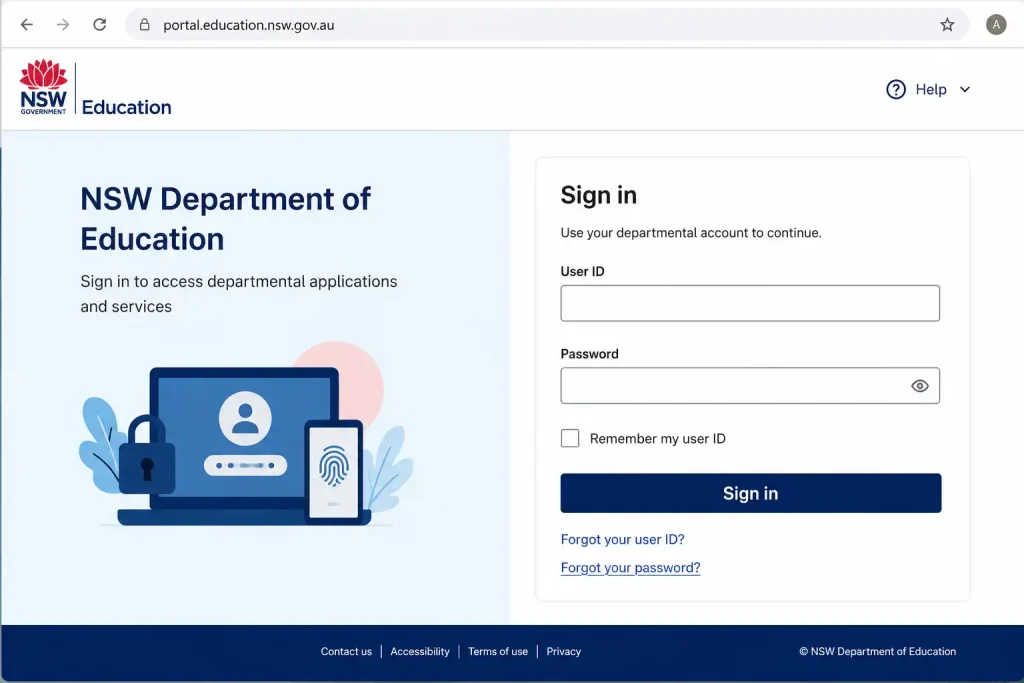
Make sure you are an authorised NSW Department of Education student, staff member or approved user.
Your school or department normally provides the account needed for portal access.
Step 2: Receive Your User ID

Obtain your NSW Department of Education User ID from your school or department.
Students should contact their school if they have not received their login details.
Step 3: Set Up Your Password
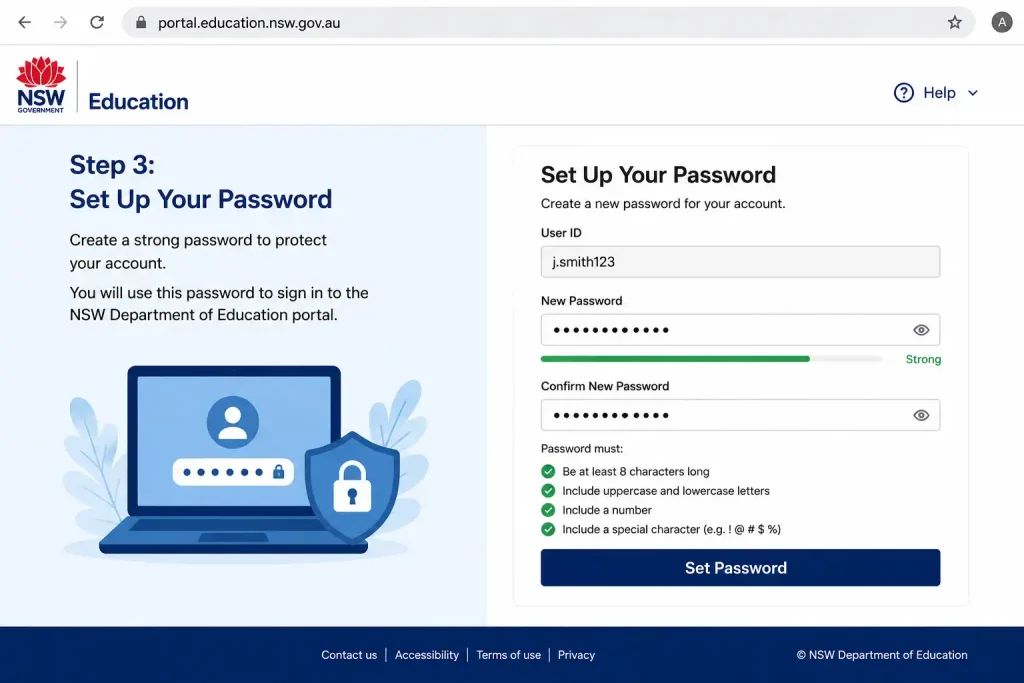
Follow the instructions provided by your school or department to create or activate your password.
Choose a secure password and keep it private.
Step 4: Register Recovery Details
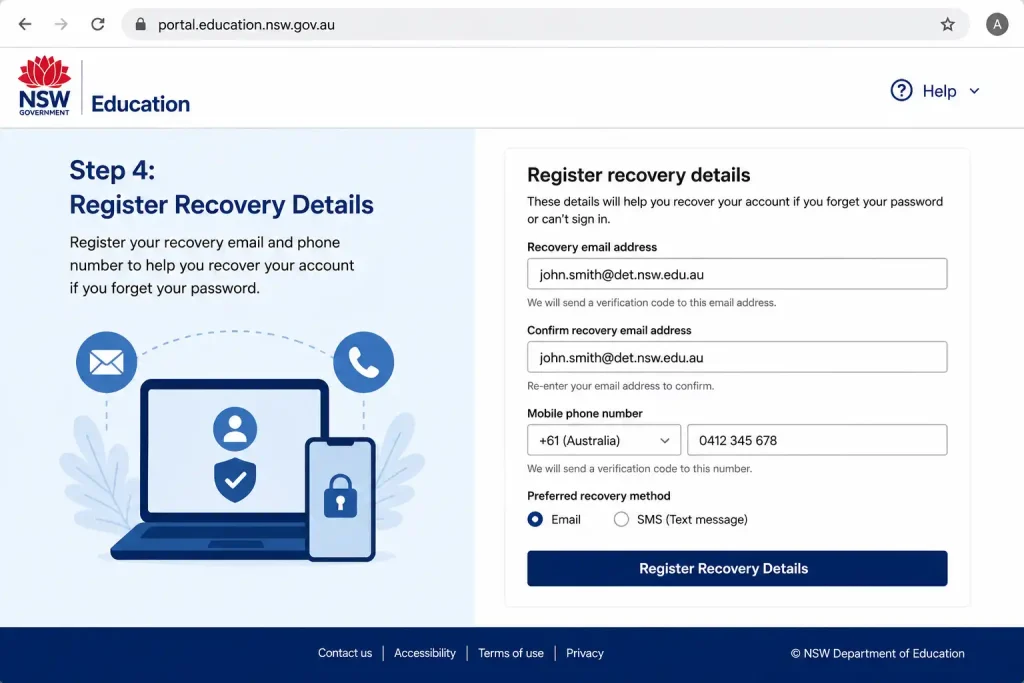
If your account provides recovery options, set up the required mobile number, email address or other verification details.
These details can help you recover access if you forget your password.
Step 5: Access the DET Portal
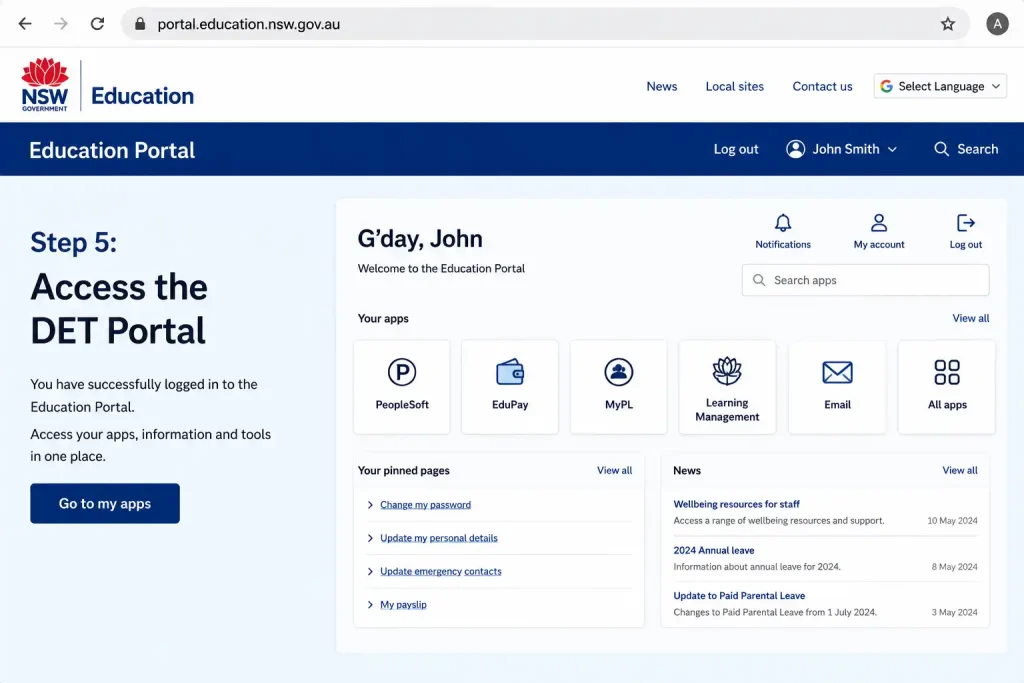
Open the official DET Portal and enter your department User ID and password.
Complete any additional verification requested by the system.
Step 6: Open Your Dashboard

After successful authentication, your NSW Education Portal dashboard will display the services available to your account.
The applications shown depend on your role, school and account permissions.
DET Portal Security Best Practices
The DET Portal provides access to department systems, so account security should be treated seriously. Good security habits reduce the risk of unauthorised access.
Never Share Your Password
Your department password should remain private. Do not send it through email, messaging apps or social media.
Legitimate support staff should not need you to disclose your password simply to explain a login problem.
Be Careful With Login Pages
Always check that you are using the official NSW Department of Education portal before entering credentials.
Be particularly cautious with unexpected emails or messages asking you to sign in through an unfamiliar website. When in doubt, open the official portal yourself rather than following a suspicious login link.
Sign Out on Shared Devices
If you use a school, library or other shared computer, sign out when you finish.
This is especially important when the device is used by several students or staff members. Leaving an active department session open could allow another person to access services under your account.
Quick DET Portal Troubleshooting Checklist
When something goes wrong, work through the following checks:
These checks can resolve many common access problems without unnecessary changes to the account.
DET Portal: Student vs Staff Access
Although students and staff may enter through the same department digital environment, their available services are not identical.
| Area | Students | Staff |
|---|---|---|
| Department login | Yes, where authorised | Yes, where authorised |
| Learning resources | Commonly available | May be available for teaching |
| School communication | Available through approved services | Available through approved services |
| Microsoft services | Available where enabled | Available where enabled |
| Professional learning | Not generally the primary purpose | MyPL and related services |
| HR and payroll | Not applicable | Available to eligible employees |
| Administration systems | Limited by role | Available according to position |
| Technical support | School support | EDConnect and department support |
The key point is that the DET Portal is role-based. Your account determines what you can see and what you are allowed to open.
What to Do After You Successfully Log In
Once your DET Portal login works, take a moment to confirm that the services you need are available.
Students should check the learning applications and communication tools required by their school. Staff can review the applications associated with their role and confirm that important workplace services are accessible.
If something that you genuinely need is missing, contact the appropriate school or department administrator rather than trying to bypass the access controls.
Key Things to Remember About the DET Portal
The DET Portal provides a central access point for authorised NSW Department of Education users, but the exact experience depends on whether you are a student, teacher, administrative employee or another approved user.
Keep your department credentials private, maintain accurate recovery information where available, and use the official portal when signing in. If you can log in but cannot access a particular service, the issue may be related to permissions rather than your password.
For students, the school is usually the first point of contact for account problems. For staff, EDConnect provides department support, including the IT support pathway listed in the supplied guidance.
DET Portal Best Practices for Students and Staff
Using the DET Portal is easier when account and browser habits are kept consistent. Small precautions can prevent common login problems and reduce the risk of unauthorised access.
Keep Your Credentials Private
Never share your department password with friends, classmates, colleagues or strangers. Avoid writing the password where other people can easily see it, and do not send credentials through ordinary messages or email.
If someone asks for your password while claiming to provide technical support, use the department’s official support process instead.
Keep Your Recovery Details Updated
Where your account allows recovery information to be managed, make sure registered contact details remain current. An old mobile number or inaccessible recovery email can make it harder to regain access when a password is forgotten.
If you cannot change your recovery information yourself, ask your school or department support team for guidance.
Use the Official Portal
When signing in, use the official NSW Department of Education portal rather than an unfamiliar website found through an unexpected message.
This is particularly important when dealing with login credentials. Check the website address before entering your User ID or password.
Sign Out From Shared Computers
Always sign out after using the DET Portal on a shared computer. This includes computers in schools, libraries, public areas or other environments where another person could use the same device.
Closing a browser tab does not always provide the same protection as properly signing out of an account.
Common DET Portal Mistakes to Avoid
Some access problems are caused by simple mistakes rather than a technical fault.
Using the Wrong Account
A personal Microsoft, Google or other private account is not necessarily the same as your NSW Department of Education account. When accessing department services, use the credentials associated with your authorised department account.
Repeatedly Entering an Incorrect Password
If your password is not working, repeatedly guessing it can make the situation worse if the account becomes temporarily restricted.
Check the credentials once more, then use the appropriate recovery process if you cannot remember the password.
Assuming Every Application Should Appear
The DET Portal is not identical for every user. Students, teachers and other department employees can receive different applications.
If another person has a service that you cannot see, that does not automatically indicate an error with your account.
Ignoring Browser Problems
A portal that displays incorrectly may be affected by cached data, cookies, browser extensions or an outdated browser.
Trying a private window or another supported browser is a useful first troubleshooting step.
DET Portal Login: Quick Reference
| Problem | First action |
|---|---|
| Forgotten password | Use the available password-recovery process |
| Incorrect credentials | Check User ID, password and Caps Lock |
| Portal will not load | Try another supported browser or private window |
| Verification code missing | Check the registered verification method |
| Account temporarily locked | Stop repeated attempts and use the approved recovery process |
| Missing application | Confirm your role and required permissions |
| Student account problem | Contact the school |
| Staff IT problem | Contact the appropriate department support channel |
| Shared computer | Sign out after finishing |
| Suspicious login page | Stop and use the official department portal |
How to Get the Most From the DET Portal
The DET Portal works best when users treat it as their central starting point for authorised department services rather than trying to access every application independently.
Students should become familiar with the learning and communication tools their school expects them to use. Staff can organise frequently used workplace services and keep their account information up to date where those options are available.
If a service suddenly disappears or stops working, first determine whether the problem affects your entire login or only one application. This distinction can save time when troubleshooting.
DET Portal Access: Final Checklist
Before contacting support about a DET Portal issue, run through this short checklist:
Frequently Asked Questions About the DET Portal
Final Thoughts on the DET Portal
The DET Portal provides NSW Department of Education users with a central route into a range of digital services. Students can use their authorised accounts for supported learning and communication tools, while staff can access workplace systems according to their roles and permissions.
The most reliable way to avoid access problems is to keep your department credentials secure, use the official portal, maintain available recovery information and avoid repeated failed login attempts. When an application is unavailable, remember that access can be role-based, so the correct solution may be a permissions request rather than a password change.
READ MORE:
ImmiAccount Login Guide (2026): Complete Registration, Visa Application & Account Management Guide
Reading Eggs (2026): Registration, Login, Lessons & Progress Tracking Guide
Seesaw Guide 2026: Login, Activities, Student Learning & Family Access