

Minecraft Education Login, Classroom Setup, Coding Tools & Learning Guide is an essential resource for teachers, students, and schools looking to use Minecraft Education as a powerful learning platform. Designed specifically for education, Minecraft Education combines creativity, collaboration, and curriculum-based learning in a secure digital environment where students can explore concepts through interactive activities and virtual worlds.
From completing a Minecraft Education login and installing the platform to creating classroom worlds, managing students, and using coding tools, Minecraft Education provides a wide range of features that support modern teaching methods. With lesson libraries, multiplayer collaboration, accessibility features, science tools, and programming activities, the platform helps educators create engaging learning experiences across subjects such as science, mathematics, history, literacy, and computer science. Visit Homepage
What Is Minecraft Education?
Minecraft Education is a specialised learning platform designed to make teaching more interactive through game-based experiences. Unlike the standard Minecraft edition, it provides education-focused features such as classroom management tools, coding activities, assessment options, collaboration features, and curriculum-related lesson content for schools and educational organisations.
Across Australia and other countries, educators use Minecraft Education for subjects including science, mathematics, history, digital technologies, literacy, and STEM. Students can explore virtual environments, solve challenges, build projects, collaborate with classmates, and develop problem-solving and critical-thinking skills through practical activities.
Minecraft Education is available on Windows, macOS, Chromebook devices, and iPads, allowing schools to use it across a variety of technology environments.
Why Schools Use Minecraft Education
Minecraft Education gives teachers a way to combine creativity, collaboration, and structured learning. Students can take an active role in lessons by constructing, exploring, testing ideas, solving problems, and working with others rather than simply receiving information.
Some of the main benefits include:
The platform can also support both traditional classroom teaching and remote learning, giving educators more flexibility when designing activities.
Key Requirements Before Using Minecraft Education
Before installing Minecraft Education, check that the device meets the required technical specifications. This can help prevent performance, compatibility, or installation problems later.
Supported Devices and Operating Systems
| Device | Operating System | Minimum Requirements |
|---|---|---|
| Windows PC | Windows 10 or Windows 11 (64-bit) | 1 GHz processor, 4 GB RAM |
| Mac | macOS 10.14 or newer | Intel or Apple Silicon, 4 GB RAM |
| Chromebook | Chrome OS 83 or newer | 4 GB RAM, 500 MB storage |
| iPad | iPadOS 11.0 or later | 2 GB RAM |
A reliable internet connection is also recommended, especially when students use multiplayer lessons, cloud-based services, or classroom collaboration features.
How to Install Minecraft Education
Installing Minecraft Education is generally a straightforward process, although the exact method depends on the device. Make sure you select the version that matches the operating system being used.
Download the Correct Version
Open the Minecraft Education website and go to the download area. Select the installer that matches your device and operating system, then start the download.
Using the correct version helps ensure that the application installs properly and works with the device’s supported environment.
Complete the Installation
After the installer has downloaded, follow the instructions for your device.
Windows Users
Mac Users
Chromebook Users
iPad Users
Confirm Network Access
For multiplayer features to work properly, the network should allow the following:
School networks are often configured by the organisation’s technology or IT team. If multiplayer does not work, network restrictions may need to be checked by an administrator.
Creating Access to Minecraft Education
Minecraft Education requires an approved organisational account for access.
Unlike the consumer version of Minecraft, access is generally provided through schools, educational institutions, universities, libraries, training organisations, or other approved educational programmes.
Who Can Access Minecraft Education?
Access may be available to:
The licensing arrangement can vary depending on the organisation responsible for providing the account.
Signing In to Minecraft Education
Once Minecraft Education has been installed, users need to sign in before they can access lessons, worlds, and other platform features.
Launch the Application
Open Minecraft Education from the desktop, Applications folder, Chromebook launcher, or iPad home screen.
Enter Your School Credentials
Sign in using the Microsoft 365 Education account provided by your school or organisation.
Examples include:
The login process uses Microsoft’s authentication services and may vary according to the organisation’s account configuration.
Complete Verification
Depending on the settings applied by the school or organisation, the login process may require:
After successful verification, Minecraft Education opens the appropriate user environment.
Understanding Licensing Options
New users often want to know whether a full licence is required before they can start using Minecraft Education.
Minecraft Education generally provides two main access models.
Full Licensed Access
Schools and organisations with eligible Microsoft Education licensing can provide full access to Minecraft Education features.
This may include:
Trial Access
Educators and students may also have access to a limited trial option.
Typical trial allowances include:
The trial allows eligible users to explore Minecraft Education before moving to a full licensing arrangement.
First-Time Setup Checklist
Before starting a first lesson, check that the essential setup tasks have been completed:
Taking a few minutes to check these items can reduce common technical problems during the first classroom session.
Main Dashboard Overview
After signing in, users reach the Minecraft Education home screen. This acts as the main starting point for accessing the platform’s learning and classroom features.
The dashboard can be used for:
The options displayed may differ between teachers and students because access is influenced by the permissions assigned by the organisation.
Minecraft Education Registration Steps
Step 1: Confirm Educational Access
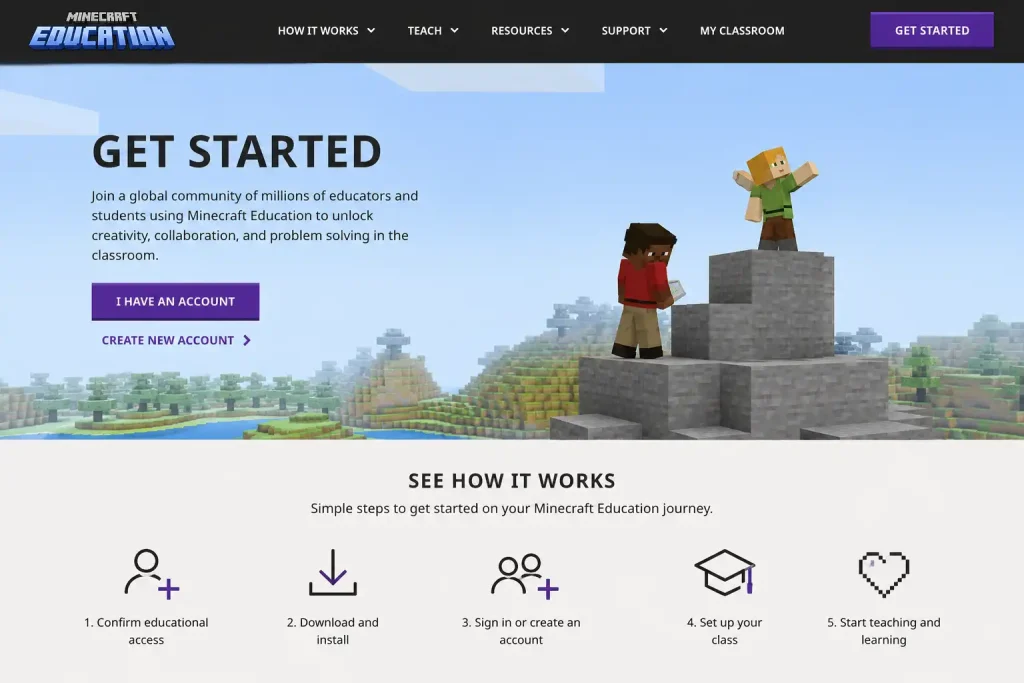
Check whether your school, college, or educational organisation provides access to Minecraft Education. A valid educational account is required before you can use the platform.
Step 2: Get Your School Account
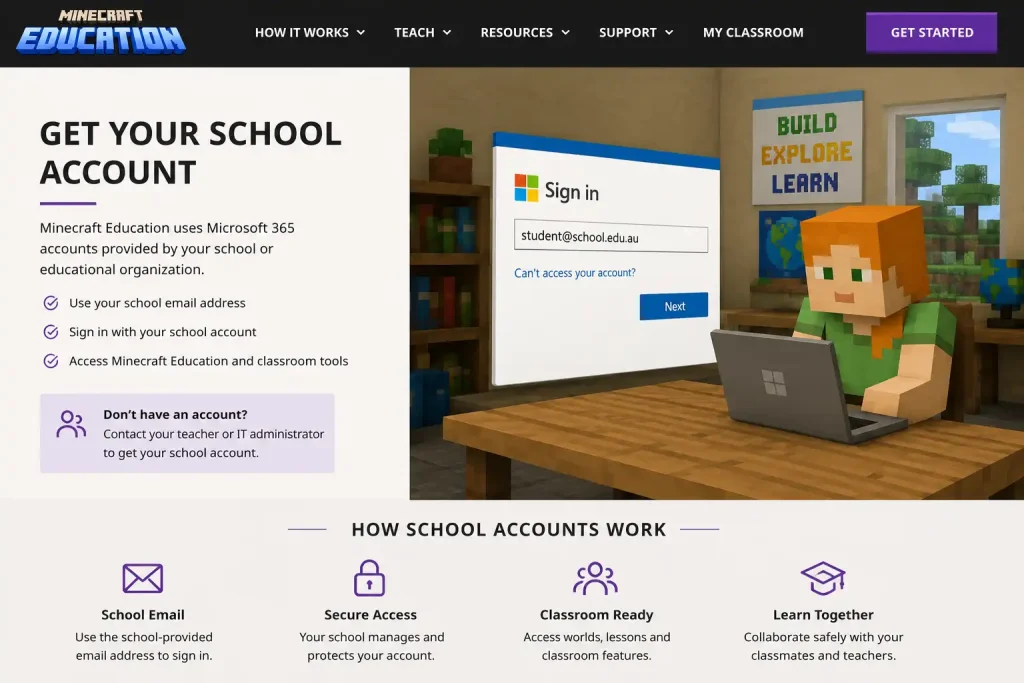
Obtain your Microsoft Education login credentials from your teacher, school administrator, or IT department. These details are used to access Minecraft Education.
Step 3: Install Minecraft Education
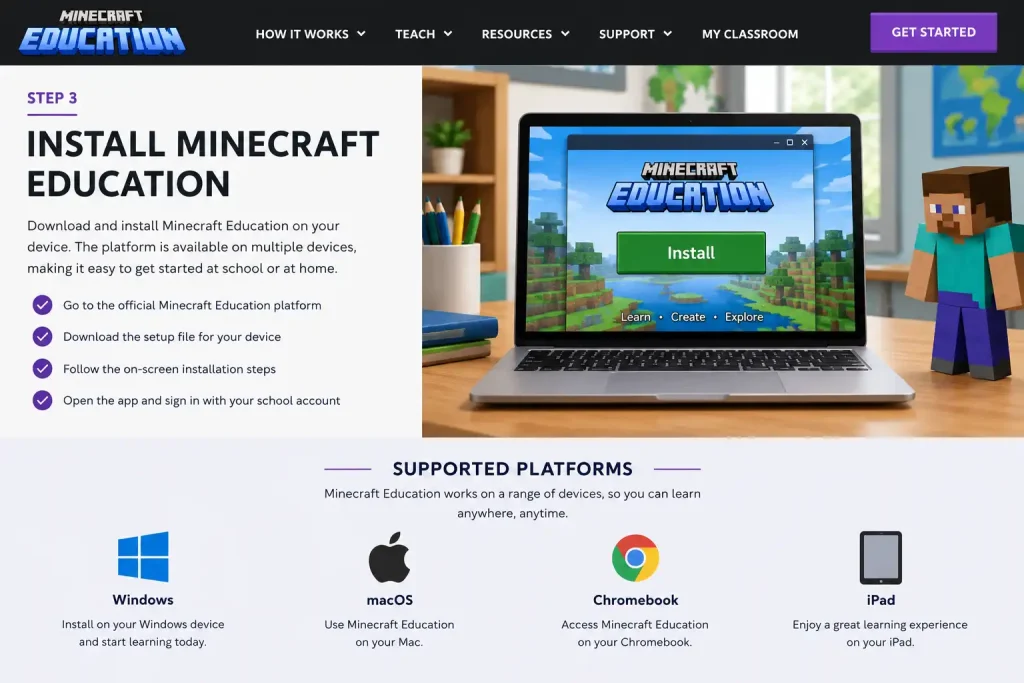
Download and install Minecraft Education on your supported device, such as Windows, Mac, Chromebook, or iPad, and complete the setup process.
Step 4: Sign In and Verify Access
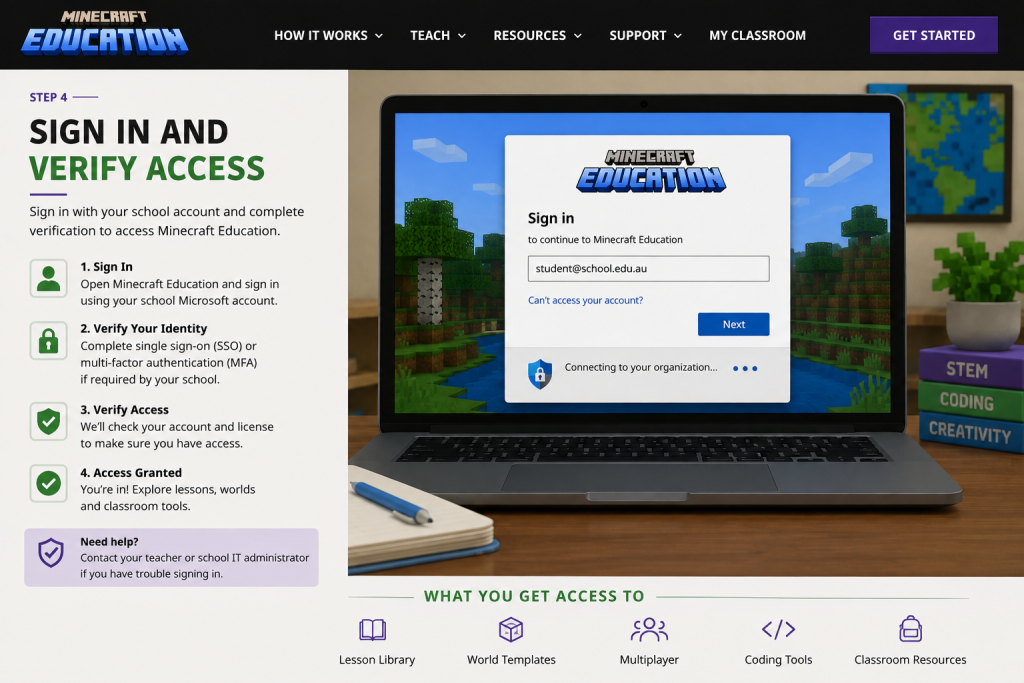
Open the application and log in using your educational account. Complete any required authentication steps and allow the system to verify your licence.
Step 5: Start Using Minecraft Education
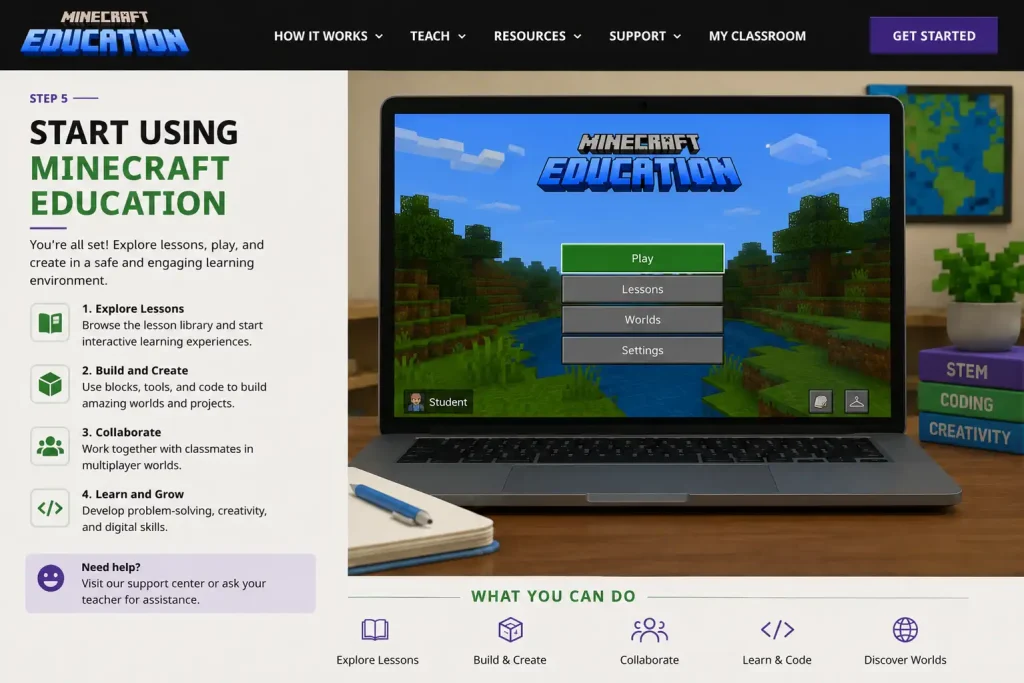
After successful verification, access the dashboard, explore lesson content, join learning worlds, and begin using Minecraft Education for classroom activities and projects.
Important Features Available Immediately
Minecraft Education includes several learning-focused resources that can be used without first creating a classroom world.
Lesson Library
The lesson library provides ready-made educational activities covering a range of subjects and learning objectives.
World Templates
Teachers can use pre-built environments as starting points rather than designing every learning environment from the beginning.
Coding Resources
Students can work on coding activities using visual blocks or text-based programming, depending on the activity and learning level.
Accessibility Support
Built-in accessibility features can help make learning activities more suitable for students with different educational needs.
The next section covers classroom management tools, lesson assignment methods, multiplayer collaboration, educator controls, and advanced teaching features.
Setting Up a Classroom in Minecraft Education
One of the most valuable aspects of Minecraft Education is the ability for teachers to create structured learning environments. Educators can design custom worlds, manage student participation, and maintain a focused classroom experience using built-in teaching tools.
Whether teaching science, history, mathematics, geography, or digital technologies, classroom controls help ensure students remain engaged with lesson objectives.
Creating a New Learning World
Teachers can start a classroom session by creating a new world or selecting an existing template.
To create a world:
Many educators begin with curriculum-aligned templates because they already contain activities, instructions, and learning objectives.
Configuring Classroom Settings
Before inviting students, teachers can customise how the world operates.
Classroom settings are accessible through:
Pause Menu → Settings → Classroom Settings
These controls help educators tailor lessons for different age groups and learning outcomes.
Commands Control
Teachers can decide whether classroom commands are available.
Examples include:
For younger students, restricting commands can help reduce distractions.
Mob Settings
Hostile creatures may be disabled to create a safer learning environment.
This is particularly useful during:
Students can focus on lesson content rather than avoiding in-game threats.
Item Restrictions
Certain items can be limited when necessary.
Examples include:
Restricting these items helps protect classroom builds and collaborative projects.
Weather Controls
Dynamic weather can sometimes interfere with visibility during lessons.
Teachers may disable:
This creates a more consistent classroom environment.
Special Teaching Tools Available in Minecraft Education
Minecraft Education includes features designed specifically for educators.
These tools are not available in the standard version of Minecraft and provide additional classroom management capabilities.
Classroom Mode
Classroom Mode acts as a companion management tool.
It allows educators to:
This makes supervising large groups significantly easier.
Allow and Deny Blocks
Allow and Deny Blocks help teachers control where students can build.
Deny Blocks
Deny Blocks prevent construction and destruction in specific locations.
These are useful for:
Allow Blocks
Allow Blocks override certain restrictions and permit building within designated spaces.
Teachers often use these when creating specialised activity zones.
Border Blocks
Border Blocks create invisible barriers around learning spaces.
Students cannot:
These blocks help keep classes focused inside designated lesson areas.
Non-Player Characters (NPCs)
NPCs are interactive digital characters that can provide guidance throughout lessons.
Teachers can configure NPCs to:
NPCs are particularly useful in self-paced activities where students progress independently.
Discovering Educational Content
Minecraft Education includes an extensive collection of ready-made educational experiences.
Teachers do not need to build every lesson from the ground up.
Accessing the Lesson Collection
From the main menu:
Play → Find Lessons
This opens the lesson library, where educators can browse learning experiences developed by education specialists.
Searching by Subject Area
Content can be filtered according to curriculum focus.
Popular categories include:
Science
Students can explore:
Mathematics
Activities support:
Computer Science
Students can develop coding skills through interactive projects.
Topics often include:
History
Historical worlds allow learners to explore:
Literacy and English
Lessons encourage:
Launching a Lesson World
Once a suitable lesson has been selected, teachers can immediately begin using it.
Options generally include:
Many educators adapt lesson templates to meet local curriculum requirements.
Sharing Learning Activities
Minecraft Education supports integration with common educational platforms.
Teachers can distribute lesson content to students using approved classroom systems.
This makes it easier to organise assignments, manage participation, and maintain lesson continuity.
Managing Student Participation
Effective classroom management is essential when multiple students are working inside the same world.
Best practices include:
When combined with classroom controls, these strategies help create productive and engaging learning experiences.
Tips for Teachers New to Minecraft Education
Educators using Minecraft Education for the first time often achieve the best results by starting small.
Consider beginning with:
As confidence grows, more advanced classroom experiences can be introduced.
Common Classroom Setup Mistakes
Avoiding a few common errors can save considerable time.
Launching Without Testing
Always open and test lesson worlds before students join.
Leaving Permissions Unrestricted
Review classroom controls to prevent accidental world damage.
Ignoring Device Compatibility
Confirm all students are using supported devices and updated versions.
Skipping Instructions
Provide clear activity expectations before students enter the world.
The final section covers multiplayer collaboration, joining shared worlds, coding features, chemistry tools, accessibility options, portfolios, troubleshooting, FAQs, and final thoughts.
Multiplayer Learning and Collaboration
Collaboration is one of the strongest features of Minecraft Education. Students can work together in shared digital environments, complete projects as teams, and participate in problem-solving activities that encourage communication and creativity.
Teachers can use multiplayer worlds for classroom challenges, group assessments, STEM activities, and collaborative learning experiences.
How to Host a Multiplayer World
A teacher or student can host a world and invite others to join.
To start hosting:
Once hosting begins, a unique four-symbol Join Code appears on screen.
This code allows authorised participants to enter the world securely.
How Students Join a Shared World
Joining a multiplayer session is straightforward.
Students need to:
After verification, participants enter the shared learning environment.
Benefits of Collaborative Learning
Teachers often use multiplayer worlds because they help students:
These experiences can mirror real-world teamwork situations while keeping students engaged in educational activities.
Code Builder and Programming Tools
Minecraft Education includes integrated coding functionality that introduces students to computational thinking and software development concepts.
What Is Code Builder?
Code Builder is an in-game programming environment that allows learners to automate actions and interact with the Minecraft world using code.
Students can create commands, build structures automatically, and solve coding challenges through practical experimentation.
Coding Options Available
Minecraft Education supports several learning pathways.
Block-Based Coding
Ideal for beginners, block coding allows students to create programs using drag-and-drop visual blocks.
This approach helps younger learners understand programming logic without worrying about complex syntax.
Python Programming
Students ready for text-based programming can use Python to create more advanced scripts and automated activities.
Python is widely used in education and industry, making it a valuable skill for future learning.
JavaScript Support
JavaScript provides another pathway for learners interested in coding and computer science concepts.
Many schools use JavaScript projects to introduce programming fundamentals and logical thinking.
Chemistry and Science Learning Tools
Minecraft Education includes specialised science resources that transform the game into a virtual laboratory.
Chemistry Features
The Chemistry Pack allows students to explore scientific concepts through interactive experimentation.
Learners can:
These tools help make abstract science concepts more visual and engaging.
Educational Applications
Teachers frequently use chemistry activities for:
Virtual experimentation can complement traditional classroom instruction while reducing resource limitations.
Accessibility Features
Minecraft Education includes tools designed to support diverse learning needs.
Immersive Reader
One of the most valuable accessibility features is Immersive Reader.
This tool can:
Many educators use Immersive Reader to create more inclusive learning environments.
Benefits for Learners
Accessibility tools can support:
These features help ensure educational content remains accessible to a wider range of students.
Using the Camera and Portfolio System
Documenting learning progress is an important part of classroom assessment.
Minecraft Education includes built-in tools that allow students to capture evidence of their work.
Camera Tool
The in-game camera enables learners to take screenshots during activities.
Students can record:
Portfolio Feature
Captured images can be organised within a digital portfolio.
Teachers often use portfolios to:
The portfolio system provides a practical way to collect evidence from digital learning activities.
Troubleshooting Common Minecraft Education Problems
Most issues can be resolved with a few basic checks.
Unable to Join a World
If students cannot connect to a multiplayer session:
Version mismatches are one of the most common causes of multiplayer problems.
Licence Not Assigned Error
Some users may see a message indicating that they do not have permission to play.
Possible solutions include:
Performance Problems
If the game runs slowly:
Lower graphics settings often improve performance on older devices.
Audio Issues
When sound is missing:
Many audio issues can be resolved through a simple restart.
Best Practices for Teachers
Schools that achieve the strongest learning outcomes often follow a few practical strategies.
Prepare Worlds Before Lessons
Testing activities before class helps identify potential technical issues.
Set Clear Expectations
Students perform better when learning objectives are explained in advance.
Encourage Collaboration
Group activities often increase engagement and improve communication skills.
Use Curriculum-Aligned Content
Selecting lesson worlds linked to curriculum outcomes helps maximise educational value.
Monitor Student Progress
Regular observation allows teachers to provide support when required.
Frequently Asked Questions
Final Thoughts
Minecraft Education combines creativity, collaboration, problem-solving, and curriculum-focused learning within a single platform. From classroom management tools and multiplayer projects to coding lessons and science simulations, it offers educators a flexible environment for delivering engaging educational experiences.
For schools, teachers, and students looking to make learning more interactive, Minecraft Education provides a structured yet creative approach that can support a wide range of educational goals while encouraging exploration, teamwork, and critical thinking.
Atomi Australia (2026): Login, Subjects, Study Tools & Student Progress Guide
myGov Australia (2026): Complete Guide to Login, Services & Account Access
Essential Assessment (2026): Student Login, Teacher Setup, Assessments & Reports Guide