

Essential Assessment is an Australian curriculum-aligned platform used by schools to support assessment, learning, student progress tracking and targeted teaching. It gives students access to digital learning activities while providing teachers with tools to organise classes, assign assessments and review performance.
For schools, the platform brings assessment information into one place. Teachers can use student results to identify areas that need additional attention, while learners can use feedback and reflection activities to understand their progress. The system can support both primary and secondary education environments and can be used with different Australian curriculum pathways.
This guide explains how the platform works from a student’s first login through to teacher class setup, assessment delivery and progress monitoring.
What Is Essential Assessment?
Essential Assessment is an online education platform designed around curriculum-based assessment and learning. Its tools can help teachers establish a picture of student ability, identify learning gaps and provide activities suited to different levels of achievement.
A key feature is the connection between assessment and learning. Rather than treating a test as an isolated activity, teachers can use the information collected from assessments to decide what students should work on next.
The platform can support areas such as My Numeracy, My Literacy and Flexi Assessments, allowing schools to work with curriculum content in a structured way. Depending on the school’s setup, teachers may work with Australian Curriculum content or other recognised state curriculum pathways.
Who Can Use the Platform?
Access is generally organised around the school, teacher and student roles.
This role-based approach helps keep classroom information organised while giving each user the tools relevant to their responsibilities.
Why Schools Use Essential Assessment
Assessment becomes more useful when results can directly inform teaching decisions. The platform is designed to help schools move from simply collecting marks towards understanding individual learning needs.
Teachers can examine performance at student and class level, making it easier to recognise common skill gaps. They can then use that information when planning intervention, extension or future classroom activities.
Another useful aspect is differentiated learning. Students within the same class may have different levels of understanding, so giving every learner exactly the same follow-up activity is not always effective. Assessment information can help teachers make more informed decisions about grouping and learning pathways.
Main Areas of the Platform
| Area | Main Purpose |
|---|---|
| Student access | Provides learners with their assigned activities and assessments |
| Class management | Helps teachers organise students and classroom groups |
| Assessments | Supports diagnostic, formative and customised assessment activities |
| Results | Shows performance after assessment completion |
| Reporting | Turns assessment information into useful progress reports |
| Administration | Supports staff, class and school-level management |
Getting Started With Student Access
Students normally receive their login details or access instructions from their school or teacher. Depending on the school’s configuration, several access methods may be available.
A student may sign in through the dedicated student environment using a class code, school identification and personal credentials. Some schools may also provide a single sign-on option connected to their existing education technology.
For younger learners or shared classroom devices, QR-based access can provide another convenient method where it has been enabled by the school.
Student Login Process
Before attempting to sign in, students should make sure they have the credentials supplied by their teacher. These may include a username and password or a PIN, depending on the school’s configuration.
- Open the student login page provided by your school.
- Enter the required class code or identify your school.
- Provide the username and password or PIN assigned to you.
- Select the login option and wait for the student dashboard to load.
- Review the activities shown in the task area before starting any assigned work.
If the school uses single sign-on, students should select the appropriate SSO option rather than attempting to create a separate account.
Using QR Code Login
QR login can be useful in classrooms where students work on tablets or shared devices. When this method is enabled, the learner uses the device camera to scan the QR code supplied by the teacher or school.
The browser may ask for permission to access the camera. That permission must be allowed for scanning to work. Once the code is recognised, the student can be taken directly into the appropriate learning environment without manually entering all credentials.
What Students See After Signing In
After successful authentication, students can access tasks assigned to them by their teacher. The available activities depend on the school’s curriculum setup and the assessments currently allocated to the learner.
Assigned work may include assessment activities connected with numeracy, literacy or other curriculum areas. Students should read each instruction carefully and complete the activity within the requirements set by their teacher.
A reliable habit is to check the task area whenever a teacher announces new work. This reduces the chance of missing an assessment or completing an activity after its expected timeframe.
Before Starting an Assessment
Students should prepare their device before opening an assessment. A stable internet connection, a supported browser and sufficient battery power can help prevent avoidable interruptions.
It is also useful to read the instructions before answering questions. Some assessments are designed to measure what a student can do independently, so students should follow the teacher’s instructions about assistance, resources and completion conditions.
Once an assessment begins, answers should be entered carefully. If the activity contains several questions, students should avoid rushing simply to finish quickly.
Essential Assessment Registration Steps
Step 1: Contact Your School or Administrator

Essential Assessment access is generally organised through the school rather than through an open student self-registration process. Students should first contact their teacher or school administrator to receive the required login details.
Step 2: Receive Your Account Details

Your teacher or school administrator can provide the information needed to access your Essential Assessment account. Depending on the school’s setup, this may include a username, password, PIN, class code or another approved sign-in method.
Step 3: Join Your Assigned Class
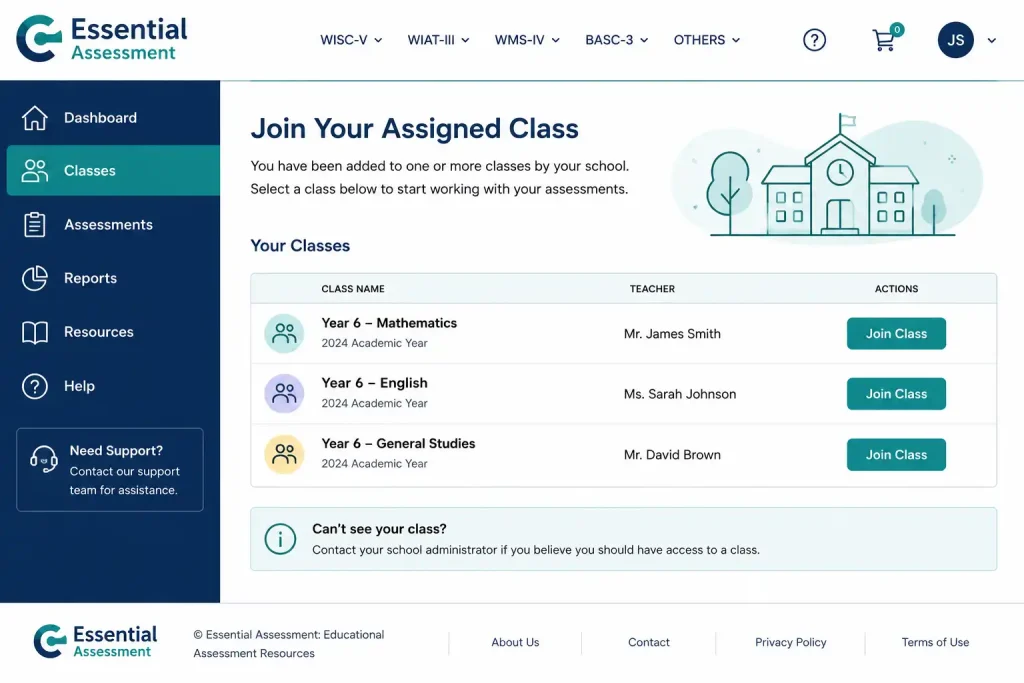
Once your account has been prepared, you can be associated with the appropriate class. Teachers can add students manually or use roster information when setting up their classes.
Step 4: Activate Your Student Access

Use the credentials supplied by your school to enter the student environment. If your school supports QR-code access or single sign-on, follow the corresponding instructions provided by your teacher.
Step 5: Check Your Student Dashboard
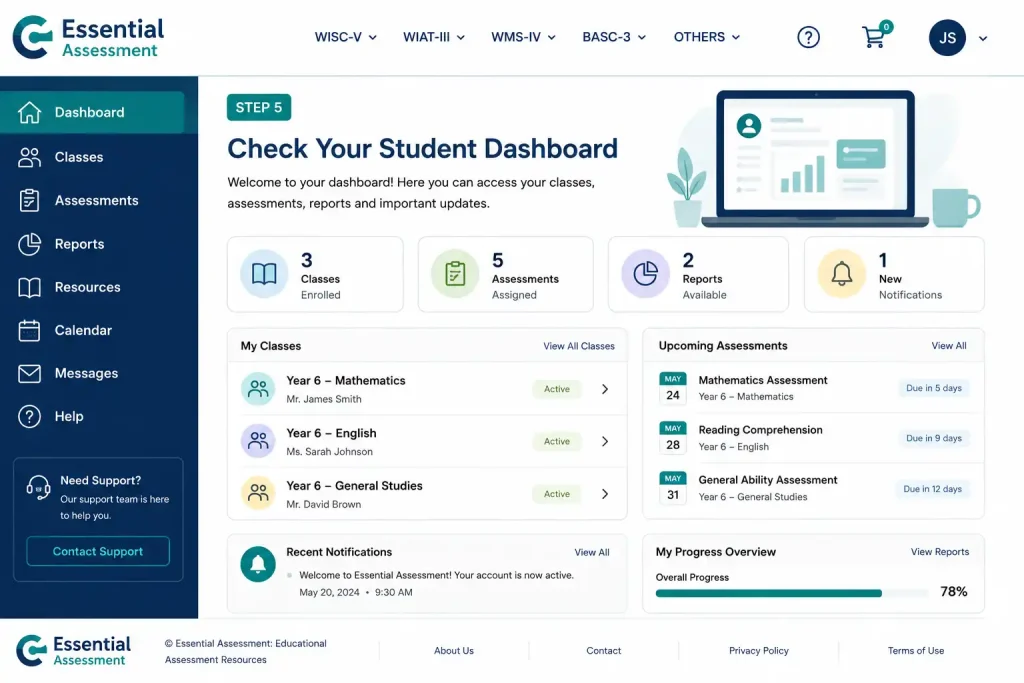
After successful access, review your dashboard and check the available tasks or assessments. Your assigned activities should appear according to the class and learning areas configured by your teacher.
Step 6: Start Using Essential Assessment

Once your account and class access are working, you can begin completing assigned learning activities and assessments. If you cannot access your account, contact your teacher or school administrator for assistance.
Understanding the Learning Experience
The purpose of an assessment is not only to produce a score. The information gathered can help identify what a learner understands and where further teaching may be needed.
This makes the platform useful as part of an ongoing learning cycle: assess current understanding, identify areas for improvement, complete suitable learning activities and then monitor progress over time.
For students, this can make learning goals more visible. For teachers, it provides information that can support classroom planning and targeted instruction.
Setting Up Essential Assessment for Teachers
Teachers have a central role in organising learning and assessment activities. Once a school account is available, the teacher environment can be used to establish classes, add learners and select the curriculum pathway that matches the school’s teaching requirements.
A well-organised class setup is important because assessment results need to be associated with the correct students and learning groups. Taking a little care when creating a class can prevent problems later when teachers review results or prepare reports.
Creating a New Class
The class setup process begins from the teacher dashboard. Teachers can create a class and provide the information needed to identify the group throughout the school year.
A typical setup involves:
- Sign in to the teacher environment using the school credentials provided to you.
- Open the Classes area from the main dashboard.
- Select the option to create or add a new class.
- Enter a suitable class name, such as a year-level and group identifier.
- Choose the relevant year level and curriculum pathway.
- Add the students who belong to the class.
- Save the class information once the details have been checked.
The available curriculum choices can vary according to the school’s configuration. The supplied platform information identifies options such as the Australian Curriculum, Victorian Curriculum and NSW Syllabus.
Adding Students to a Class
After creating a class, teachers need to associate the correct students with it. This can be done through roster information or by entering learners individually, depending on the school’s preferred workflow.
For larger groups, importing a roster can save time. A CSV file containing student information can be used where this function is available. Smaller groups may be easier to create through manual entry.
Teachers should check names and student identifiers before saving the roster. Accurate class information makes later assessment and reporting much easier to manage.
Login Cards and QR Access
Once students have been added, teachers can distribute their access details. The supplied information indicates that login cards and QR codes can be prepared for students.
This can be particularly useful in primary classrooms where younger learners may find manually typing usernames and passwords difficult. A printed QR code can provide a more straightforward classroom login experience when the school’s setup supports this feature.
Managing Curriculum Pathways
Curriculum selection is an important part of class configuration because assessment activities need to match what students are expected to learn.
Teachers may work with different curriculum standards depending on their school and state. Selecting the appropriate pathway during setup helps ensure that the learning content and assessment information are relevant to the class.
It is worth checking the year level and curriculum selection before assigning activities. Correct configuration at this stage can reduce confusion when analysing student performance later.
How Teachers Create Assessments
Assessment creation is one of the main functions of the platform. Teachers can use available assessment types to establish student understanding, investigate specific curriculum areas or check progress against learning expectations.
The supplied information identifies General or Diagnostic Assessments and Flexi Assessments as two important options.
A diagnostic activity can provide a broader view of student understanding, while a flexible assessment can focus on particular strands, sub-strands or topics.
General and Diagnostic Assessment
A diagnostic assessment can be useful when a teacher wants a wider picture of student ability. Rather than concentrating on one small topic, it can help establish a baseline across a broader curriculum area or year-level expectation.
The resulting information can then support decisions about teaching priorities. For example, a teacher may identify a group of students who require additional support with particular skills while another group is ready for extension work.
Flexi Assessment
Flexi Assessment provides a more targeted approach. Teachers can select specific curriculum strands, sub-strands or topics that relate to current classroom teaching.
This makes the option useful when a teacher wants to check understanding after teaching a particular concept rather than running a broad diagnostic assessment.
A targeted assessment can also help identify whether students are ready to move forward or whether a concept needs further classroom attention.
Assigning an Assessment to Students
After choosing the appropriate assessment type, teachers can decide who should complete it. The activity may be assigned to an entire class or selected learners, depending on the teaching purpose.
The general workflow is:
- Open the Assessments section.
- Choose the option to create or assign an assessment.
- Select the relevant subject area, such as Mathematics or English.
- Pick the assessment style that matches the learning objective.
- Select the class or individual students.
- Choose the preferred delivery method.
- Confirm the assessment details and assign it.
Teachers should consider the purpose of the activity before selecting the students. A whole-class assessment may be appropriate for establishing a shared baseline, while individual or smaller-group assignments can support differentiated teaching.
Online and Printable Assessments
Digital delivery allows students to complete assessment activities directly on their devices. This can make marking and result collection more efficient because completed online work can be processed within the platform.
The supplied information also identifies printable paper assessments. These can be useful where students need to work offline or where a teacher prefers a paper-based classroom activity.
For paper assessments, teachers can use the resulting marks by recording the relevant information in the online system. This allows paper-based work to remain part of the broader assessment record.
Student Assessment Workflow
Once an assessment has been assigned, students can access it through their learning environment. Assigned activities are presented in the area used for tasks or assessments.
A typical student workflow is:
- Sign in to the student environment.
- Open My Tasks or My Assessments.
- Locate the assigned activity.
- Select Start Assessment.
- Work through the questions carefully.
- Review answers where appropriate.
- Finish and submit the assessment.
Students should follow their teacher’s instructions about timing and acceptable resources. The assessment is most useful when it accurately reflects the learner’s current understanding.
Understanding Assessment Results
After an assessment has been completed, teachers can review the resulting performance information. Digital activities can be automatically marked, allowing results to become available without requiring every answer to be checked manually.
For paper-based activities, teachers can enter the marks into the platform. This gives schools a way to maintain assessment information even when some classroom activities are completed away from a device.
What Results Can Tell Teachers
Results can help identify strengths and areas that require further attention. Rather than looking only at a single overall mark, teachers can examine the underlying curriculum skills represented by the assessment.
This information can support several classroom decisions:
The value of the results comes from how teachers use them. Assessment data is most useful when it informs an actual teaching or learning decision.
Student Reflection and Learning Goals
Assessment can also involve students in thinking about their own progress. The supplied information describes reflection activities connected with areas such as My Numeracy and My Literacy.
Reflection encourages learners to consider what they have achieved and which areas they should continue developing. This can help turn assessment from something students simply complete into part of an ongoing learning process.
Teachers can use these reflections alongside assessment information when discussing goals with students. Clear goals can make it easier for learners to understand what they should practise next.
Using Results to Plan Differentiated Learning
One classroom may contain students working at different levels of understanding. Assessment results can help teachers recognise those differences and organise learning accordingly.
For example, a teacher may identify one group that needs further explanation of a foundational skill, while another group can move towards more challenging material. This type of grouping can make classroom instruction more focused.
The aim is not to permanently label students by ability. Instead, assessment information can provide a current picture that teachers use to make flexible teaching decisions.
From Results to Reports
Assessment information becomes even more useful when it can be organised into reports. The platform’s reporting tools are designed to present information at different levels, from individual student progress through to broader school trends.
Teachers may need detailed student-level information for daily instruction, while school leaders may be more interested in patterns across year levels or cohorts.
This distinction between detailed and broader information helps different users focus on the information relevant to their responsibilities.
Essential Assessment Reporting Options
The supplied platform information identifies several reporting approaches, each serving a different audience.
| Report | Main Audience | Purpose |
|---|---|---|
| Individual Student Goal Sheet | Students and parents | Shows learning goals, mastery information and suggested next steps |
| Class Diagnostic Report | Teachers | Highlights skill gaps and supports targeted grouping |
| Curriculum Growth Report | Teachers and school leaders | Tracks progress against curriculum or benchmark levels |
| Whole-School Analytics | Principals and leadership | Shows wider patterns across year levels, subjects and cohorts |
These reports can help turn individual assessment results into information that is easier to discuss, compare and act upon.
Individual Student Goal Sheets
A student goal sheet focuses on the learner rather than the whole class. It can show curriculum goals, areas of mastery and possible next steps.
This type of information can support conversations between students, teachers and parents. Instead of discussing progress only in general terms, the conversation can focus on specific learning areas.
Class Diagnostic Reports
A class diagnostic report gives teachers a broader classroom view. Skill information can help identify students who may need additional instruction as well as learners who could benefit from extension.
Teachers can use this information when planning flexible groups and targeted classroom activities. The purpose is to make teaching more responsive to the needs shown by the assessment evidence.
Curriculum Growth Reports
Growth reporting focuses on change over time. Rather than examining only the result from one assessment, teachers and school leaders can use progress information to understand how learning develops against relevant curriculum or benchmark levels.
This can be particularly useful when monitoring progress across a school year or reviewing whether teaching interventions are producing the intended improvement.
Exporting and Printing Reports
Teachers can access reporting functions to select the required students, class or cohort and then choose the appropriate report type.
Depending on the available account features, reports may be prepared for digital use, printing or offline record-keeping. The supplied information identifies PDF export as well as CSV or Excel-style data export.
A practical approach is to select the report based on its intended use. A goal sheet may be more suitable for an individual learning discussion, while a class diagnostic view may be more useful for lesson planning.
Managing Essential Assessment Accounts
School administrators and authorised staff may have additional responsibilities beyond everyday classroom use. Account management can include maintaining staff access, organising classes and preparing the platform for a new school year.
Keeping administrative information current is especially useful when staff members change roles or when classes are reorganised. A clean account structure can make it easier for teachers to find the correct classes and work with current student information.
Teacher and Administrator Functions
Depending on the school’s account configuration, administrative users may be responsible for tasks such as:
These tasks should normally be handled by authorised school personnel rather than students. Teachers should contact their school administrator if they need a change that is outside their available permissions.
Preparing for a New School Year
The end of a school year can create a significant amount of administrative work. Classes may need to be moved forward, reorganised or archived while student progress information remains available for future reference.
The supplied information indicates that schools can roll classes into new year levels while maintaining longitudinal student data. This means historical information can remain useful when teachers need to understand a learner’s progress over time.
Before making major changes, administrators should review the class structure carefully. Confirming student membership, teacher assignments and year-level information can reduce administrative errors.
Keeping Student Data Organised
Accurate data matters throughout the assessment cycle. A student’s assessment results are more useful when they are associated with the correct learner and class.
Schools should therefore take care when adding students, changing class membership or transferring responsibility between teachers. Where possible, administrators should review records before finalising changes.
Data Security and Privacy
Schools handle information about students and staff, so privacy and responsible data management are important considerations when using an online education platform.
The supplied information states that student and school data is securely stored on Australian servers and references compliance with the Privacy Act and ST4S (Safer Technologies 4 Schools) guidelines.
Schools should still follow their own information-security procedures and access policies. Staff should use only authorised accounts, protect their credentials and avoid sharing login information with other people.
Essential Assessment Troubleshooting
Most access problems can be investigated by checking the login details, browser settings, internet connection and account status before contacting support.
A useful troubleshooting approach is to identify exactly where the problem occurs. A login failure, QR scanning issue and assessment loading problem can have different causes.
Account Locked or Login Disabled
If an account cannot be accessed after several unsuccessful login attempts, the account may have been temporarily restricted.
The supplied information recommends waiting around 5 to 15 minutes before attempting to sign in again. If the problem continues, a teacher may need to check the student’s account or reset the relevant credentials through the available class administration tools.
Students should avoid repeatedly entering guessed passwords or PINs because this can make access problems more difficult to resolve.
Non-Unique Username or PIN
A credentials conflict can occur when more than one student has been assigned the same identifying login information.
When this happens, the teacher should review the affected student’s credentials and provide a unique password or PIN. Students should not attempt to solve the conflict by changing another learner’s information.
QR Code Scanner Is Not Working
QR login depends on camera access in the browser. If the camera does not activate, check the permissions associated with the website.
In a desktop browser, the permission controls can generally be accessed through the site information or padlock area beside the web address. Camera access should be set to Allow where the school has authorised QR login.
After changing the permission, reload the page and try scanning the code again.
Assessment Page Freezes
A frozen assessment screen can sometimes be associated with cached browser files or an unstable connection.
A useful first step is to refresh the page. The supplied information recommends using Ctrl + F5 on Windows or Cmd + R on Mac as appropriate.
If the issue returns, check the internet connection and consider using a supported browser. Students should tell their teacher if they are concerned that an interrupted session may have affected their work.
Practical Tips for Students
Students can avoid many common problems by following a few basic habits when working with the platform.
Keep credentials private. Never give your password or PIN to another student.
Read the instructions first. Understanding what an assessment asks for can prevent avoidable mistakes.
Check your assigned tasks. Look at the task area regularly so that new work is not missed.
Use a reliable connection. Where possible, complete digital assessments on a stable school or home network.
Ask the teacher when something looks wrong. If an assessment, login or account behaves unexpectedly, report the issue rather than repeatedly trying random settings.
Practical Tips for Teachers
Teachers can also reduce administration problems through careful preparation.
Before assigning an activity, verify that the correct class and students have been selected. Check the curriculum area and assessment type so the task matches the intended learning objective.
After students finish, review the results rather than relying only on completion status. The most useful information is often found in the skills or curriculum areas where performance differs between learners.
Teachers can then use those findings to adjust grouping, provide further instruction or identify students who are ready for additional challenge.
Frequently Asked Questions About Essential Assessment
Final Thoughts
Essential Assessment provides schools with a structured environment for combining assessment, learning activities and progress information. Its student access tools support classroom participation, while teacher functions allow educators to organise classes, select assessment approaches and review learning evidence.
The reporting side is particularly useful when schools need to move from individual results towards a broader understanding of progress. Individual goal information can support student conversations, class-level diagnostics can guide teaching groups, and wider analytics can help school leaders recognise broader patterns.
For the best experience, schools should keep account information accurate, provide students with clear login instructions and encourage teachers to use assessment results as part of ongoing teaching rather than treating them as isolated scores. When these practices are followed, Essential Assessment can become a practical part of a school’s assessment and learning workflow.
Business Portal Australia: Complete Guide to ABN, Business Registration & Tax Setup
ImmiAccount Login Guide (2026): Complete Registration, Visa Application & Account Management Guide
myGov Australia (2026): Complete Guide to Login, Services & Account Access