

Seesaw is a digital learning platform created mainly for primary education, bringing teachers, students, families and school leaders together within one connected learning environment. In Australian schools, Seesaw can support classroom activities, digital portfolios, student voice, assessment, feedback and communication between home and school. The platform is designed for Foundation through Year 6 and gives children several ways to demonstrate their learning, including written responses, drawings, photographs, audio, video and uploaded files.
For first-time users, Digital Classroom Learning App may initially feel unfamiliar because the available experience and tools can vary according to whether someone is using the platform as a teacher, student or family member. This Seesaw web guide covers the main account types, dashboard areas, activity process, classroom use, family participation and common troubleshooting solutions in a practical format. Visit Homepage
What Is Seesaw and How Does It Work?
Digital Classroom Learning App is an all-in-one learning platform that brings teaching, learning, assessment and family engagement together. Rather than requiring schools to depend on separate systems for every stage of learning, teachers can create learning activities, students can complete and share their work, and families can follow suitable learning progress through the same connected platform.
One of the central elements of the Digital Classroom Learning App experience is its digital portfolio approach. Students can develop an ongoing record of their learning, while teachers can examine student responses and assessment evidence to understand progress and recognise areas where additional support may be useful. Families can also gain a clearer picture of classroom learning and celebrate their child’s achievements.
Digital Classroom Learning App is particularly suitable for younger learners because students are not limited to providing written answers. They can explain their ideas using a microphone, make drawings, take photographs, record videos, upload files or type responses. This multimodal approach gives children different options for showing what they know and understand.
Seesaw Account Types Explained
Before getting started with Digital Classroom Learning App, it is useful to understand which account type applies to you. Teachers, students and family members have different roles, access methods and responsibilities within the platform.
| User type | Typical access method | Main purpose |
|---|---|---|
| Teacher | School email, Google or SSO | Create classes, assign activities, review work and provide feedback |
| Student | Class QR code, text code or school SSO | Complete activities and share learning |
| Family member | Teacher invitation or family connection method | View published work and communicate with teachers |
Teachers normally manage the classroom environment, learning activities and student work. Students use Digital Classroom Learning App to complete assigned tasks and demonstrate their understanding, while family members can access their child’s published learning and take part in permitted communication.
How to Get Started With Seesaw
Getting started begins with identifying your role and following the access method supplied by your school. Your teacher or school may provide specific instructions that differ from the general process, so those school-provided instructions should take priority when available.
Teacher Account Setup
Teachers can start by accessing the Seesaw platform and choosing the teacher option. Depending on how the school has configured access, authentication may be completed through a school email address, Google account or Single Sign-On system.
After authentication, the teacher can create or access the appropriate classroom environment. The classroom can then be organised with activities, resources, student groups and learning experiences based on the needs of the class.
Student Account Setup
Students generally join Digital Classroom Learning App using information supplied by their teacher. This may be a Class QR Code, a temporary Text Code or a school-managed login method.
Once the student has entered the correct class, assigned activities can be accessed through the student interface. Students should use the account or class connection provided by their school rather than trying to create an unrelated classroom account.
Family Account Setup
Family members usually connect to their child’s learning through an invitation or family connection process provided by the teacher or school.
After the connection has been established, families can view published learning and take part in permitted communication. Seesaw’s family features are intended to give adults at home a clearer view of what their children are learning while creating opportunities to recognise and celebrate progress.
Understanding the Seesaw Dashboard
After signing in, the Digital Classroom Learning App dashboard provides access to the main areas of the platform. The exact options displayed can vary depending on the user’s role and the configuration selected by the school.
Journal
The Journal is an important area for viewing published student learning. Depending on classroom settings, it may include student posts, evidence of learning, teacher updates and other classroom material.
For students, the Journal can gradually become a digital record of their work and progress. Teachers can use it as an organised space for reviewing learning evidence, while families can view appropriate published work and follow their child’s learning journey.
Activities
Activities is the area where assigned learning tasks can be found. Teachers can create or customise activities, while students use this section to locate work that has been assigned to them.
Digital Classroom Learning App includes content-authoring tools that allow teachers to build learning activities and enhance digital worksheets with features such as voice instructions, photographs, videos and text tools.
Messages
Messages provide communication between teachers, families and other permitted users. Digital Classroom Learning App describes these communication tools as two-way features designed to strengthen school-home partnerships, with communication support available in more than 100 languages.
Progress and Learning Insights
Teachers and school leaders can use progress and learning information to examine participation, assessment results and student development. The exact level of information available can vary according to the school’s Digital Classroom Learning App subscription and configuration.
The platform’s assessment tools can help teachers review student responses, identify misconceptions and use learning evidence to guide future teaching and support.
How Students Complete a Seesaw Activity
Completing an assigned activity is one of the most common reasons students use Digital Classroom Learning App. The process generally involves understanding the instructions, creating a response and submitting the completed work.
Step 1: Find the Assigned Activity
Open the Activities area and locate the task assigned by your teacher. Before beginning, read the activity title and instructions carefully so you understand what the task requires.
Some activities may also include additional media or recorded instructions. Take a moment to understand the teacher’s expectations before starting to create your response.
Step 2: Read or Listen to the Instructions
Go through the directions carefully. If the teacher has added audio guidance, listen to the recording before starting the activity.
This can be particularly helpful for younger students and learners who may understand spoken instructions more easily than written directions alone.
Step 3: Select the Response Option
Choose the option provided for adding your response. Digital Classroom Learning App’s creative environment allows students to demonstrate understanding in different formats instead of requiring every activity to be answered through typed text.
Step 4: Use the Creative Tools
Depending on the activity, students may have access to several response tools, including:
These tools are a key part of Digital Classroom Learning App because they make student thinking more visible. The platform highlights audio, video, drawing, images, screen recording and file uploads as different ways students can demonstrate what they know.
Step 5: Check the Work Before Submitting
Before submitting an activity, review the response carefully. Make sure it follows the instructions, that any recording can be understood and that every required part of the task has been completed.
If the work is not ready, use the available draft or saving option instead of submitting an incomplete response.
Step 6: Submit the Response
Once the activity is finished and ready for review, submit it using the appropriate submission control. The teacher can then review the student’s response and provide feedback according to the classroom’s learning workflow.
How Teachers Can Use Seesaw Effectively
Digital Classroom Learning App is not simply a platform for distributing digital worksheets. Teachers can combine its creative tools, digital portfolios and assessment features to create a more visible learning process and give students different ways to communicate their understanding.
Create Activities With Clear Instructions
A well-designed Digital Classroom Learning App activity should make the required task clear without creating unnecessary complexity. Teachers can use concise instructions, examples and suitable media when these elements genuinely help students understand what they need to do.
Voice instructions can also be useful for younger learners who may benefit from hearing the task explained aloud rather than relying entirely on written directions.
Give Students More Than One Way to Respond
A written response does not always provide the clearest evidence of what a student understands. For example, a student may understand a mathematical process but find it difficult to communicate the reasoning entirely through writing.
Allowing students to draw, speak, photograph, record or type can create alternative ways for them to demonstrate their knowledge. Seesaw’s multimodal design is intended to encourage this type of student agency.
Use Digital Portfolios to Capture Growth
Digital portfolios can provide evidence of learning over time instead of focusing exclusively on one assessment or individual piece of work. Teachers can review student work, compare evidence and use their observations to help plan future instruction.
This approach can also make learning easier for families to understand because they can see real examples of what their child has created and how their learning develops.
Differentiate Activities
Teachers can assign activities to individual students or groups when learners require different levels of support. Seesaw’s Australian platform information specifically highlights differentiated assignments for individual students and student groups.
This can be useful when a class is working towards the same broad learning objective but particular students need different resources, instructions or response formats to reach that goal.
How to Register for Seesaw
Step 1: Open the Seesaw Website
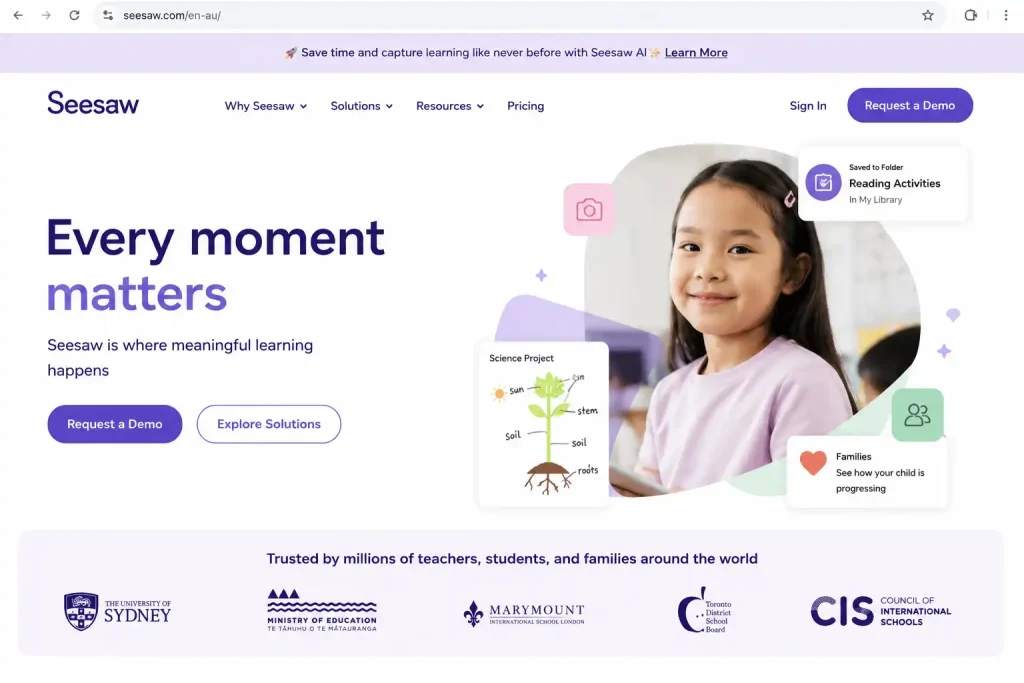
Go to the official Digital Classroom Learning App website and select Log In. From there, choose the option that matches your role, such as Teacher, Student, or Family Member.
Step 2: Select Your Account Type
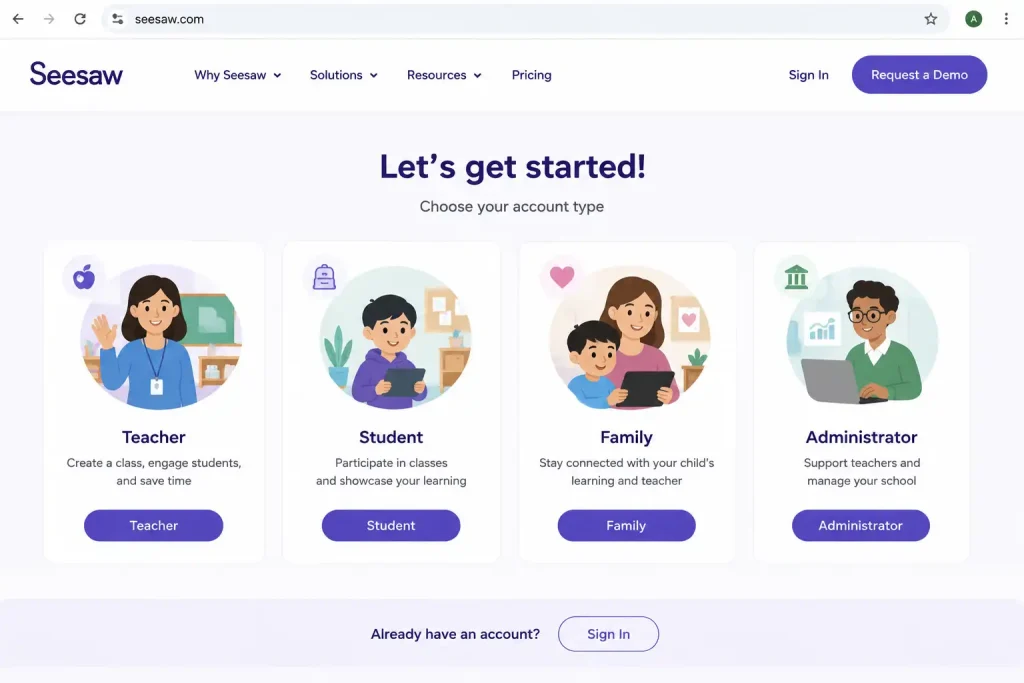
Choose the account type you need. Teachers create and manage classroom activities, students join classes using information provided by their teacher, and family members connect through an invitation from the school or teacher.
Step 3: Enter Your Account Details
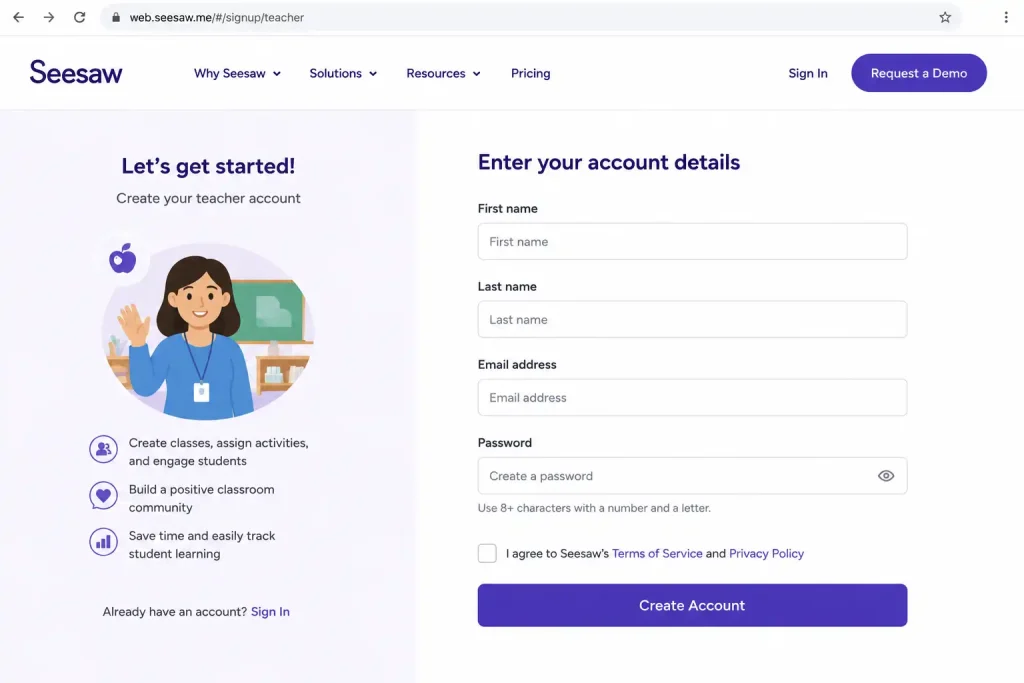
Teachers can register using a school email address, Google account, or supported Single Sign-On (SSO) option. Students normally do not create an independent teacher-style account; they join their class using a Class QR Code, Text Code, or school login.
Step 4: Follow the School or Teacher Invitation
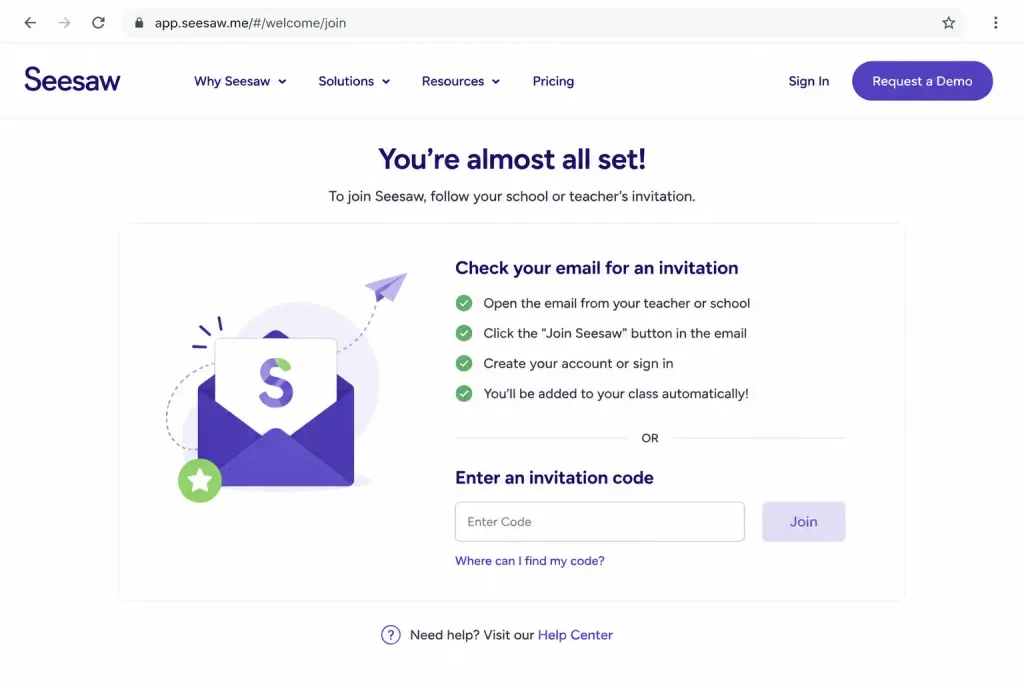
If you are registering as a family member, use the invitation link or family connection method provided by your child’s teacher or school. Follow the on-screen instructions to connect with the correct student.
Step 5: Complete Your Seesaw Setup
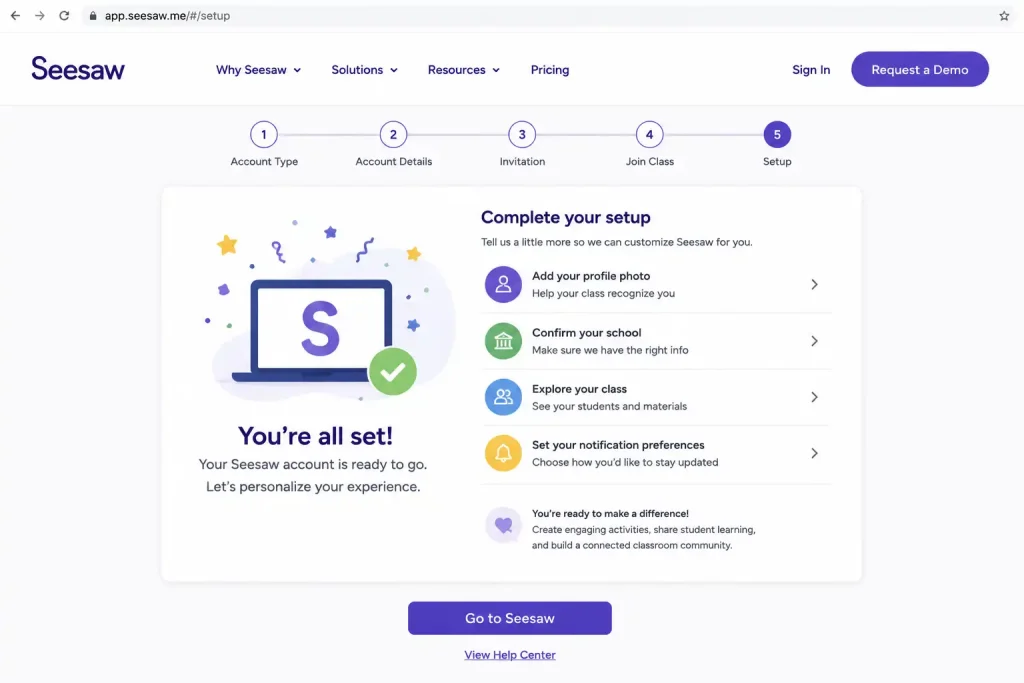
After authentication or joining the class, follow the prompts shown on screen to finish setting up your Seesaw access. Once completed, you can use the features available for your account type, such as activities, journals, messages or student learning portfolios.
How Families Can Use Seesaw
Family participation is an important part of the Seesaw learning cycle. After connecting to a child’s account through the process established by the school, family members can view published learning and engage with appropriate educational content.
View Your Child’s Learning
Families can view published student work from supported devices, giving them a clearer understanding of what their child is doing in the classroom. Digital Classroom Learning App describes its family features as providing real-time visibility into student work and progress.
Encourage Learning With Positive Feedback
A brief and meaningful comment can help a child recognise that their work is valued. Instead of concentrating only on whether an answer is correct, family members can ask questions such as, “How did you work that out?” or “What part was most interesting?”
This can turn Digital Classroom Learning App into more than a viewing platform. Student posts can also become useful starting points for conversations about learning at home.
Stay Connected With Teachers
Depending on the school’s configuration, teachers and families can use messaging for updates, announcements and other school-home communication. Digital Classroom Learning App supports individual, group and whole-class communication features.
Seesaw for Assessment and Progress Tracking
Assessment is another significant part of the Digital Classroom Learning App platform. Student responses, digital portfolios and assessment tools can capture evidence of learning and help teachers develop a clearer understanding of what students know and where they may need additional support.
Teachers can examine responses to identify misconceptions and use formative assessment information when adjusting instruction. Digital Classroom Learning App also provides progress dashboards and reporting features intended to make learning evidence easier to interpret.
For schools using Seesaw’s additional Instruction & Insights features, further tools are available for examining engagement and learning progress. These can include engagement dashboards, learning insights, reading fluency assessment and other premium instructional features.
Common Seesaw Problems and How to Fix Them
Technical issues can occasionally prevent students, teachers or families from using Seesaw as expected. Many common problems can be addressed by checking the basic access, device, browser and connection settings first.
Camera or Microphone Is Not Working
If the camera or microphone is not working, check the browser’s permission settings. In some cases, the browser may have previously blocked access to the device.
Open the site’s permission controls in your browser and confirm that camera and microphone access is allowed. After making the change, refresh the Digital Classroom Learning App page and try the feature again.
Student Cannot Join the Class
If a student cannot enter the class, first confirm that the correct Class QR code or Text Code has been used. If the supplied code is no longer valid or the student has been connected to the wrong classroom, contact the teacher for updated access information.
Avoid repeatedly entering random codes. The teacher or school is the most reliable source for confirming the correct class connection.
Activity Will Not Upload
An unstable internet connection can interfere with uploading photographs, videos or other files. Check the Wi-Fi connection and then try the upload again.
Larger media files may take longer to upload, so allow the process enough time to finish. If the issue continues, refreshing the page or restarting the application may resolve the problem.
The App or Browser Freezes
If Seesaw becomes unresponsive, close and reopen the application or browser. It is also worth checking that the device and application are up to date.
Seesaw states that its platform is available through supported browsers, including Chrome, Firefox and Microsoft Edge, as well as on iOS and Android devices.
Family Cannot See a Child’s Work
If a family member cannot see expected posts, first confirm that the family account has been connected to the correct child and that the relevant work has actually been published for family viewing.
If the connection appears correct but the content is still unavailable, contact the classroom teacher. Visibility can depend on classroom and sharing settings.
Best Practices for a Smooth Seesaw Experience
A few consistent habits can make Seesaw easier and more effective for teachers, students, families and schools.
For teachers: Keep instructions concise, use multimodal tools with a clear purpose, organise learning materials logically and provide feedback that helps students understand what they should do next.
For students: Read the complete activity before starting, review your work before submitting it and use audio, drawing, images or video when those formats communicate your thinking more effectively than text alone.
For families: Check published learning regularly, respond positively and use student posts as conversation starters rather than treating every post as though it were a formal test.
For schools: Provide consistent onboarding, establish clear expectations around privacy and communication, and make sure staff understand how classroom settings influence student and family access.
Frequently Asked Questions About Seesaw
Final Thoughts
Seesaw brings multiple elements of primary learning together within one environment. Teachers can create and differentiate activities, students can demonstrate understanding through several formats, and families can gain a clearer view of learning and progress. Its digital portfolio and assessment approach can also help teachers collect evidence of growth rather than depending only on traditional written work.
For first-time users, the most important thing is to understand the role-based workflow: teachers organise learning, students complete and submit activities, and families connect to published learning through the school’s approved process. Once these fundamentals become familiar, Seesaw provides a practical way to connect classroom activity, student voice, assessment and family engagement.
ImmiAccount Login Guide (2026): Complete Registration, Visa Application & Account Management Guide
Storypark Login Australia 2026: Sign In, Password Reset & Account Access Guide
Australian Passport (2026): Complete Guide to Apply, Renew, Replace and Manage Your Passport